There are five main receipt printer types: thermal, impact (dot‑matrix), inkjet, mobile/portable and kiosk/self‑service. For almost every retail or hospitality counter, a thermal printer is the default choice thanks to its speed and low running costs. The exceptions are kitchens or dispatch points that need multi‑copy or heat‑resistant output, where an impact printer earns its keep, and the rare case where colour branding on the receipt justifies an inkjet model.
TL;DR:
- Impact printers are necessary in kitchens and dispatch points for heat-resistant, multi-copy receipts, despite being slower, noisier, and requiring ribbons.
- Thermal printers are preferred for retail counters due to their fast speeds, quiet operation, and low consumables costs, but may fade over time and struggle in humid environments.
- Impact printers produce durable, heat-resistant copies but need regular ribbon replacements and are less suitable for busy, noisy settings.
- Compatibility issues often stem from driver support and unsupported command sets, making validated, vendor-bundled solutions a safer investment.
- Modern, connected printers should feature encryption and tamper prevention to secure sensitive transaction data, especially in networked POS setups.
Table of Contents
- Different types of receipt printers: the practical taxonomy
- Thermal printers: how they work and what to check before buying
- Impact printers: built for kitchens, dispatch and multi‑copy stock
- Inkjet and colour receipt printers: a small, specific use case
- Connectivity: matching the printer to your POS setup
- How to choose a receipt printer: checklist and supplier questions
- Maintenance and consumables: what actually drives running costs
- How Switch-and-save reduces risk when you buy a printer and EPOS bundle
- Will a receipt printer work with my existing POS software?
- Security features: encryption and tamper prevention on modern printers
- Sustainability: paper waste and the environmental cost of each type
- Author perspective: what actually matters once the printer is installed
- Get your receipt printer sorted with a Switch-and-save EPOS bundle
- Manufacturer and guide pages used to inform this article
- Sources
- FAQ
Different types of receipt printers: the practical taxonomy
Every receipt printer works on one of three principles: heat, mechanical impact, or ink. Thermal printers use a heated print head to darken chemically treated paper. Impact printers strike an ink ribbon through carbon or carbonless multi‑part paper, the same idea as the dot‑matrix printers of the 1980s. Inkjet units spray liquid ink onto plain paper, which is why they can print in colour.
That single mechanical difference cascades into every practical decision you will make:
- Speed: thermal wins comfortably, with manufacturer specs citing speeds up to 300 to 500 mm per second; impact and inkjet trail well behind.
- Noise: thermal is near silent; impact printers clatter, which some kitchens actually rely on as an audible order alert.
- Consumables: thermal needs only paper rolls; impact needs ribbons and multi‑part stock; inkjet needs cartridges.
- Multi‑copy printing: only impact can produce genuine carbon‑copy duplicates in one pass.
- Environmental tolerance: impact shrugs off heat, grease and humidity far better than thermal paper does.
Mobile and portable printers are usually thermal mechanisms shrunk into a battery‑powered, Bluetooth or Wi‑Fi‑connected shell, built for market stalls, delivery drivers and roaming till staff. Kiosk and self‑service printers are also typically thermal, but built into a housing designed for public‑facing durability rather than counter speed. Choosing between them is less about the technology and more about where in the venue the printer has to live.
Thermal printers: how they work and what to check before buying
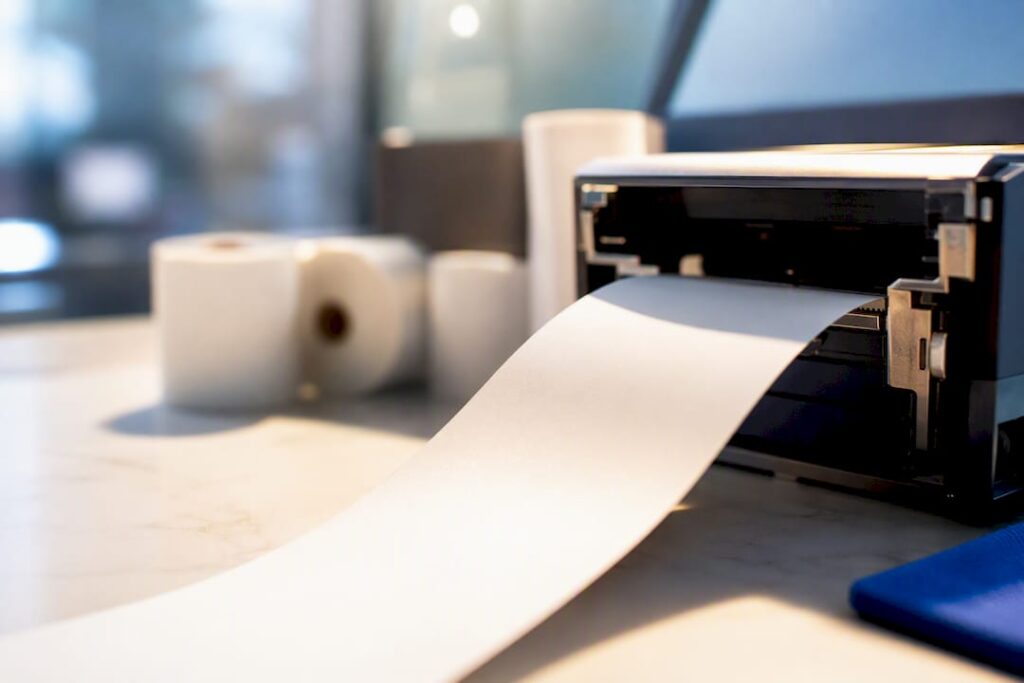
Thermal printers use direct thermal chemistry: the print head heats specific points on treated paper, and there’s no ink, no ribbon, and almost nothing to wear out beyond the head itself and the cutter blade. That’s the whole reason thermal has become the dominant technology for retail and hospitality tills: fast prints, quiet operation, and a consumable that costs almost nothing per roll.
When you compare models, look past the marketing and check these specifics:
- Print speed in mm/sec, usually 250 to 500 depending on the model
- Paper width compatibility, almost always 80mm or 58mm
- Auto‑cutter presence and cut count rating
- Connectivity options bundled or available as add‑ons
- IP rating if the printer sits somewhere greasy, wet or dusty
- Warranty length and where repairs actually get carried out
Common variants include compact mPOS units built for tablets, cloud‑ready models that accept jobs straight from an online ordering platform, and front‑exit versus top‑exit designs, which matter more than they sound for tight counter spaces. Epson’s TM‑m30III, for example, adds USB‑C sync and charge for tablet setups alongside optional Wi‑Fi and Bluetooth, a sign of how far tablet‑first thermal models have moved beyond the old single‑cable till printer.
Pro Tip: Always ask for the printer’s rated cut count, not just its print speed. A printer that prints fast but has a cutter rated for only 1 million cuts will need replacing years before a well‑specified rival, especially on a busy counter doing hundreds of transactions a day.
Impact printers: built for kitchens, dispatch and multi‑copy stock
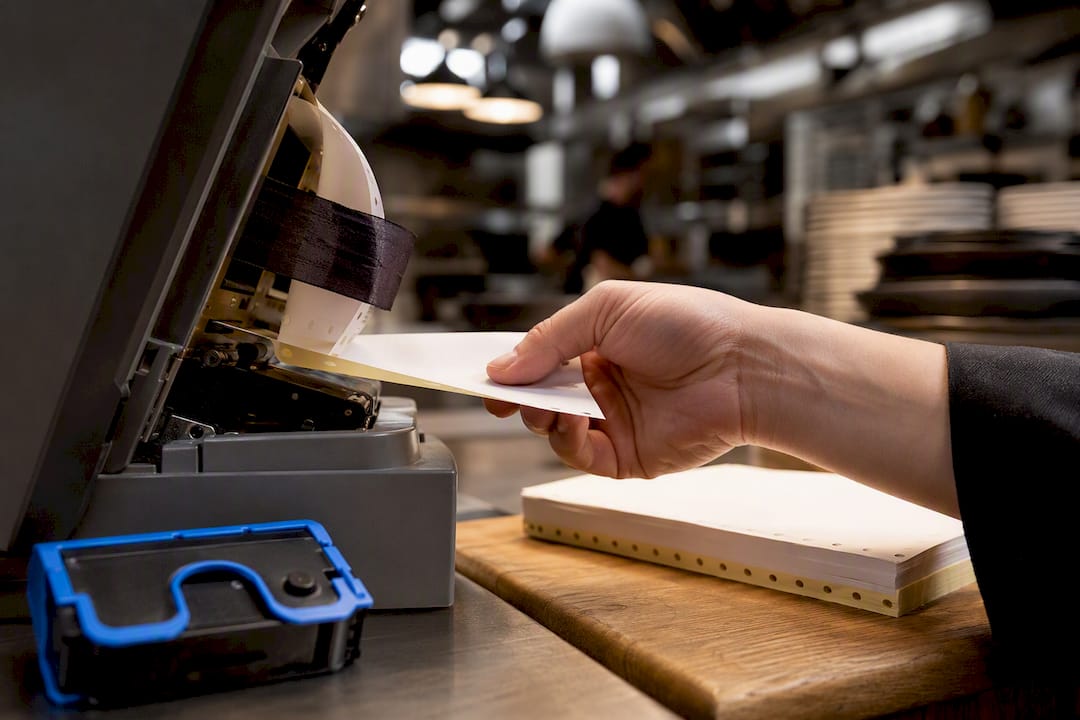
Impact printers strike a ribbon through carbonless multi‑part paper, producing two or three physical copies of the same ticket in a single pass. That’s precisely why kitchens still rely on them: a chit that survives grease, steam and being slapped on a spike simply doesn’t have a thermal equivalent, and impact printers remain the standard choice wherever multi‑copy or heat‑resistant output is non‑negotiable.
The trade‑off is real. Impact printers are:
- Noisier, though some kitchen teams treat the clatter as a useful order alert
- Slower to print than thermal, often noticeably so under a rush
- Reliant on ribbons that need regular replacement and stock management
Dispatch counters, warehouse logistics desks and any till printing duplicate delivery notes fall into the same category. If your kitchen printer needs to survive a spilled sauce and still be legible tomorrow, thermal paper won’t do that job.
Inkjet and colour receipt printers: a small, specific use case
Inkjet printers exist in POS mainly because they’re the only realistic way to put full colour on a receipt, logos, seasonal promotions, loyalty stamps in brand colours rather than plain black text. That capability comes at a cost: inkjet running costs and print speeds trail thermal by a wide margin, and ink cartridges add an ongoing expense thermal paper simply doesn’t have.
For most retailers, a dedicated kiosk or coupon printer handles occasional colour promotions better than swapping the main till printer to inkjet. Reserve inkjet for genuinely brand‑critical receipts, not as a default.
Connectivity: matching the printer to your POS setup
Getting the interface wrong is one of the most common and most avoidable mistakes in a printer purchase. The general rule runs like this:
- USB for a single till with one printer and no need to share it
- Serial (RS‑232) for legacy systems still running older POS software
- Ethernet for shared or multi‑station printing across a network
- Bluetooth for a single tablet paired directly to one printer
- Wi‑Fi for mobility across multiple devices or a roaming setup
Many printers accept swappable interface cards, so a till bought with serial can sometimes move to Ethernet later without buying a new unit entirely. Before you commit to any model, confirm the printer’s ESC/POS command set and driver support are validated against your specific EPOS software, not just “compatible in theory.”
How to choose a receipt printer: checklist and supplier questions
Start with your own operation, not the spec sheet. Run through this before you ask a supplier for a quote:
- Transaction volume: a quiet café and a 200‑cover restaurant need very different duty cycles
- Environment: heat, grease and steam point towards impact; a clean counter points towards thermal
- Multi‑copy need: kitchens and dispatch usually require it; front‑of‑house rarely does
- Mobility: market stalls, table service and delivery need battery‑powered portable units
- Integration: confirm the printer’s drivers are validated for your EPOS software specifically
- Connectivity: match the interface to how many devices need to print to it
- Footprint and budget: counter space and total cost of ownership, not just sticker price
When you’re talking to a supplier, ask direct questions: has the driver been validated against your exact EPOS platform, what’s the warranty response time, are spare parts held in stock in the UK, and does the printer support the paper width you already use?
Pro Tip: Treat “USB‑only” as a warning sign the moment you have more than one till. A USB‑only printer for a multi‑till setup usually means someone underestimated your growth, or is trying to sell you the cheapest unit in the range rather than the right one.
Red flags worth walking away from: no local UK support contact, a supplier who can’t confirm EPOS compatibility in writing, or a printer range with no upgrade path if your business grows to a second till.
Maintenance and consumables: what actually drives running costs
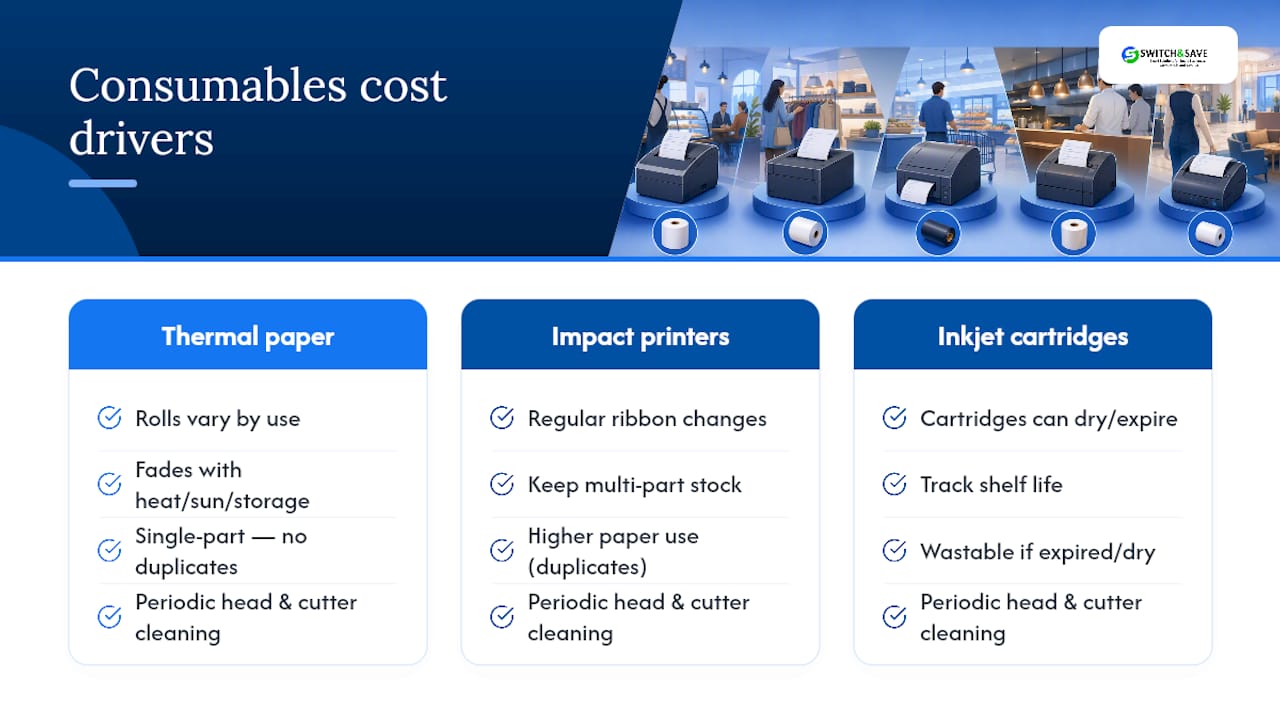
Thermal paper comes in grades that matter more than most buyers realise. Cheaper rolls fade faster under heat, sunlight or long storage, so if you need receipts to stay legible for warranty claims, pay attention to the paper grade, not just the price per roll. Roll width, 80mm or 58mm, has to match your printer exactly.
Impact printers need ribbon changes on a fairly predictable cadence, plus a steady stock of multi‑part paper if you’re producing duplicate tickets. Inkjet cartridges bring their own headache: ink can dry out during quiet trading periods and has a shelf life you need to track.
Routine upkeep is simple across all three: clean the print head periodically, clear paper dust from the cutter mechanism, and keep firmware updated so the printer stays compatible with your EPOS software.
How Switch-and-save reduces risk when you buy a printer and EPOS bundle
Buying a printer separately from your EPOS software is where compatibility problems usually start. Switch-and-save bundles receipt printer hardware with pre‑validated software, UK‑based support and demo access, so driver mismatches and connectivity guesswork get solved before the till is even switched on.
Will a receipt printer work with my existing POS software?
Compatibility problems rarely come from the printer’s mechanical technology. They come from mismatched drivers, unsupported ESC/POS commands, or an EPOS platform that simply hasn’t been tested against a particular model. Before buying, check whether the manufacturer or your software provider explicitly lists your EPOS system as supported, rather than assuming “it’s a standard USB printer” will be enough.
Some EPOS platforms only support a narrow list of validated printers, which is often frustrating for retailers who’ve already bought hardware. Others, particularly cloud‑based systems, are built to work across a wider range of thermal and impact models via standard command sets. If you’re running a dual screen EPOS setup with a built‑in printer, compatibility is solved for you from the outset, which is precisely why bundled hardware appeals to businesses that don’t want to manage driver conflicts themselves.
Multi‑store operators face an extra layer of complexity: every till across every site needs to run the same validated printer and driver combination, or reporting and receipt formatting can drift between locations. If you’re scaling from one site to several, ask any supplier whether their printer range is validated fleet‑wide, not just for a single unit, before you commit to a rollout.
The safest approach for any business, single site or multi‑store, is to treat printer and software compatibility as one purchasing decision, not two separate ones made weeks apart.
Security features: encryption and tamper prevention on modern printers
Receipt printers handle more sensitive data than most owners assume, transaction values, card entry methods, and sometimes partial card numbers or loyalty details. Modern POS printers increasingly support encrypted communication between the till and the printer, which matters most on networked setups where a printer sits on the same Wi‑Fi or Ethernet segment as payment terminals and stock systems.
Physical tamper prevention matters just as much as data encryption, particularly for kiosk and self‑service printers positioned where the public can reach them. Locking paper compartments, tamper‑evident housings and secured cable routing all reduce the risk of a printer being opened or its cabling interfered with in an unattended location.
For networked printers, ask your supplier whether firmware updates are delivered securely and whether the printer’s network interface can be restricted to your internal POS network rather than left open. A printer that accepts print jobs from any device on the same Wi‑Fi network is a weak point worth closing before it becomes a problem, not after.
None of this is exotic security. It’s the same basic hygiene you’d expect from any networked device sitting near payment data, patched firmware, restricted access, and physical housing that can’t be opened without a tool.
Sustainability: paper waste and the environmental cost of each type
Thermal paper’s biggest environmental drawback isn’t the paper itself but the coating. Many thermal rolls use BPA or BPS developers to create the chemical reaction that darkens under heat, and these compounds have drawn increasing scrutiny for their environmental persistence. BPA‑free thermal rolls are now widely available and worth specifying by default, particularly if your business prints thousands of receipts a month.
Impact printers avoid that chemical coating entirely, since they print on plain or carbonless paper with a ribbon, but they consume more ribbons over their lifetime, and worn ribbons aren’t easily recycled through standard paper waste streams.
Inkjet sits somewhere in between: plain paper recycles more easily than thermal rolls, but cartridge waste and ink cartridges themselves add a separate disposal problem that neither thermal nor impact printers create.
The single biggest lever any retailer or hospitality operator actually controls is volume, not printer type. Digital receipt options, emailed or app‑based, cut paper consumption far more than switching between thermal and impact ever will, and many EPOS platforms now offer that as a toggle rather than a hardware decision at all.
Author perspective: what actually matters once the printer is installed
Ethernet beats USB the moment you add a second till. Keep spare rolls and a spare cutter blade on site always. Buy validated drivers and local support over the cheapest unit on the page.
— Amir
Get your receipt printer sorted with a Switch-and-save EPOS bundle
Buying a printer on its own means gambling on driver compatibility and hoping your EPOS software plays nicely with whatever arrives in the box. Some providers bundle hardware, software and UK‑based support into one package, so the printer, till and cloud dashboard are validated together before they reach the counter.
Browse the EPOS systems range to see current hardware and software bundles, or head straight to the restaurant EPOS demo page if you’re running a kitchen that needs both front‑of‑house speed and back‑of‑house durability sorted in one conversation. A demo checks hardware compatibility, confirms driver validation for your existing setup, and gets you a bespoke quote without the usual back and forth. Book a demo today and get a straight answer on what fits your counter.
Manufacturer and guide pages used to inform this article
- Epson OmniLink TM‑m30III specifications
- Star Micronics TSP143IV product page
- Pro Disk Network POS printer guide
- POS printer interface connectivity guide
Sources
- OmniLink TM-m30III POS Thermal Receipt Printer | Epson
- Best POS receipt printers for restaurants and retail (Pro Disk Network)
- POS printer interfaces explained — WenShin Technology / POS parts guide
FAQ
What are the different types of receipt printers?
The main types are thermal, impact (dot‑matrix), inkjet, mobile/portable and kiosk/self‑service. Thermal dominates most tills because of its speed and low running costs.
Which printer is best for printing receipts?
Thermal is the best default for most retail and hospitality counters, offering fast, quiet prints from a single paper roll with no ink or ribbon. Impact printers are the better choice where multi‑copy tickets or heat resistance matter more than speed.
What are the four main types of printers?
In a general office context, the four common categories are inkjet, laser, thermal and impact (dot‑matrix). Within POS specifically, thermal and impact are by far the most common, with inkjet reserved for colour receipts.
What are the disadvantages of a thermal printer?
Thermal printers rely on heat‑sensitive paper that fades over time, especially with heat or sunlight exposure, and they cannot produce carbon‑copy duplicates. They also struggle in very hot or humid kitchen environments, cost slightly more per roll for BPA‑free stock, and offer no colour printing without switching to inkjet.
Do I need a different printer for the kitchen than the till?
Usually, yes. Front‑of‑house counters benefit from a fast, quiet thermal printer, while kitchens generally need an impact printer for multi‑copy tickets and resistance to heat and grease.