
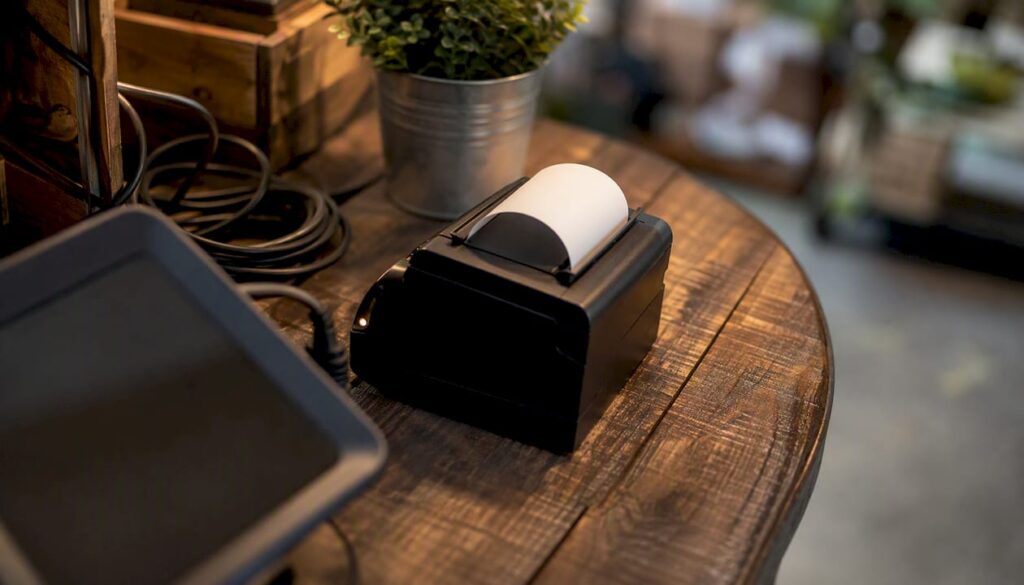
POS hardware compatibility means your physical devices — receipt printers, card readers, barcode scanners, cash drawers and more — work correctly with your POS software, operating system and payment provider. Before you buy anything, check your POS vendor’s certified hardware list, confirm the device’s OS and connection method, and verify your payment processor supports that terminal model. Brands such as Epson, Star Micronics, Zebra, PAX, Verifone, Ingenico, SumUp, and Zettle (PayPal Zettle) all appear on various certified lists, but a model that works on one platform may not work on another. Switch-and-save supplies pre-tested, bundled kits for UK retail and hospitality, removing most of this guesswork from the start.
The fastest way to avoid a costly mistake:
- Check your POS vendor’s supported hardware page before ordering any device.
- Confirm the device’s connection type (USB, Ethernet, Bluetooth, Wi-Fi) matches your setup.
- Verify the OS version your POS app requires and that your tablet or terminal meets it.
- Confirm your payment processor supports the card reader model and firmware version.
- Run a test transaction and a sample print before committing to a full rollout.
Key takeaways
Checking your POS vendor’s certified hardware list, OS version, connection type and payment processor approval before purchase prevents the vast majority of compatibility failures in UK retail and hospitality deployments.
| Point | Details |
|---|---|
| Check certified lists first | Verify the exact model number on your POS vendor’s supported hardware page before ordering. |
| OS and firmware must match | Confirm the device meets the minimum OS and firmware version your POS app requires. |
| Connection type determines reliability | USB and Ethernet outperform Wi-Fi for fixed counters; always keep a wired fallback. |
| Payment processor approval is separate | Your acquirer must approve the terminal model independently of your POS vendor’s list. |
| Switch-and-save bundles remove the guesswork | Pre-tested kits with UK support mean hardware and software are confirmed compatible before delivery. |
Table of Contents
- Which hardware categories affect POS system hardware support?
- How connection types and protocols decide whether devices will pair
- What platform and OS constraints mean for compatible POS devices
- Payment terminal compatibility and regional restrictions in the UK
- How to find and use certified hardware lists before you buy
- A practical buying and testing checklist for UK businesses
- Common compatibility problems and how to fix them quickly
- How Switch-and-save helps UK businesses avoid compatibility issues
- What multi-site deployments teach you about hardware standardisation
- Switch-and-save pre-tested EPOS bundles for UK businesses
- Sources
- FAQ
Which hardware categories affect POS system hardware support?
Every hardware category below needs its own compatibility check. A printer that pairs perfectly with one POS app may be invisible to another. The table covers the main device types, their typical connection options, and widely recognised model families used in UK deployments.
| Hardware category | Typical connections | Common UK model families |
|---|---|---|
| Receipt printers | USB, Ethernet, Bluetooth, Wi-Fi | Epson TM series, Star Micronics TSP/mC series |
| Card readers / PIN pads | USB, Bluetooth, Wi-Fi | PAX A series, Verifone V400m, Ingenico Desk/Move, SumUp Air, Zettle Reader 2 |
| Barcode scanners | USB, Bluetooth | Zebra DS series, Socket Mobile S720 |
| Cash drawers | RJ11 (printer-kick) | APG, MMF — driven via receipt printer |
| Label printers | USB, Ethernet | Zebra ZD series, Epson LabelWorks |
| Scales | USB | Mettler Toledo, Avery Berkel |
| Kiosks / self-service | Ethernet, Wi-Fi | Dedicated Android or Windows enclosures |
| Tablets / terminals | Wi-Fi, USB-C, Lightning | Apple iPad (various), Surface Pro, Android handhelds |
Model family matters for three reasons. First, drivers and firmware are written per family, so a TSP654II and a TSP743II share the same StarPRNT driver stack but a different paper path. Second, payment certification (EMV, contactless) is issued per terminal model and firmware version, not per brand. Third, spare parts and UK support contracts are easier to maintain when you standardise on one family across all sites. A UK specialist guide recommends Star Micronics printers and Socket Mobile S720 scanners for many UK Shopify deployments, citing 2D scanning readiness for future QR code workflows as a practical reason to choose them now. You can browse Switch-and-save’s receipt printers and barcode scanners to see pre-tested options.
How connection types and protocols decide whether devices will pair
Physical connections and software protocols are two separate layers, and both must match your POS software. Getting one right and ignoring the other is a common source of failed installations.
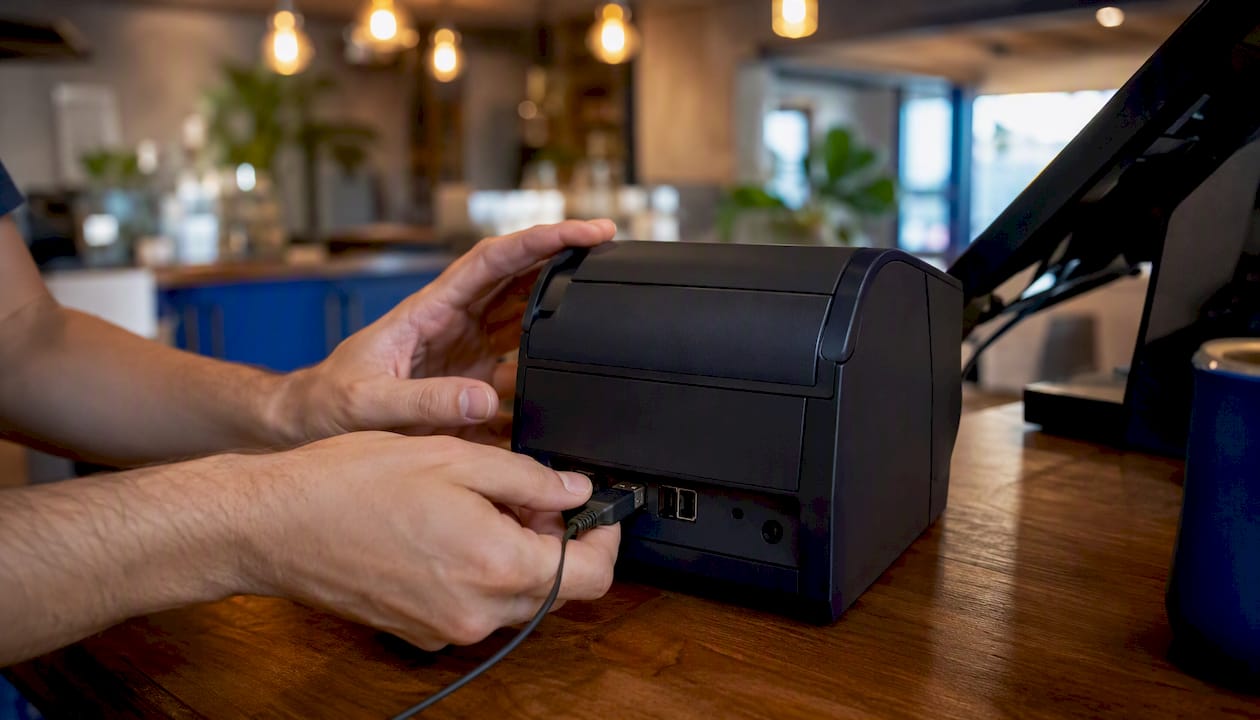
Connection types and their trade-offs
| Connection | Best use case | Key trade-off |
|---|---|---|
| USB | Fixed counter, high-volume retail | Most reliable; no network dependency |
| Ethernet | Fixed counter, back-office printers | Stable; requires cabling; suits older UK buildings |
| Wi-Fi | Roaming hospitality, mobile POS | Convenient; vulnerable to interference and dropout |
| Bluetooth | Mobile card readers, handheld scanners | Low power; limited range; pairing can be lost after updates |
| Serial | Legacy scales, older printers | Rare in new installs; needs USB adaptor on modern hardware |
For fixed counters in busy retail, USB or Ethernet almost always outperforms Wi-Fi on reliability. Star Micronics’ SteadyLAN feature passes a wired Ethernet connection through the printer to an iPad, which is particularly useful in older UK buildings where Wi-Fi signal is inconsistent. That single feature can prevent mid-shift printer dropouts without rewiring the whole counter.
Protocols: ESC/POS, StarPRNT, OPOS and SDKs
Most receipt printers speak ESC/POS, the command language developed by Epson and now supported by almost every thermal printer brand. Star Micronics uses its own StarPRNT protocol, which offers richer formatting but requires either a StarPRNT-compatible app or a translation layer. OPOS and JavaPOS are Windows-specific driver standards that let POS software communicate with peripherals through a common interface — useful when you run a Windows-based till and want to swap hardware without rewriting integrations. Cloud and browser-based POS apps (Lightspeed, Shopify) typically bypass OPOS entirely and use a vendor SDK or a local print bridge app instead. Lightspeed’s supported hardware documentation explicitly advises using up-to-date browsers and supported OS versions for its web client, because an outdated browser can break the print bridge even when the printer itself is fine.
Pro Tip: For any fixed counter in a busy retail or hospitality site, default to USB or Ethernet over Wi-Fi. If you need wireless flexibility for roaming service, keep at least one wired fallback printer on the network so a Wi-Fi dropout never stops you trading.
What platform and OS constraints mean for compatible POS devices
Your POS app’s supported platforms set a hard boundary on which devices you can use. Choosing hardware outside that boundary means the software simply will not communicate with it, regardless of how good the device is.
- iPad / iOS: Apps distributed through the App Store must use Apple’s MFi (Made for iPhone/iPad) certification for Lightning accessories. USB-C iPads (iPad Pro, iPad Air M-series) accept a wider range of peripherals but still require the app to support the connection type. Bluetooth peripherals need to be on the app’s tested list, not just iOS-compatible in general.
- Android: Android’s open ecosystem means OEM support varies significantly. A Zebra DS2208 scanner may work perfectly with one POS app via USB HID mode and fail with another that expects a proprietary SDK. Always test on the exact Android version your terminals run, not the latest available.
- Windows: Windows-based POS terminals benefit from OPOS drivers and a stable x86 driver stack. Microsoft’s Windows 11 specifications are the authoritative reference for minimum hardware requirements; a terminal running an older CPU or insufficient RAM may not support Windows 11, locking it to Windows 10 and affecting which POS clients will install. Microsoft Surface devices are built for business use and typically offer better driver support and longer update cycles than consumer tablets, which matters for multi-year POS deployments.
- Browser-based POS: Apps like Shopify POS and Lightspeed Retail run partly or fully in a browser. Driver and SDK needs shift: you need a compatible local print bridge or cloud print service rather than a traditional OPOS driver. Browser version matters as much as OS version here.
Payment terminal compatibility and regional restrictions in the UK
Card reader compatibility is where the most expensive mistakes happen. A terminal that processes payments incorrectly, or not at all, costs you sales and potentially your PCI compliance standing.
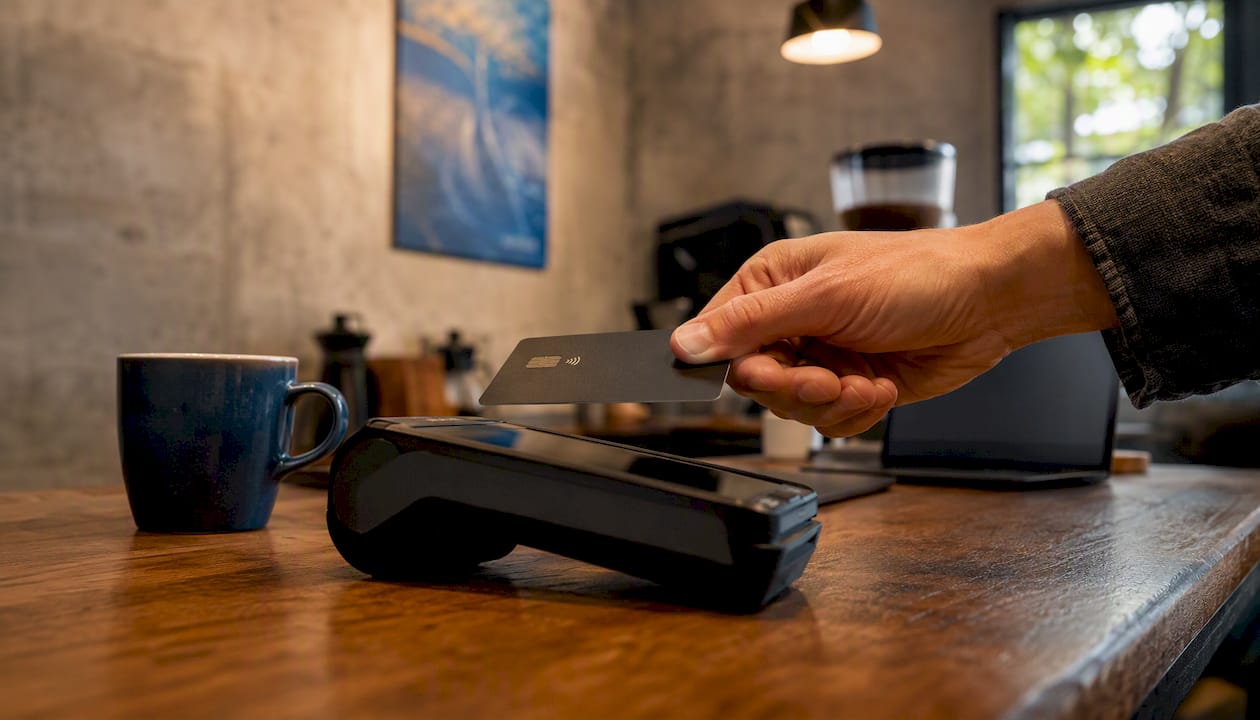
Integrated vs semi-integrated vs standalone describes how the card reader talks to your POS software. An integrated terminal receives the transaction amount directly from the POS, reducing manual keying errors and simplifying end-of-day reconciliation. Semi-integrated keeps payment data on a separate certified device while still sharing transaction data with the POS. Standalone terminals operate independently, which simplifies PCI scope but means manual reconciliation. For most UK retail and hospitality businesses, integrated or semi-integrated is the right choice. The integrated payments setup guide from Switch-and-save covers the practical setup steps in detail.
EMV and contactless are mandatory for UK card acceptance. Every terminal you consider must support chip-and-PIN (EMV) and contactless (NFC) at a minimum. Verify the firmware version supports the contactless limit currently set by UK Finance (raised to £100 in 2021 and still in force).
Regional and account restrictions are the hidden trap. Brightpearl’s tested hardware lists make clear that certain card readers are limited to specific markets or account types — a reader listed as compatible may carry a note such as “US/CA accounts only” that effectively makes it unusable for a UK merchant. Always read the caveat column, not just the model name.
Pro Tip: Before signing any hardware contract, run a live test transaction on the exact terminal model and firmware version you plan to deploy, using your actual UK merchant account. A successful test on a demo account or a different firmware build does not guarantee it will work on yours.
How to find and use certified hardware lists before you buy
Vendor certification pages are your primary source of truth. Here is how to use them properly.
- Search by exact model number, not just brand. A Verifone V400m and a V400c are different devices with different firmware trees. Searching “Verifone” alone will return results that may not apply to your specific unit.
- Check the OS and firmware version column. A note reading “tested with iOS 15+” means the vendor has not validated the device on earlier iOS versions. If your iPads run iOS 14, that is a compatibility risk.
- Read every caveat. Notes such as “UK accounts only”, “requires firmware 3.x”, or “not supported on Android 12” are not small print — they are the compatibility boundary. Shopify’s supported hardware page flags regional and account limitations explicitly for this reason.
- Confirm with your payment processor. Your POS vendor and your payment processor maintain separate lists. A terminal on the POS vendor’s list may still require a separate certification from your acquirer or processor before it can take live payments.
- Check driver and firmware availability. Confirm the required driver or firmware update is available for download and that your IT team or support provider can apply it. An EPOS procurement guide recommends validating ports, interfaces, driver stability and approved replacement paths before any rollout.
- Verify UK stock and warranty. A model on a US-based vendor’s certified list may not be stocked by UK distributors or may carry a different warranty term. Confirm UK availability before ordering.
The Brightpearl POS-compatible hardware help article also provides pairing instructions alongside its device lists, which is useful during the install and testing phase.
A practical buying and testing checklist for UK businesses
Use this before committing to any hardware purchase and again during your in-store trial.
| Check | What to verify | Pass / fail criteria |
|---|---|---|
| Certified list confirmation | Model number on vendor’s supported hardware page | Listed with no blocking caveats for UK accounts |
| OS and firmware match | Device OS version vs POS app requirement | Meets or exceeds the minimum stated version |
| Connection type available | USB port, Ethernet port, or Wi-Fi band on your network | Physical connection confirmed and tested |
| Payment processor approval | Terminal model approved by your UK acquirer | Live test transaction authorised successfully |
| Sample print / scan | Print a receipt; scan a barcode | Output matches expected format; no errors |
| Offline behaviour | Disconnect network; attempt a transaction | POS handles gracefully (queues or alerts) |
| Speed under load | Process 10 transactions in quick succession | No queuing delays or timeout errors |
| Battery endurance (mobile) | Run device for a full trading shift | Battery above 20% at end of shift |
| UK stock and warranty | Confirm UK distributor holds stock | Replacement unit availability varies |
Log every result against the model number and firmware version. That record becomes your procurement decision document and your baseline for future troubleshooting. An industry guide on POS peripherals notes that standardisation and routine maintenance prevent most peripheral failures — keeping a small spare inventory of your tested models is far cheaper than an emergency replacement during a busy trading period.
Common compatibility problems and how to fix them quickly
Most compatibility failures fall into a short list of repeatable patterns. Knowing the fix before the problem hits saves a shift.
- Pairing failure after a POS update. The POS app update changed the Bluetooth or USB driver profile. Fix: delete the device pairing on both the POS and the peripheral, restart both, and re-pair from scratch. If the issue persists, check whether the POS update release notes mention a driver change.
- Printer queuing when the network drops. Jobs stack in the print queue and the printer appears offline. Fix: switch to USB direct connect as a temporary measure. For a permanent fix, consider a printer with SteadyLAN or move the printer to a wired Ethernet connection.
- Card reader region lock. The terminal activates but declines all transactions with an error code. Fix: contact your payment processor to confirm the terminal is activated on a UK merchant account. Some PAX, Verifone and Ingenico models ship with regional firmware that must be flashed before UK use.
- Driver mismatch after a Windows update. The receipt printer or scanner stops responding after a Windows update. Fix: roll back the Windows update or download the updated OPOS driver from the manufacturer’s site. Keep a copy of the last known-good driver version on a USB stick at each site.
- Bluetooth interference in a busy environment. Scanners or mobile card readers drop connection intermittently. Fix: reduce the number of active Bluetooth devices on the same channel, switch to a 2.4 GHz-only or 5 GHz Wi-Fi band to reduce overlap, or replace the Bluetooth peripheral with a USB equivalent for that counter.
- Firmware mismatch after a POS software update. The POS app now requires a minimum firmware version the device has not been updated to. Fix: download and apply the firmware update from the manufacturer’s portal. If the update is not available for your model, contact your POS vendor — some older models are dropped from support after major software releases.
When escalating to vendor support, always supply: exact model number, current firmware version, POS app version, OS version, and any error codes or log extracts. That information cuts resolution time significantly. For setup and commissioning guidance, the Switch-and-save POS hardware setup guide covers pairing, driver installation and common fixes in one place.
How Switch-and-save helps UK businesses avoid compatibility issues
Switch-and-save takes a different approach to POS hardware compatibility by supplying bundled hardware and SSPOS software kits that have been tested together before they leave the warehouse. Every kit is validated against the same OS image, firmware version and payment processor configuration your business will actually use. That means you are not cross-referencing three separate certified lists and hoping the combination works — it has already been confirmed.
For multi-site rollouts, Switch-and-save runs staged pilots: one site goes live first, any compatibility issues are resolved, and the confirmed configuration is then replicated across remaining locations. A spare pool of matched hardware is maintained so a failed unit can be swapped within 24 hours without disrupting trading. UK-based support is available throughout, with engineers who know the specific hardware families in your kit rather than a generic helpdesk reading from a script.
👉 To request a compatibility assessment or arrange an on-site demo, visit the EPOS systems page or explore the SSPOS software to see how the software and hardware work together.
What multi-site deployments teach you about hardware standardisation
The businesses that experience the fewest compatibility problems are rarely the ones with the newest hardware. They are the ones that picked two or three tested models, stuck with them across every site, and built a small spare inventory around that shortlist.
When you standardise on a single receipt printer family and a single scanner model, your driver stack becomes predictable. A firmware update on one site can be tested and confirmed before it rolls out to the rest. A failed unit at 11am on a Saturday gets swapped in minutes because the spare on the shelf is identical, not a “compatible alternative” that needs re-pairing and re-testing under pressure.
The lesson from deployments with multiple terminals is this: the day-to-day resilience of your POS setup depends far more on standardisation and a small spare inventory than on having the latest hardware. Buy proven, buy consistent, and keep one spare per model family per site.
Switch-and-save pre-tested EPOS bundles for UK businesses
Sorting through certified lists, firmware versions and payment processor approvals takes time most business owners do not have. Switch-and-save’s pre-tested EPOS bundles give you hardware and software that have been validated together for UK retail and hospitality, with UK-based support included from day one.
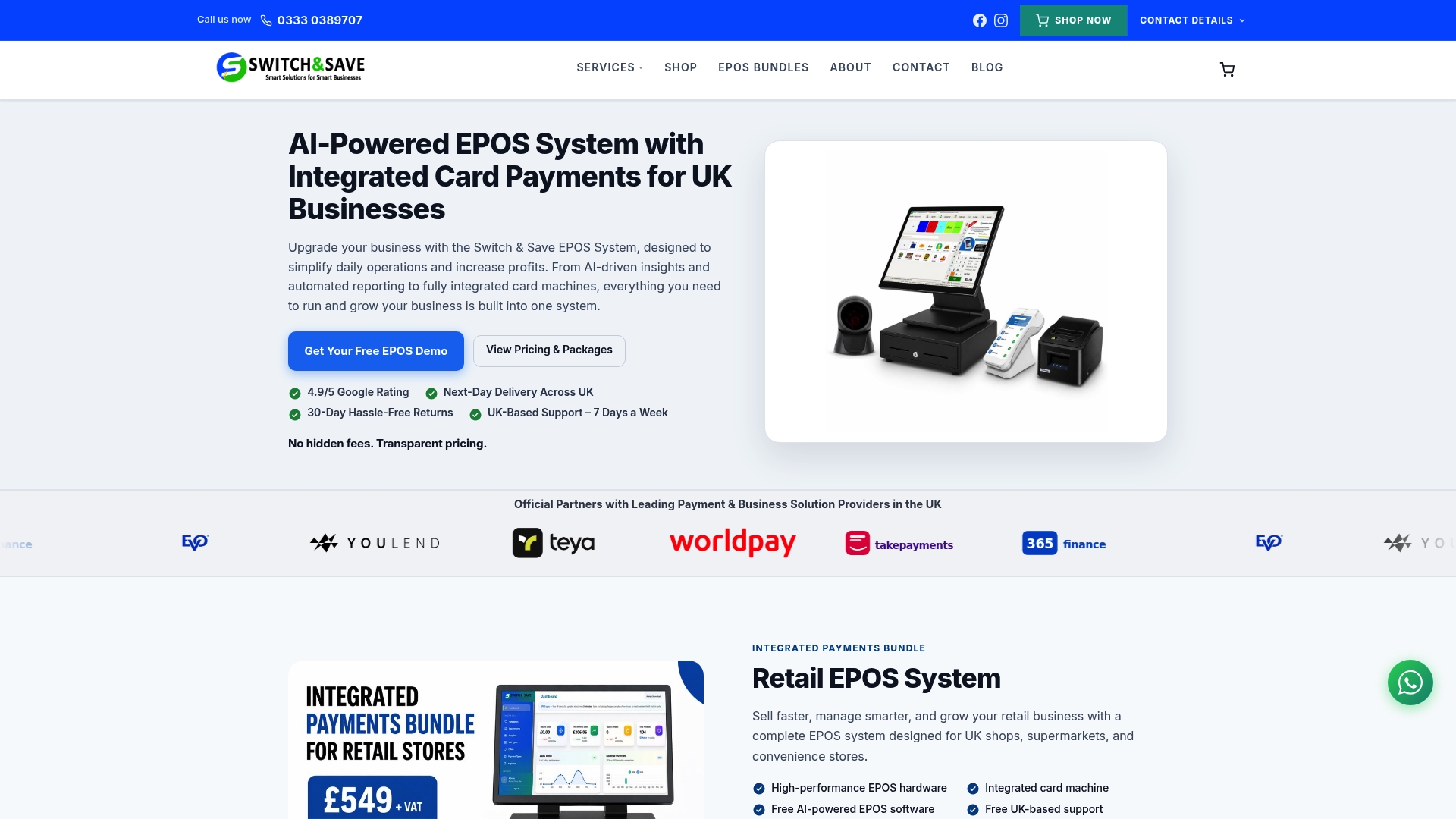
Every bundle includes SSPOS software, compatible peripherals and integrated payment processing — all confirmed to work together before delivery. Whether you are opening a first site or rolling out across multiple locations, Switch-and-save handles the compatibility checks so you can focus on trading. Local engineers are available for on-site setup and ongoing support across the UK.
👉 Browse EPOS systems and hardware bundles or find your local Switch-and-save expert to book a compatibility assessment or demo today.
Sources
These pages are worth bookmarking when you are validating hardware for a UK deployment:
- Supported Shopify POS Hardware
- Prior to connecting your hardware, check that your devices are compatible here.
- Windows 11 specifications
- Shopify POS Compatible Hardware UK | The 2026 Retailer’s Guide — Pos-Hardware Ltd
FAQ
What hardware is needed for a POS system?
A typical POS setup requires a tablet or terminal, receipt printer, barcode scanner, cash drawer and card reader. The exact models depend on your POS software’s certified hardware list and your payment processor’s approved terminal list.
What does POS hardware compatibility mean?
It means a physical device — printer, scanner, card reader or cash drawer — works correctly with your specific POS software, operating system and payment provider. Compatibility is confirmed per model number and firmware version, not per brand.
What is a hardware compatibility list?
It is a vendor-published document listing every device model tested and approved to work with a specific POS application, often including notes on OS version, firmware, region and account type restrictions. Shopify and Lightspeed both publish these publicly.
What are common examples of POS hardware?
Common examples include Epson TM-series and Star Micronics TSP-series receipt printers, Zebra DS-series barcode scanners, PAX and Verifone card terminals, SumUp Air and Zettle Reader 2 mobile card readers, and Apple iPad as the POS terminal itself.
How do I verify a card reader works with my UK merchant account?
Check your POS vendor’s certified list for the exact model and firmware version, then confirm separately with your UK payment processor or acquirer that the terminal is approved and activated for UK transactions. Run a live test transaction before committing to a full deployment.