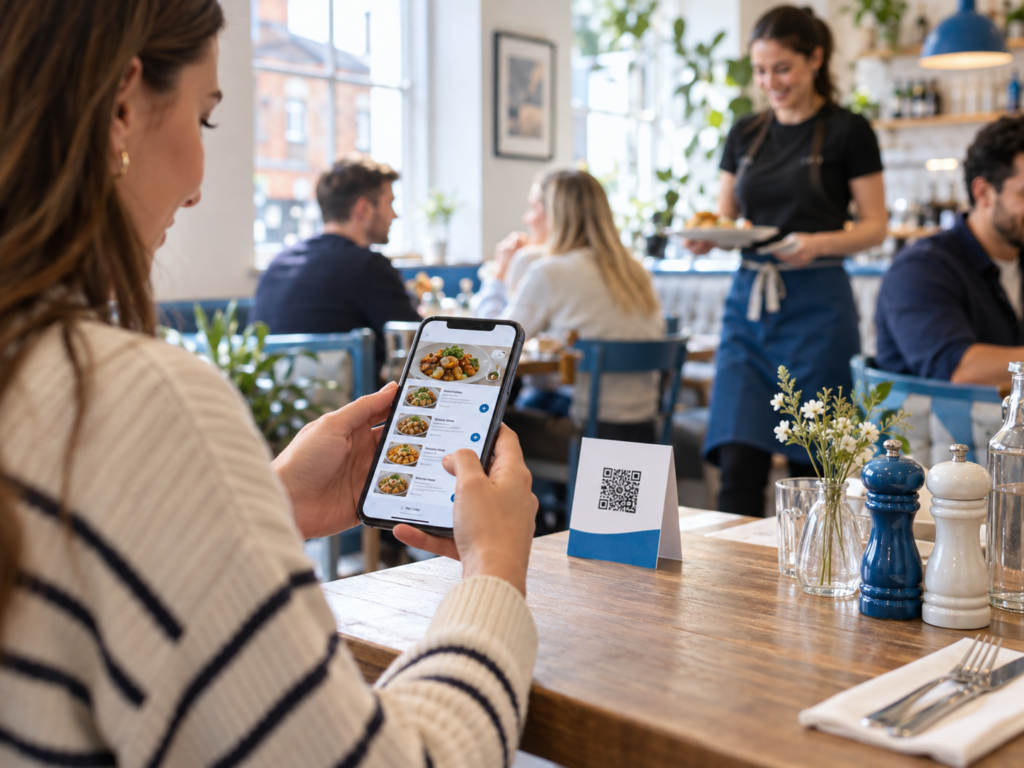
QR ordering lets customers scan a code at their table, open your menu on their phone and place an order. Depending on your setup, they can pay on their phone or settle the bill with a member of staff. When the ordering page connects to your restaurant EPOS system, the order can reach the kitchen without someone entering it again at the till.
For a UK restaurant, café or pub, the appeal is simple: customers can order when they’re ready, while your team can focus on preparing food and looking after guests. But the details matter. A QR menu that only displays food is different from a complete order and pay system, and you’ll want to know exactly how orders, payments and table numbers move through your business.
Key takeaways
| Question | Short answer |
|---|---|
| What does the QR code do? | It opens a mobile menu or ordering page, often linked to a particular table. |
| Do customers need an app? | Usually no. Many systems open in a phone browser, though you should check your chosen setup. |
| Can customers pay on their phone? | Yes, if online payment is enabled. Other setups let customers order now and pay later. |
| Where does the order go? | With a connected setup, it can appear in the EPOS system and on a kitchen printer or display. |
| Does it replace staff? | No. Staff still welcome guests, answer questions, serve food and help anyone who prefers to order in person. |
What is QR ordering?
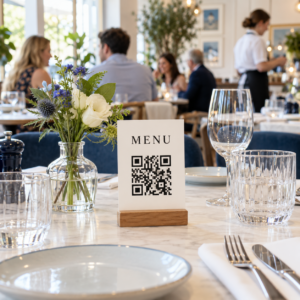
QR ordering is a way for customers to use their own phones to browse a menu and send an order. The restaurant places a QR code on a table card, menu or sign. The customer scans it with their phone camera and follows the link that appears.
There are three common versions, and it’s useful to tell them apart:
- QR menu: Customers can view the menu, but a staff member still takes the order.
- QR ordering: Customers select items and submit the order on their phone.
- QR order and pay: Customers place the order and complete payment on their phone.
If you’re comparing providers, ask them to demonstrate the whole journey. A digital menu might look similar to an ordering page at first glance, but it won’t handle the same work for your team.
How does QR ordering work, step by step?
1. The customer scans the code
Imagine two people sitting at table 12 in a Birmingham café. They scan the code on the table card. Their phones open a mobile page showing the café’s current menu.
A table-specific code can pass the table number to the ordering page automatically. If you use one code across the whole venue, customers may need to select or enter their table number instead. Either way, check what appears on the order the kitchen receives. “Two toasties” isn’t enough information if nobody knows where to take them.
2. They choose food and drinks
Customers add items to a basket, much as they would when shopping online. A well-set-up menu shows the price, description and available choices before they confirm.
Those choices are often called modifiers. In plain English, they’re options such as oat milk, no onions, an extra topping or a choice of side. If your restaurant EPOS system supports the same options across ordering channels, customers and staff can work from a consistent menu. Our guide to setting up menu modifiers explains how to make those choices clear for both the customer and the kitchen.
This is also where menu maintenance becomes important. If you’ve sold out of an item, you need a reliable way to stop customers ordering it online.
3. They review and submit the order
Before confirming, customers should see their selected items, extras, quantities and total. They may also see a place to add a short note.
Keep that note field sensible. “Sauce on the side” is easy to handle. An open text box shouldn’t become the only way to explain essential choices such as cooking preference or allergens. For those, clear menu options and a way to speak to staff are more helpful.
4. They pay, if your setup offers it
Some restaurants take payment as soon as the customer submits the order. Others add the order to the table’s bill, so guests can pay at the end with a card machine or another accepted method.
Neither approach is right for every venue. A quick-service café may prefer payment up front. A restaurant where guests order several rounds might prefer to keep a table open. Ask how your system handles extra orders, split bills, tips, refunds and cancelled items before you choose a payment flow.
5. The kitchen receives the order
With an integrated setup, the confirmed order can move into the restaurant EPOS system and on to the correct kitchen printer or kitchen display. Drinks might go to the bar while food goes to the kitchen.
The details need to be readable. Staff should be able to see the table number, each item and its modifiers without guessing which instruction belongs to which dish. If you’re deciding between a printer and a screen, see our guide to kitchen printers and restaurant EPOS.
6. Staff prepare and serve it
The phone doesn’t carry the meal to the table. Your team still checks the order, prepares it, serves it and helps guests who need anything else.
That’s the practical way to think about QR ordering: it gives customers another route to place an order. Good service still depends on the people in your restaurant.
What does your restaurant EPOS system do?
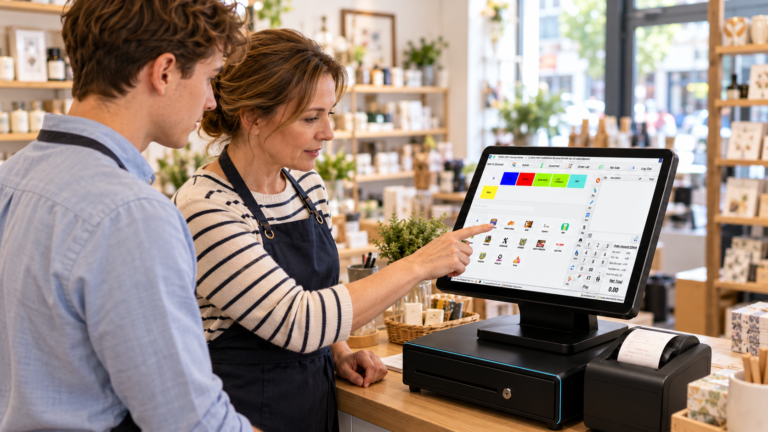
Your restaurant EPOS system is where orders, menu settings, payments and sales records can come together. When QR ordering is connected properly, staff don’t have to read an order from one device and type it into another.
That connection can make day-to-day work easier to follow. You can check whether an order was submitted, which table it belongs to and how it was paid. Your kitchen can receive the same item choices the customer selected. Your sales reports can include QR orders alongside orders taken by staff, provided your chosen systems share that data.
There’s a difference between connected and fully synchronised. For example, a provider might send orders to your till but require you to update prices separately on the QR menu. During a demo, change a test item’s price or availability and see what happens on the customer’s phone.
Switch & Save offers hospitality EPOS options for restaurants and other food businesses, including connected ordering channels. You can explore what to look for in a hospitality point of sale system or view the Switch & Save restaurant EPOS system.
What should you check before setting it up?
Start with your busiest service, not an ideal quiet afternoon. If ten tables order at once, will the kitchen receive clear tickets? Can staff see new orders promptly? What happens if a guest orders another drink from the same table?
Then test these points with your own menu:
Menu accuracy. Check prices, descriptions, extras and unavailable items. If you change a price at the till, find out whether the QR menu updates automatically.
Table identification. Scan the codes at several tables. Make sure each order reaches the team with the correct table number.
Kitchen routing. Order a drink, a starter and a main. Check where each item appears and whether the instructions are easy to read.
Payment and refunds. Test a paid order, a cancelled item and a refund. If you offer pay later, check how staff close the table’s bill.
Customer help. Tell guests they can still order with a member of staff. Some won’t have a suitable phone, mobile data or the desire to use a QR code.
A weak connection. Try the ordering page on your venue’s Wi-Fi and a mobile connection. Agree a simple staff-led ordering process for times when the page or internet connection isn’t working.
For example, a neighbourhood pizza restaurant could test a table order with two pizzas, different toppings and a later drinks order. That single trial would show whether modifiers print clearly, the second order stays with the right table and the bill remains accurate.
Does QR ordering suit every restaurant?
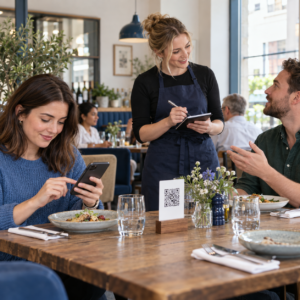
It can work well where guests are comfortable browsing at their own pace: casual restaurants, cafés, pubs and venues with outdoor tables are obvious examples. It may also help when guests want to order another round without waiting to catch someone’s attention.
But your service style matters. If your team explains a changing menu, recommends wine or takes detailed allergy requests, personal conversation should remain easy to access. You can offer QR ordering as a choice alongside traditional table service.
Think about your menu, too. A short, clear menu is generally easier to use on a phone than one with dozens of unclear categories. If customers repeatedly need help to complete an order, simplify the page before adding more QR codes.
The best test is a small one. Put codes on a few tables, watch where customers pause and ask staff what causes confusion. Then adjust the menu and workflow before rolling it out across the venue.
Ready to see how it could work in your restaurant?
A useful demo should show your actual menu, table numbers, kitchen workflow and preferred way to take payment. That gives you a much clearer picture than a generic screen tour.
Switch & Save helps UK businesses reduce costs with AI-powered EPOS systems, card payment solutions and business finance.
Check your savings today and ask to see how QR ordering could fit your restaurant.
Frequently asked questions
Do customers need to download an app for QR ordering?
Many QR ordering systems open a menu in the customer’s phone browser, so there’s no app to download. Check the customer journey with your provider and try it on both iPhone and Android.
Can customers order more than once from the same table?
They can if your chosen setup allows repeat orders. Test whether each new order keeps the correct table number and appears clearly for staff and the kitchen.
Is a QR menu the same as QR ordering?
No. A QR menu only lets customers view items. QR ordering lets them select and submit an order; QR order and pay also lets them complete payment on their phone.
Can customers still order from a waiter?
Yes. You can keep staff-led ordering alongside QR ordering. That gives guests a choice and gives your team a straightforward way to help anyone who can’t or doesn’t want to use their phone.
Will QR orders appear in my EPOS reports?
They can if the QR ordering platform and EPOS system are connected in a way that records those sales together. Ask your provider to show you a completed test order in the sales report.
What happens if the internet goes down?
QR ordering needs a working connection to load the page and send the order. Keep a staff-led method available and ask your provider what happens to orders submitted just before a connection drops.