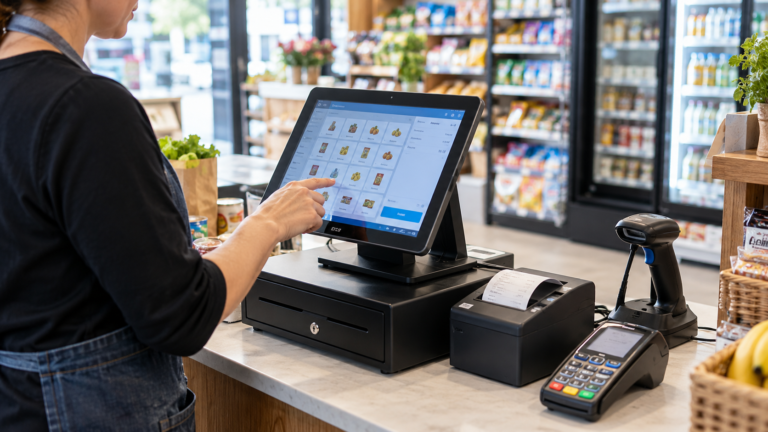
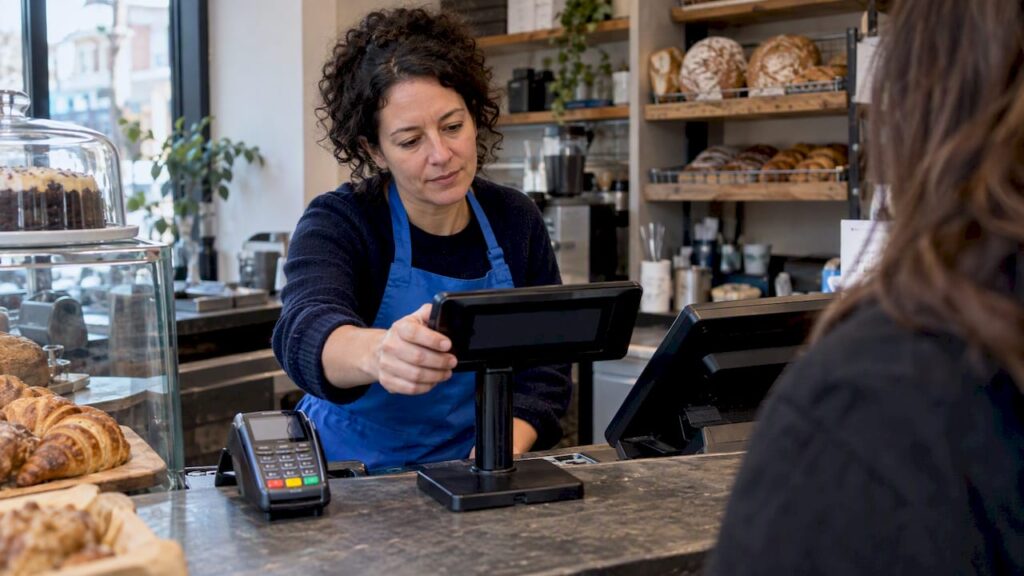
For most small and medium counters, a compact LCD or pole display that shows item names, prices and totals in real time is the practical choice: it balances cost, legibility and promotional flexibility. Before you buy anything, check compatibility with your EPOS software, test legibility at counter height, and confirm mounting options. If you are unsure where to start, book a compatibility check or demo and let someone walk through the fit with you.
TL;DR:
- Compatibility verification with EPOS software and drivers is crucial to prevent hardware failures or setup delays.
- USB connection types are typically simplest for retail setups, while Ethernet or HDMI offer more flexibility for multi-screen configurations.
- Ensuring high contrast, correct placement, and unobstructed view of the display guarantees compliance with legal standards and improves customer experience.
- Troubleshooting common faults involves checking power, cabling, port settings, and firmware updates, with detailed records speeding support responses.
- Support from vendors like Switch-and-save includes demos, compatibility checks, and transparent pricing, making hardware choices easier and more reliable.
Table of Contents
- Types of customer displays and when each suits your counter
- How to choose: an actionable checklist of criteria
- Compatibility and integration checks with EPOS and payment terminals
- Placement, legibility and legal accessibility considerations
- Installation and common troubleshooting for customer displays
- How Switch-and-save supports customer displays
- What matters most when adding a customer display
- Book a demo or get a quote from Switch-and-save
- FAQ
- Sources
Types of customer displays and when each suits your counter
Customer-facing hardware ranges from simple text units to full-colour screens, and the right pick depends on your till traffic and how much you want the screen to do beyond showing a total.
- 2-line VFD or pole displays: cheap, durable, and ideal when all you need is item name, price and total visible to the customer.
- LED pole displays: similar function to VFD units but often brighter, useful in high-glare counters or daylight-facing windows.
- Compact LCD second screens: show richer detail such as itemised baskets, loyalty prompts and running totals, suited to busier retail and hospitality counters.
- Full-colour tablets: support promotions, signature capture and sometimes customer surveys, best for businesses that want the display to double as a marketing tool.
Cost rises roughly in that order, along with a general increase in lifespan expectation: VFD units tend to be the most robust for constant use, while tablets require more careful handling and occasional software updates. The trade-off is simple. A basic unit does one job reliably; a tablet does more but asks more of your compatibility checks and your budget.
How to choose: an actionable checklist of criteria
Run any shortlisted display against this list before you commit to a purchase or a quote.
- Compatibility: confirm the display has drivers or an SDK that your EPOS software supports, and that your software actually offers a second-screen or customer-display mode.
- Connection type: USB is simplest for most retail setups, RS232 suits older or specialist terminals, and Ethernet or HDMI gives more flexibility for larger counters or multi-screen setups.
- Readability: check font size, contrast and viewing angle from a customer’s standing position, not just from behind the till.
- Mounting and cabling: decide whether the display sits on an arm, a short pole or flat on the counter, and plan cable routing so nothing crosses a walkway.
- Payment flow: if your card terminal already shows contactless prompts or captures signatures, check whether a separate customer display duplicates or complements that.
- Budget and timeline: compare per-terminal cost against installation time, and ask suppliers about lead times for bulk orders across multiple sites.
Our POS hardware compatibility guide for UK retail and hospitality walks through how to verify a specific display against your existing EPOS and terminal models before you order.
Pro Tip: Ask any supplier for a model-specific compatibility statement in writing, not a general assurance that “most displays work with most systems”.
Compatibility and integration checks with EPOS and payment terminals
The single most common buying mistake is assuming a display will “just work” with an existing till. Confirm the technical fit before the hardware arrives.
- Ask for model-specific compatibility: request written confirmation that the display works with your exact EPOS software version, or ask for an SDK if you run custom software.
- Check integrated card terminals separately: some all-in-one terminals can drive a second screen directly, while others need a dedicated display unit wired through the till, not the card machine.
- Request a demo unit: testing one display on your actual counter, with your actual software, catches issues that a spec sheet never shows.
- Keep records ready: have your EPOS software version, terminal model and any existing cable or port details on hand when you contact a supplier or support line.
Our SSpos software page details which integration points are relevant if you want a customer display driven directly from your EPOS software rather than bolted on as a separate accessory.
Placement, legibility and legal accessibility considerations
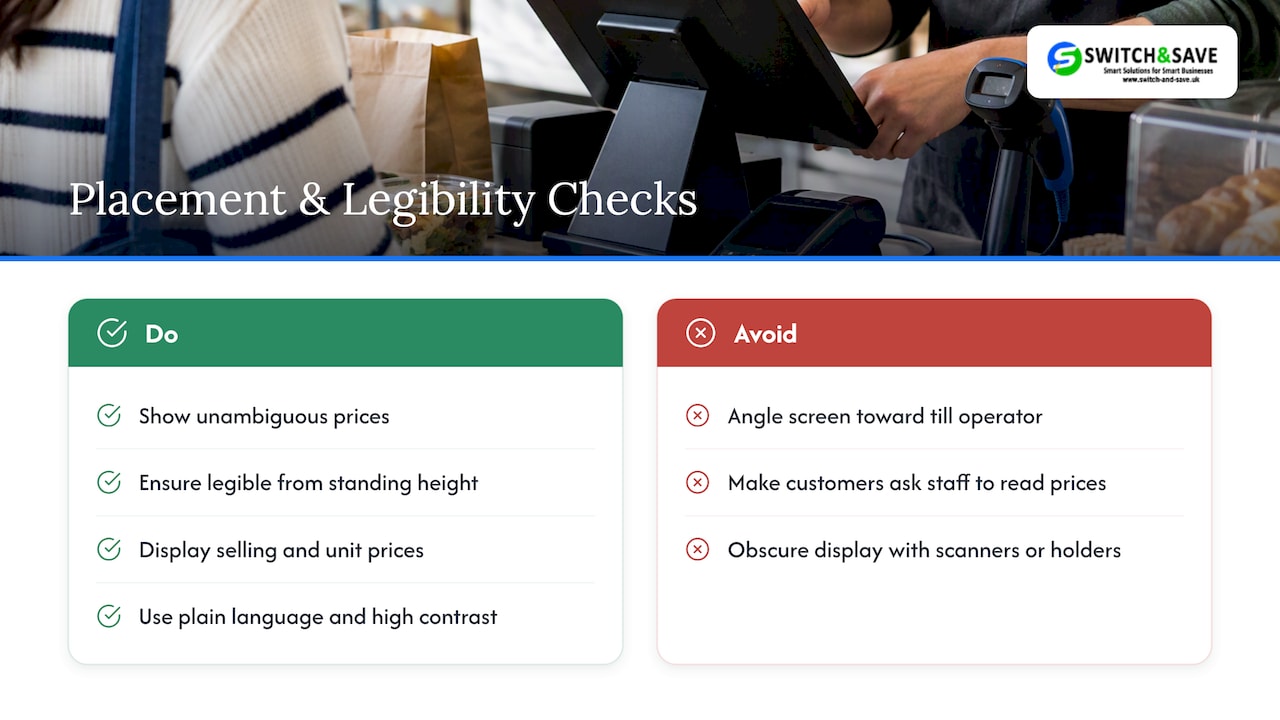
A customer display is not purely a sales tool. Under the Price Marking Order 2004 government guidance, price indications must be unambiguous, clearly legible and available without needing to ask a member of staff.
Price indications must be unambiguous, clearly legible and available without assistance.
That requirement, set out in Article 7 of the Price Marking Order 2004, covers both the selling price and any unit price shown near it. A display that is hard to read from a normal standing position risks falling short of that standard, regardless of how good the hardware specification looks on paper.
Practical placement matters as much as the legal wording, which aligns with creative grocery store merchandising ideas that improve product visibility and customer experience. Keep the screen free from glare, unobscured by scanners or ticket holders, and angled for an average customer height rather than tilted toward the till operator. Plain language and high contrast help too, particularly for customers with limited vision or literacy, a consideration that sits alongside Equality Act obligations on accessible service.
Installation and common troubleshooting for customer displays
Most display faults trace back to a small set of causes, and checking them in order saves a support call.
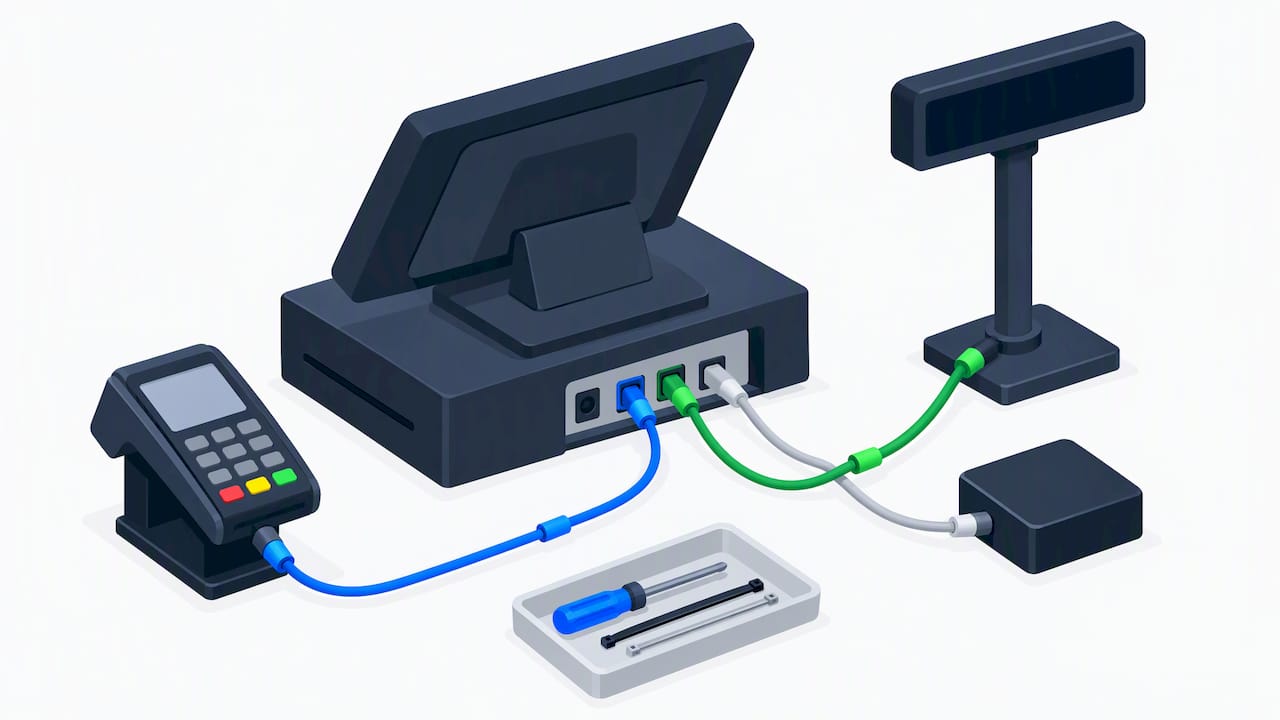
- Check power and cable seating: confirm the display has power, the cable is fully seated at both ends, and the terminal has been rebooted since the last change.
- Confirm the correct port: USB displays sometimes default to the wrong mode, serial units need matching baud rate settings, and Ethernet displays need a valid IP address on the same network as the till.
- Check drivers and firmware: update only one component at a time, and avoid firmware updates during trading hours in case a reboot is needed.
- Record details before calling support: note the software version, terminal model and serial number so any support team can diagnose the fault without a second call.
Our POS hardware setup guide for UK retail and hospitality covers cable-routing and setup steps in more depth if you are installing more than one terminal.
Pro Tip: Label each cable at both ends during installation. It turns a ten-minute fault-finding job into a thirty-second one.
How Switch-and-save supports customer displays
We build customer-facing display options into our Hospitality EPOS Bundle and our Integrated Payments Bundle, both designed to integrate with SSpos software rather than needing a separate driver setup. We provide demos and compatibility checks before hardware commitment, along with support if needed after installation. Whether fitting out a single counter or multiple sites, support is available to guide setup, confirm terminal compatibility, and maintain transparent pricing throughout the process.
What matters most when adding a customer display
In our view, legibility and compatibility matter more than any feature list. A tablet with bright colours is worthless if it cannot read your EPOS software or if customers squint to see the total. Check accessibility and legal requirements early, not as an afterthought, and always trial a display on your own counter before buying more than one.
— Amir
Book a demo or get a quote from Switch-and-save
We know choosing display hardware can feel like one more decision on a long list, so we keep the process straightforward. Our Hospitality EPOS Bundle and Integrated Payments Bundle both include hardware and software options built to work together from day one, backed by UK-based support if anything needs adjusting after installation.
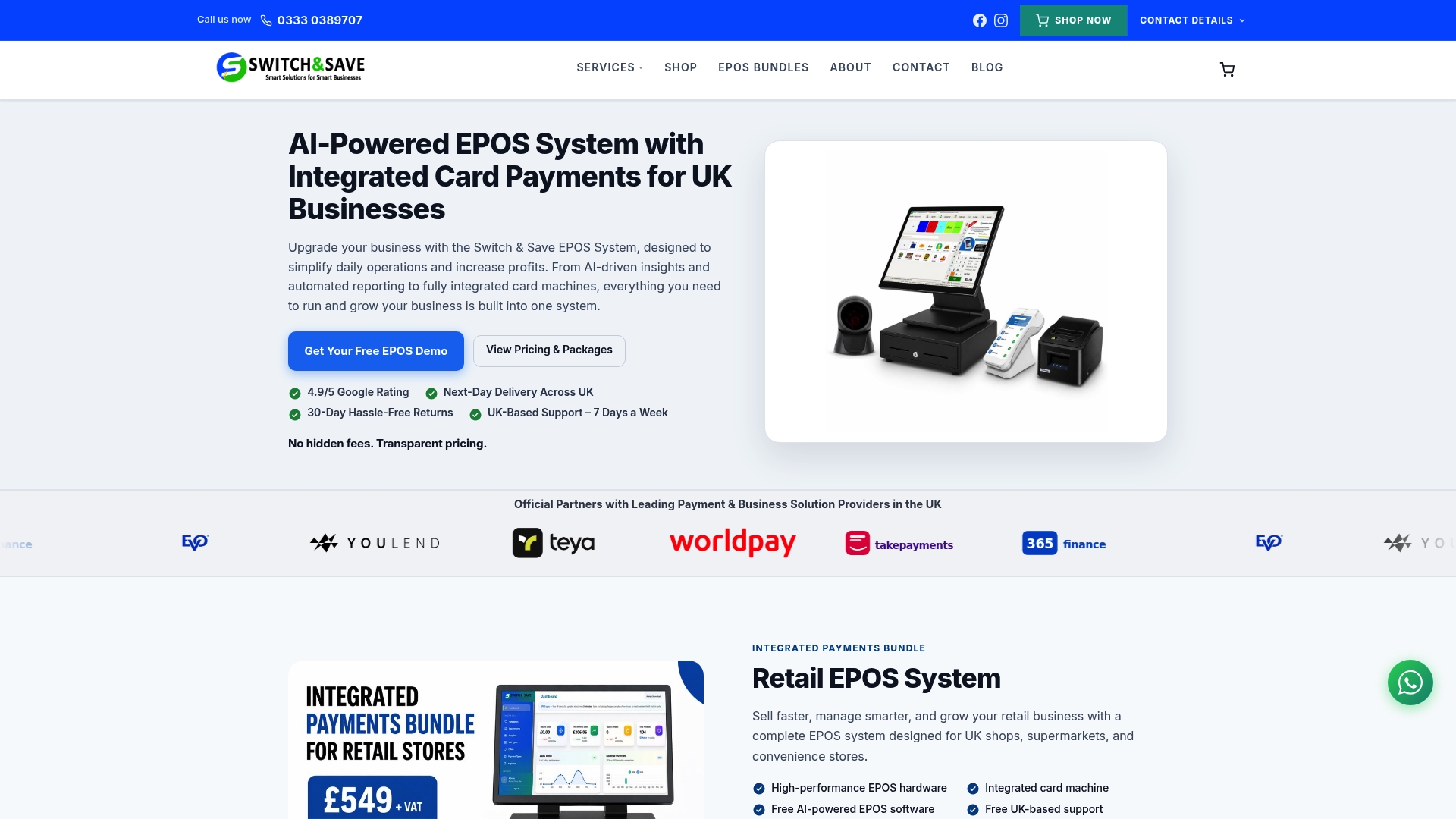
- Request a free demo to see how a customer display looks and runs on your own counter.
- Ask for a compatibility check against your current EPOS setup before you order anything.
- Get a transparent quote with no hidden fees for a single terminal or a multi-site rollout.
Get in touch for a quote or demo and we will talk you through the right setup for your counter.
FAQ
What is a POS display?
A POS display, or customer display, is hardware that shows the customer their item names, prices and running total during a transaction, ranging from simple 2-line text units to full-colour touchscreens. It sits facing the customer rather than the till operator, separate from the main EPOS screen.
Can you give some examples of POS displays?
Common examples include 2-line VFD pole units, LED pole displays, compact LCD second screens and full-colour tablets that can also handle signature capture or loyalty prompts. The right example for your counter depends on whether you need basic price visibility or added promotional features.
What are the different types of POS displays?
The main categories are VFD or LED pole displays for basic text, compact LCD screens for richer detail, and tablet-based displays for colour content and interactive features such as surveys or loyalty sign-ups. Each type trades cost against the amount of information it can show.
How do I fix a disconnected customer display?
Start by checking the power connection and reseating the cable at both ends, then confirm the display is set to the correct port or network address for its connection type. If the fault persists after a terminal reboot, check for a driver or firmware mismatch before contacting support with your terminal model and software version ready.