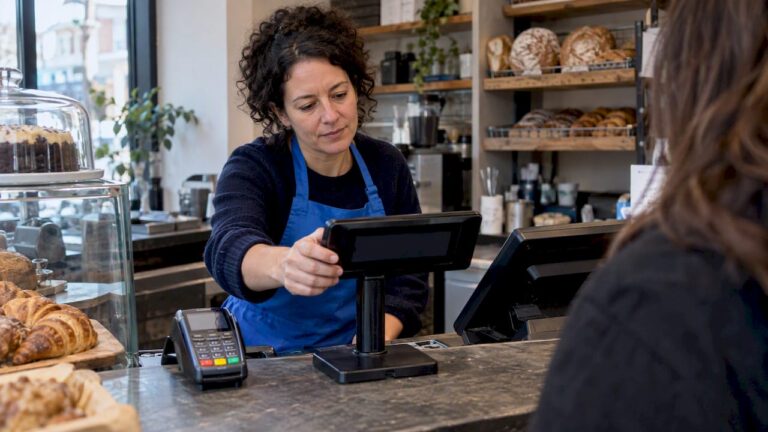
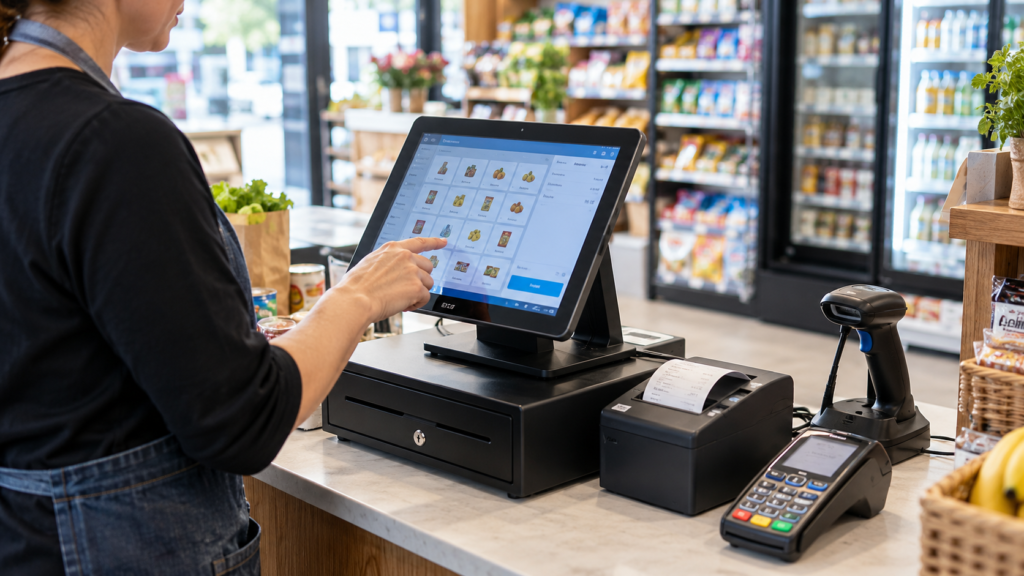
EPOS hardware is the physical equipment you use to process sales, take payments and serve customers. It usually includes a touchscreen terminal or tablet, card machine, receipt printer and cash drawer. Depending on your business, you may also need a barcode scanner, weighing scale, kitchen printer or customer display.
The right setup depends on what you sell and how your team works. A grocery shop needs quick barcode scanning, while a restaurant may need orders sent to different kitchen stations. Start with those everyday tasks, then choose equipment that works with your EPOS software.
This guide explains what each device does, which items different UK businesses need and what to check before buying.
Key Takeaways
| Area | What you need to know |
|---|---|
| Core equipment | A terminal or tablet runs the till software; other devices support payments, printing and cash handling. |
| Retail requirements | Barcode scanners suit product sales; compatible scales may be needed for goods sold by weight. |
| Hospitality requirements | Kitchen printers, kitchen displays and portable payment terminals depend on your service model. |
| Compatibility | Check the exact device model, operating system, connection and software support before buying. |
| Total cost | Compare hardware, software, installation, payment charges, support and replacement costs. |
| Buying approach | Ask for a demonstration using transactions your staff handle every day. |
What Is EPOS Hardware?
EPOS stands for Electronic Point of Sale. Hardware means the physical devices, while software is the programme that manages sales, products, orders and reports.
For example, a barcode scanner reads a product’s code. The software then finds the matching product and adds its price to the sale. A receipt printer produces the receipt once the transaction is complete.
Hardware alone doesn’t provide stock control, loyalty programmes or sales analysis. Those functions depend on the software and how it’s configured. Even an AI-powered EPOS system needs suitable equipment, accurate data and supported connections.
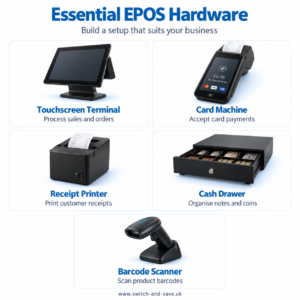
Essential EPOS Hardware Explained
Touchscreen EPOS terminal
The terminal is the main device your staff use to enter orders and complete sales. A dedicated touchscreen till normally stays on the counter, with connected equipment nearby.
Check whether staff can comfortably read product names, reach the screen and navigate the layout. A large display can be useful, but it still needs to fit your counter without blocking the customer’s view.
Card payment terminal
A card machine accepts supported card and mobile wallet payments. It may operate separately or connect to your till through integrated payments.
With a supported integration, the till sends the amount to the payment terminal and receives the result. This reduces the need to enter the same amount twice. Ask the supplier to demonstrate a payment, a declined transaction and a refund.
Receipt printer
A receipt printer gives customers a printed record of their purchase. Thermal printers use heat-sensitive paper rather than ink, making them a common option at checkout.
Check paper width, connection type and access for changing rolls. Digital receipts may also be available through your software, but you’ll need to consider customers who prefer a printed copy.
Cash drawer
If you accept cash, you’ll need somewhere secure and practical to organise notes and coins. A connected cash drawer can open when the software triggers it during an authorised transaction.
Check the drawer’s dimensions and opening clearance. Also confirm how it connects: many drawers connect through a receipt printer, and a similar-looking socket doesn’t guarantee compatibility.
Barcode scanner
A barcode scanner helps staff identify products without searching manually. Handheld models suit larger items, while fixed scanners allow products to pass in front of the scanner at the counter.
If you need to read QR codes or codes displayed on phones, confirm those capabilities before ordering. Test the scanner with your own packaging, including small or damaged labels.
Optional accessories
A customer display can show basket items and totals. Label printers can produce shelf or product labels, while compatible weighing scales support products sold by weight.
In hospitality, kitchen printers and kitchen display systems send orders to preparation areas. A kitchen display system, or KDS, shows orders on a screen so staff can track what needs preparing.
Switch & Save’s EPOS hardware and accessories range includes terminals, scanners, receipt printers, cash drawers and customer displays. Confirm the supported combination for your chosen software before ordering.
Which Hardware Does Your Business Need?
You don’t need every accessory on day one. Choose equipment around your busiest service period and the tasks that create delays.
| Business type | Practical starting setup | Extras to consider |
|---|---|---|
| Convenience or grocery shop | Touchscreen till, barcode scanner, card terminal, receipt printer and cash drawer | Customer display, label printer and compatible weighing scale |
| Café or takeaway | Touchscreen till, card terminal and receipt printer; cash drawer if needed | Kitchen printer or KDS |
| Restaurant or pub | Main till, card terminal and suitable order-routing equipment | Handheld ordering devices and portable payment terminals |
| Mobile phone shop | Till or supported tablet, card terminal and receipt printer | Barcode scanner and label printer |
| Market stall or mobile business | Supported tablet or portable device and card reader | Charging equipment and optional portable printer |
Retail: test a complete basket
Imagine a Birmingham convenience shop selling drinks, household goods and loose produce. Staff may scan packaged products, enter a weight and apply an offer within one sale.
Ask the supplier to demonstrate that mixed basket. It reveals more than watching someone sell a single item on an empty till.
Hospitality: follow the order
For a takeaway, check where an order goes after staff enter it. Food may need to print in the kitchen, while drinks stay at the front counter.
For restaurants, explore Switch & Save’s hospitality EPOS solutions and ask which printers, kitchen screens and payment devices support your service flow.
Touchscreen Terminal or Tablet?
A dedicated terminal suits a fixed checkout, while a tablet can suit a smaller counter or mobile service. Neither option is automatically better.
A dedicated EPOS terminal may offer a stable stand and convenient connections for several accessories. That can be useful when staff spend most of the day at one checkout.
A tablet can provide flexibility, but you’ll need to consider its stand, charging arrangement, operating system and supported peripherals. A lower device price doesn’t tell you the cost of the complete setup.
Try the software on the actual device you’re considering. Enter a busy order, change quantities and issue a refund. Check whether the screen remains comfortable to use when the basket gets longer.
How to Check EPOS Hardware Compatibility
Compatibility means your devices can work correctly with your software, operating system and payment provider. A USB plug or Bluetooth connection alone doesn’t prove that they will.
Before buying, give the supplier the exact model numbers of any equipment you already own. Ask for written confirmation of what can be reused and what needs replacing.
Check these five points:
- Software support: Does the EPOS application support the exact device?
- Operating system: Is the required driver or app available for your platform?
- Connection: Does it need USB, Ethernet, Bluetooth or Wi-Fi?
- Payments: Is the card terminal supported by both the EPOS integration and payment provider?
- Workflow: Can the setup handle your receipts, refunds, labels and order routing?
For second-hand equipment, also check ownership, warranty and whether support is still available. A used payment terminal may require provider approval and provisioning before it can be used.
Understanding the Full Cost of EPOS Hardware
The cheapest purchase price may not produce the lowest overall cost. Compare complete written quotations over the same period.
Include the equipment, software subscription, installation, product or menu setup, staff training and support. Add accessories, replacement provision and any applicable VAT. Review payment charges and contract terms separately.
Ask whether you’re buying, renting or leasing the hardware. Confirm who owns it at the end, what happens if you cancel and whether repairs require the device to be sent away.
For example, a café may receive one quote for a till and another for a complete package with a kitchen printer and setup. Before comparing totals, make sure both cover the same working requirements.
A bundle can simplify purchasing, but read the itemised contents. Our guide to what’s included in an EPOS bundle provides a useful starting point for checking a quotation.
Installation and Everyday Care
Plan the counter layout before equipment arrives. Leave room for bags, customers’ purchases, printer roll changes and the cash drawer opening.
Place cables where they won’t catch on staff or customers. Keep devices away from heat and spills, and follow the manufacturer’s cleaning instructions.
Before going live, test a normal sale, refund, receipt, cash transaction and card payment. For hospitality, confirm that each order reaches the correct preparation area.
Ask what happens during an internet outage. Sales entry, cloud reporting and card payments can have different connection requirements, so understand each part of the setup.
Keep spare receipt rolls accessible and identify who to contact when something fails. A clear support process matters when there’s a queue at the counter.
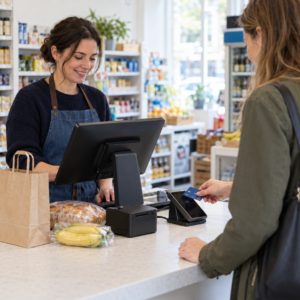
Choosing Your Setup With Switch & Save
Start with a short description of your business: what you sell, how many tills you need, which devices you already have and where service slows down.
Then request a demonstration built around those tasks. A useful demo should show your likely checkout flow, connected equipment and the reports you’ll use afterwards.
Switch & Save provides EPOS systems, integrated payment options and hardware for UK retail and hospitality businesses. You can browse the available equipment and packages before discussing a suitable setup.
Switch & Save helps UK businesses reduce costs with AI-powered EPOS systems, card payment solutions and business finance. Check your savings today.
Visit switch-and-save.uk to discuss your requirements and request a clear breakdown of your options.
Frequently Asked Questions
What EPOS hardware do I need for a small shop?
Most shops need a terminal or supported tablet, card payment terminal and receipt printer. Add a cash drawer if you accept cash and a barcode scanner if you sell barcoded products.
Can I use my existing EPOS equipment?
Possibly. Your supplier needs to check the exact models, connections, operating system and software support. Don’t assume equipment will work simply because it connects physically.
Does EPOS hardware work without the internet?
Some systems can continue certain sales functions offline. Cloud services and card payments may have separate requirements. Ask your supplier to explain and demonstrate the supported outage procedure.
Is a card machine included in an EPOS package?
It depends on the package. Check the itemised quotation and confirm the payment provider, integration, charges and contract terms.
Should I buy all the accessories immediately?
Buy what your daily service needs first. You can add other equipment later, provided your system supports it. Confirm expansion options before choosing your initial package.