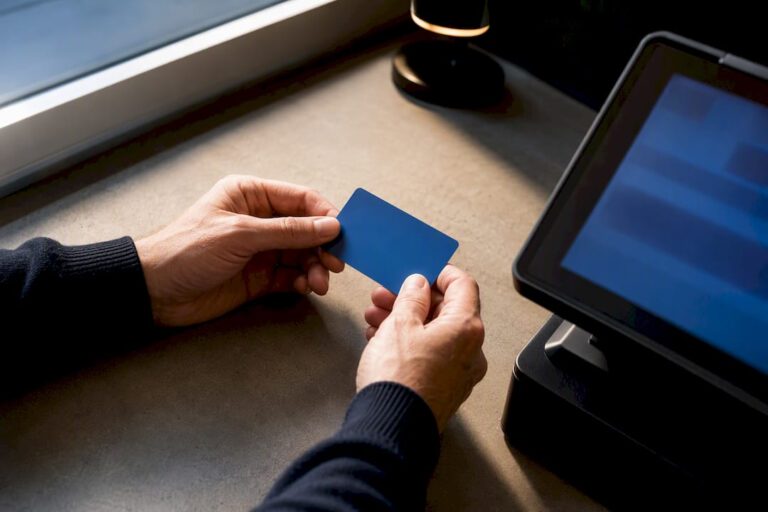

Yes, most EPOS systems let staff clock in and out at the terminal or through a staff app, and those timestamps become your official timesheets. The feature is built into many modern systems, so you may already own it. Below, we cover the clocking flow, staff setup, manager reports, payroll exports and the record-keeping rules you need to follow.
TL;DR:
- Give each employee a unique PIN, restrict timesheet edits to supervisors, and retain an edit log showing who corrected each record and when.
- Review weekly reports against the rota, verify breaks and total hours, flag missing punches, then match CSV or Excel columns to payroll requirements.
- UK employers retain work time records for two years; the weekly limit averages 48 hours over 17 weeks, but workers may waive it in writing.
- Test the terminal’s clock out process before rollout, because some systems block employees from leaving while an order remains open.
- If the system goes offline, record hours on a manual form and enter them after service returns; approve missed punch corrections rather than editing silently.
Table of Contents
- How do staff clock in and out at the terminal?
- How do you set up staff accounts and protect time records?
- Where do you find the time clock report and export hours?
- What do you gain from a POS time clock?
- What do UK working time rules require you to keep?
- How do exports connect to payroll and rota tools?
- What should you do when clocking goes wrong?
- Why we think the timeclock belongs in the till
- Get an EPOS with a built-in timeclock
- FAQ
- Sources
How do staff clock in and out at the terminal?
Most systems follow the same short script, so you can train a new starter in a couple of minutes:
- The employee enters their personal PIN on the front screen.
- A “clock in” prompt appears.
- They pick their role or shift, if your setup uses more than one.
- They confirm, and the terminal shows a clocked-in message.
Clocking out works in a similar way, with one difference to watch. Some systems insist the employee has no open order before they can clock out. Others offer a clock-out option in the main menu, followed by a confirmation pop-up. Test which behaviour yours uses on a quiet shift, so nobody gets stuck at closing time with a tab still open.
You will usually meet one of these variations:
- A dedicated timeclock button on the home screen
- Clocking through a staff app or web portal
- A kiosk mode where one terminal handles clocking only
When the device is online, each punch syncs straight to the back office. Your manager can see who is on shift without walking to the till. If you are new to these features, our POS software basics guide shows where the timeclock sits among the other tools.
How do you set up staff accounts and protect time records?
Setup takes minutes per person, and doing it properly protects your data later:
- Add an employee profile with their full name.
- Give each person a unique PIN or ID. Never share one between colleagues.
- Assign a role and choose which terminals they can use.
Next, decide who can change a recorded time. We suggest limiting timesheet editing to supervisors and keeping an edit log, so every correction shows who made it and when. If you run several terminals or sites, check whether clocking can be switched on or off per store, so a new branch is not live before it is ready.
A simple rollout checklist:
- Create all accounts and PINs.
- Run one test shift with a single team member.
- Brief everyone on the clocking steps before their first real shift.
Our guide to training staff on a new POS system covers the briefing part in more detail.
Where do you find the time clock report and export hours?
Open the Time Clock or Timesheets view in your back office or cloud portal, then filter by date range and by staff member. A weekly check takes a few minutes once you know what to look for:
- Compare clock-in and clock-out times against the rota.
- Check that breaks were recorded and that total hours add up.
- Flag any missing punches, such as a clock-in with no clock-out.
- Use quick filters to spot late starts, unusually short shifts and unapproved overtime.
When the report looks right, export it as CSV or Excel. Before you send it anywhere, confirm the columns match what your payroll provider asks for. A file with the wrong date format or a missing employee ID can hold up pay day, and it is far easier to fix at this stage than after payroll has run. Because the portal is cloud-based, a manager working from home or another site can run the same report without visiting the shop.
What do you gain from a POS time clock?
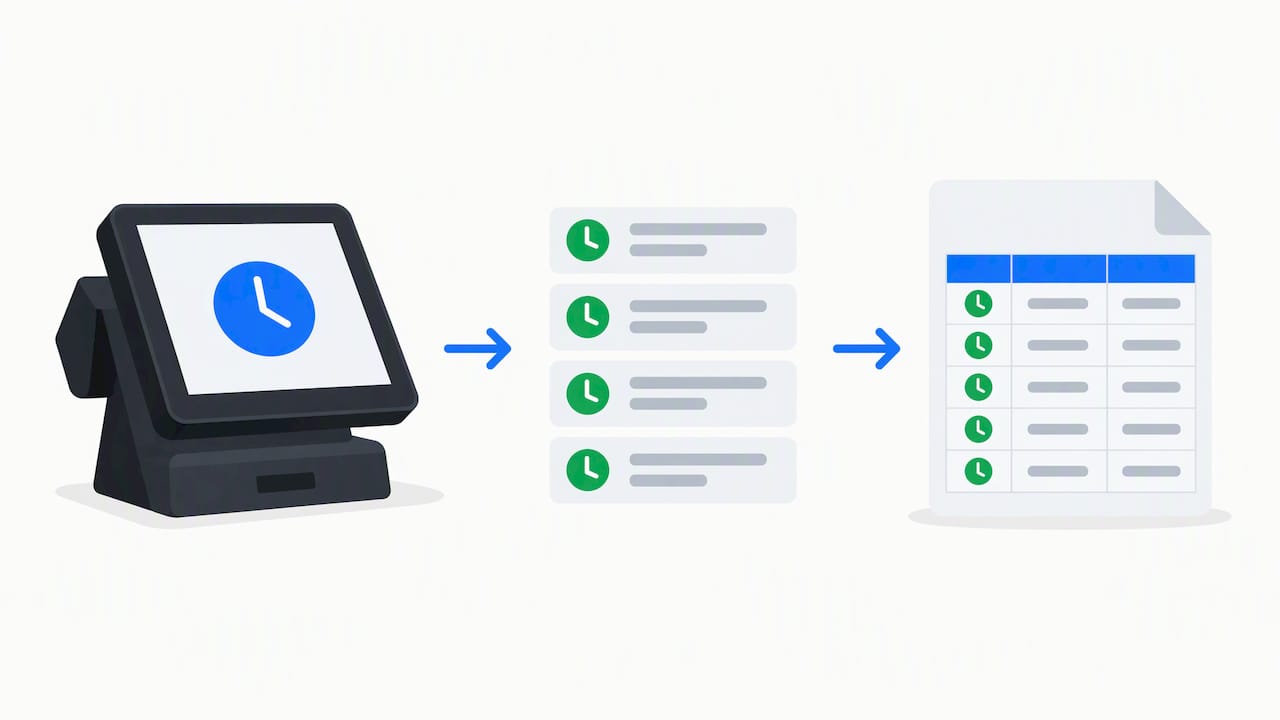
The biggest gain is having staff hours sitting next to your sales and stock data. You can see whether a quiet Tuesday was overstaffed without matching a paper sheet to a till report. Our piece on the role of POS in inventory management shows why that single view helps.
In practice, you get:
- Fewer transcription mistakes, because nobody retypes handwritten hours
- A clear audit trail for payroll queries and internal disputes
- Shift visibility across terminals and sites from one screen
- Less time spent at payroll, since hours are already totalled
Small errors add up quickly, as we explain in our article on how EPOS systems reduce human errors in retail. Time records are one of the easiest places to start.
What do UK working time rules require you to keep?
Employers must keep records adequate to show they comply with the weekly limit, and must keep them for two years, under Regulation 9 of the Working Time Regulations. The law lets you create and store those records in any format you reasonably think fit. A POS export qualifies, provided it is accurate, objective and easy to retrieve.
Your compliance anchor is the 48-hour average weekly limit. It is normally averaged over 17 weeks, and a worker can opt out in writing, so your timesheets need to show where each person stands.
The rule itself sits in Regulation 4, which also expects you to take reasonable steps to stay within it. Practical habits that keep you covered:
- Save payroll exports to one central, backed-up folder each period.
- Keep them for at least two years.
- File any signed opt-out or overtime agreement alongside the hours it relates to.
How do exports connect to payroll and rota tools?
Start by checking which formats your system offers, usually CSV or Excel. Then map the fields your payroll needs:
- Employee ID
- Date
- Clock-in and clock-out times
- Break minutes
- Total hours
If you manage more than one site, a direct integration or a middleware connector saves repeated manual uploads. Whichever route you choose, validate the totals and reconcile them against your timesheet checks before payroll runs. Cloud portal exports are the easiest option for managers who work remotely, since they need no access to the till itself.
What should you do when clocking goes wrong?
Most problems have a short fix and a habit that prevents a repeat:
- Missed punch: use an approval workflow, where the employee requests a correction and a supervisor signs it off. Avoid silent edits.
- Outage: keep a manual form near the till and enter the hours once the system is back online. Our downtime prevention guide has a full plan.
- Shared PINs: enforce unique PINs and walk new staff through clocking in on their first shift.
Pro Tip: Schedule an automated end-of-day report so you catch odd punches the same evening, not on payroll day.
Why we think the timeclock belongs in the till
In our view, a timeclock works best when it lives in the same system as your sales, because managers check what is in front of them every day. That is why our EPOS bundles come with UK-based support, and why we are happy to show our EPOS system live. Ask for a demo.
— Amir
Get an EPOS with a built-in timeclock
Our all-in-one bundles combine till and payments, backed by UK support. Take a look at our Hospitality EPOS Bundle or our retail bundles, then book a free demo.
FAQ
Can I clock employees in with a POS system?
Yes, most modern EPOS systems include a clock in and clock out feature. Staff usually enter a personal PIN at the terminal or use a staff app.
Where do I see the hours my staff have worked?
Open the Time Clock or Timesheets view in your back office or cloud portal. You can filter by date and employee, then export the results.
How long must I keep time records in the UK?
Employers must keep working time records for two years, under Regulation 9 of the Working Time Regulations. A POS export is acceptable if it is accurate and easy to access.
What if someone forgets to clock out?
Flag the missing punch in your report and correct it through a supervisor approval, so the edit log shows who changed it. Remind the employee of the clock-out step at their next shift.