

POS staff permissions are the access rules that decide who can sell, refund, change prices, edit stock or view customer data on your till system. The safest setup pairs role-based least privilege with unique staff accounts and audit logs, so nobody has more access than their job needs. If you take one action this week, make it this: review which staff can approve refunds or price changes without a manager present, then switch on approval gates for those actions.
TL;DR:
- Restrict staff permissions for refunds, price changes, and stock adjustments by enabling manager approval gates and removing unrestricted access.
- Build role templates based on job functions, assigning only necessary permissions, and create unique logins for each staff member with multi-factor authentication.
- Conduct regular reviews of audit logs, including weekly checks of high-risk actions, and remove access promptly when staff roles change or employees leave.
- Implement time-limited permissions for seasonal or temporary staff, and test permissions at real terminals to ensure proper setup and accountability.
- Prioritize routine audits and permission management over software features to minimize risks from over-privileged accounts and unmonitored access.
Table of Contents
- What do POS staff permissions actually control?
- Roles versus permissions: designing around least privilege
- How to set staff permissions: a practical setup checklist
- Manager approvals and approval workflows
- Audit logs, review cadence and staying on the right side of compliance
- Testing, roll-out and keeping permissions current
- Amir’s view: start with the audit, not the software
- How Switch-and-save keeps staff access under control
- Sources
- FAQ
What do POS staff permissions actually control?
Every EPOS system splits its functions into categories, and each one carries its own risk if left wide open. Understanding what sits behind each permission is the first step to locking down the ones that matter.
- Checkout and sales — basic till operation, usually low risk and open to most staff.
- Refunds and voids — reversing a sale after payment; a common route for till fraud if unrestricted.
- Discounts and price edits — manual overrides that, left unchecked, quietly erode margin.
- Returns and exchanges — similar risk profile to refunds, especially without a receipt.
- Inventory adjustments and stock transfers — staff who can “correct” stock counts can also mask theft.
- Register and cash-drawer operations — opening the drawer outside a sale, cashing up, till floats.
- Customer-data access — names, contact details, loyalty history, payment references.
- Reporting and export — pulling sales, staff or customer reports out of the system.
- Integrations and connected apps — third-party tools linked to your POS, each with its own access footprint.
- Store and system settings — tax rates, menu or catalogue structure, terminal configuration.
Multi-store or multi-app setups add another layer worth checking: a permission granted at one terminal or one sales channel does not always mean it is granted everywhere. If your business runs a website, a delivery app and a till, check that a staff member’s access matches the channel they actually work on, not every channel the account happens to touch.
Roles versus permissions: designing around least privilege
A permission is a single capability, such as “can process refunds”. A role is a bundle of permissions assigned to a type of worker, such as “cashier” or “supervisor”. Confusing the two is how businesses end up with bloated manager accounts that can do everything, because nobody separated the role from the individual permissions inside it.
Build role templates around what the job genuinely requires, not the job title:
- Cashier — checkout, basic returns with receipt, no discount authority.
- Supervisor — cashier permissions plus refunds up to a set value and discount approval.
- Stock controller — inventory adjustments and transfers, no till or refund access.
- Manager — full sales and refund authority, reporting access, staff account management.
- Admin — settings, integrations, and account creation, used sparingly and never as a daily login.
The ICO’s access control guidance recommends designing access by requirement rather than title, because two people with the same job description can need different rights depending on the site, till or back-office task they handle. A weekend cashier at your busiest branch may need discount authority a weekday cashier never touches.
Pro Tip: Separate “can perform” from “can approve” wherever possible. A cashier who can process a refund but not approve one over £20 without a supervisor PIN is far harder to defraud than a cashier with unrestricted refund rights.
How to set staff permissions: a practical setup checklist
Configuring permissions properly is a one-shift job if you follow it in order, not a project you keep putting off.
- List every sensitive action your POS can perform and rank each by risk (refunds, discounts, stock edits, data exports, settings changes).
- Build role profiles from that list, assigning only the permissions each role genuinely needs.
- Create unique accounts or PINs for every staff member — never a shared login — and turn on multi-factor authentication where the system supports it, following NCSC guidance on multi-user accounts.
- Switch on manager-approval gates for high-risk actions and document who approved what.
- Set expiry dates for temporary access, and build permission removal into your joiners, movers and leavers process.
- Test each role at a real terminal, running actual scenarios rather than assuming the settings work as intended.
| Step | What it fixes | Who owns it |
|---|---|---|
| Risk-rank sensitive actions | Stops guesswork on what needs restricting | Manager/owner |
| Build role profiles | Removes over-privileged accounts | Manager |
| Unique accounts/PINs, MFA | Ends shared-login accountability gaps | Manager/IT support |
| Approval gates | Adds a checkpoint before high-risk actions complete | Supervisor/manager |
| Expiry dates on temporary access | Prevents forgotten access lingering after a contract ends | HR/manager |
| Test at the terminal | Confirms the setup works in real conditions | Manager |
Manager approvals and approval workflows
Certain actions should never complete without a second person confirming them: refunds above a set value, large discounts, price changes, and stock corrections. Gating these is one of the cheapest security upgrades available, because it needs no new hardware, only a change to how permissions are configured.
Most EPOS systems offer a few ways to implement this:
- In-terminal manager PIN entered before the action completes.
- Manager app approval, where a request pings a phone or tablet for sign-off.
- Temporary elevation, granting a staff member higher access for a single transaction.
- Ticket-based approval for larger or unusual adjustments, logged outside the till itself.
Whichever method you use, capture who approved the action, what it was, the value involved, and the time it happened. NCSC guidance on privileged access management treats this kind of temporary elevation as a way to limit exposure without slowing staff down for every transaction. A documented approval trail also does double duty as a deterrent, since staff know unusual activity gets a second pair of eyes.
Audit logs, review cadence and staying on the right side of compliance
Logging is only useful if someone actually looks at it. Refunds, admin changes, report exports and customer-data exports are the events worth logging without exception, since they cover most of the ways POS access gets misused.
The ICO’s records management guidance treats weekly checks of high-risk activity and at least one full annual permissions review as practical baselines for most small and medium businesses. Add an immediate review whenever someone changes role or leaves, rather than waiting for the scheduled check to catch it.
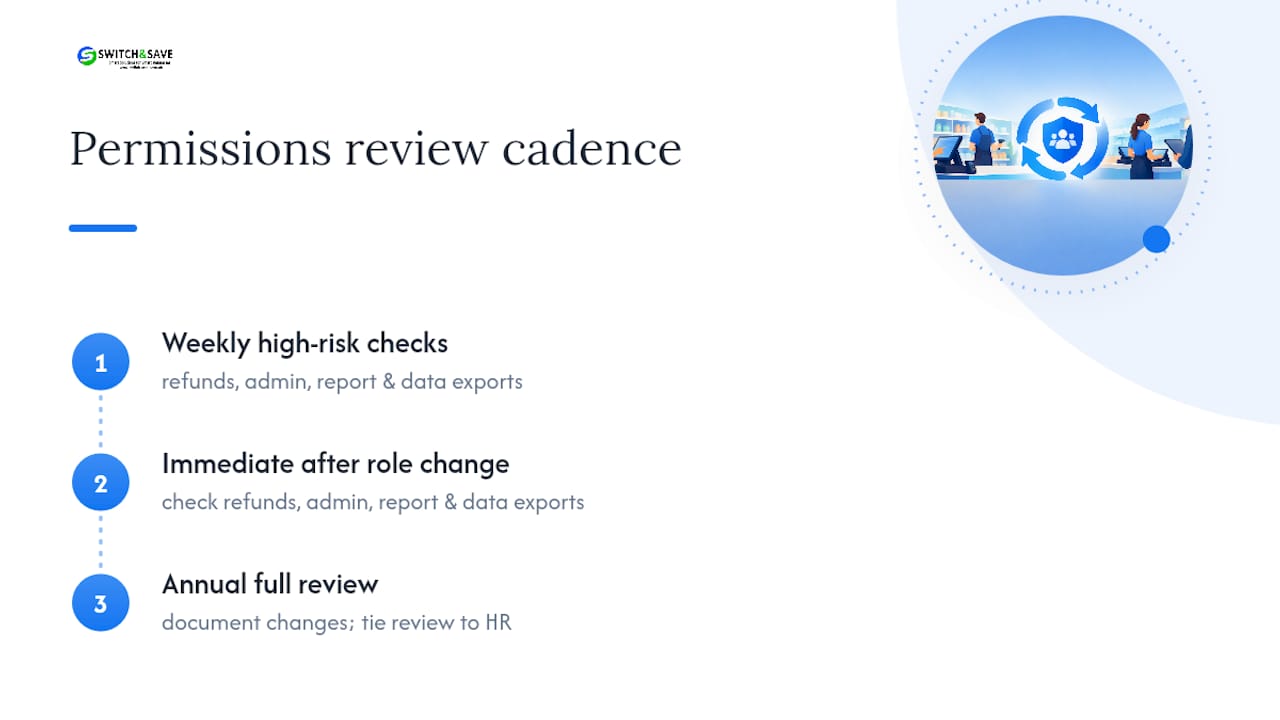
Keep a written record every time you review permissions, even a simple dated note of what changed and why. Tying that record to your HR process, so a role change or resignation automatically triggers a permissions check, closes the gap where privileges get forgotten long after someone has moved on.
Testing, roll-out and keeping permissions current
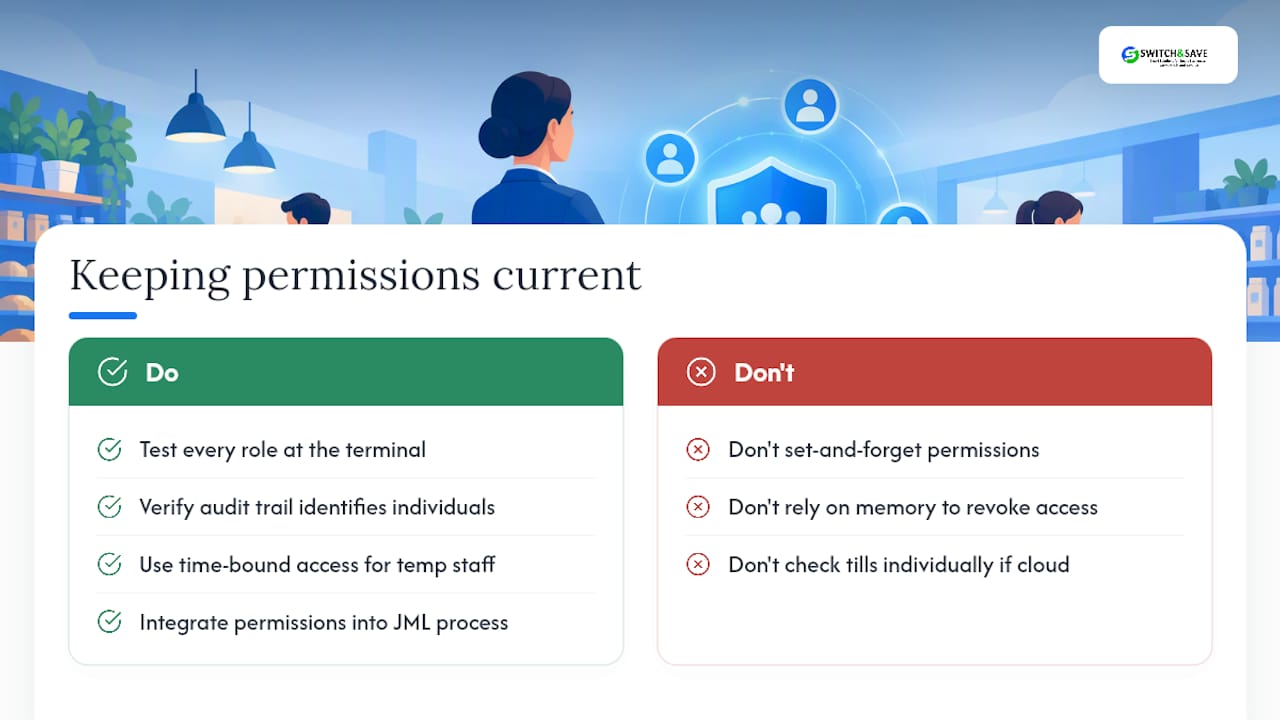
Setting permissions once and forgetting them is how businesses end up with three ex-employees still holding active logins. Test every role by running it through real scenarios at the terminal, not just in the settings screen, and confirm the audit trail correctly identifies the individual behind each action and any approval attached to it.
For seasonal or agency staff, use time-bound access that expires automatically rather than relying on someone remembering to switch it off. Building permission changes into your existing joiners, movers and leavers process, alongside HR or rota systems, means access updates happen at the same moment payroll or scheduling changes, not days later.
Pro Tip: If your POS supports role templates and a cloud dashboard, like the setup covered in Switch-and-save’s SSPOS software, use it to review every terminal’s access from one screen rather than checking each till individually. A step-by-step setup guide helps if you are building this from scratch.
Amir’s view: start with the audit, not the software
The permissions problem is rarely the software. It is that nobody scheduled the review. Least-privilege roles, unique accounts and a weekly check matter more than any feature list. Book the audit this week.
— Amir
How Switch-and-save keeps staff access under control
Some EPOS providers offer cloud dashboards with role templates, multi-store oversight, and support to help managers adjust permissions centrally rather than manually on each till.
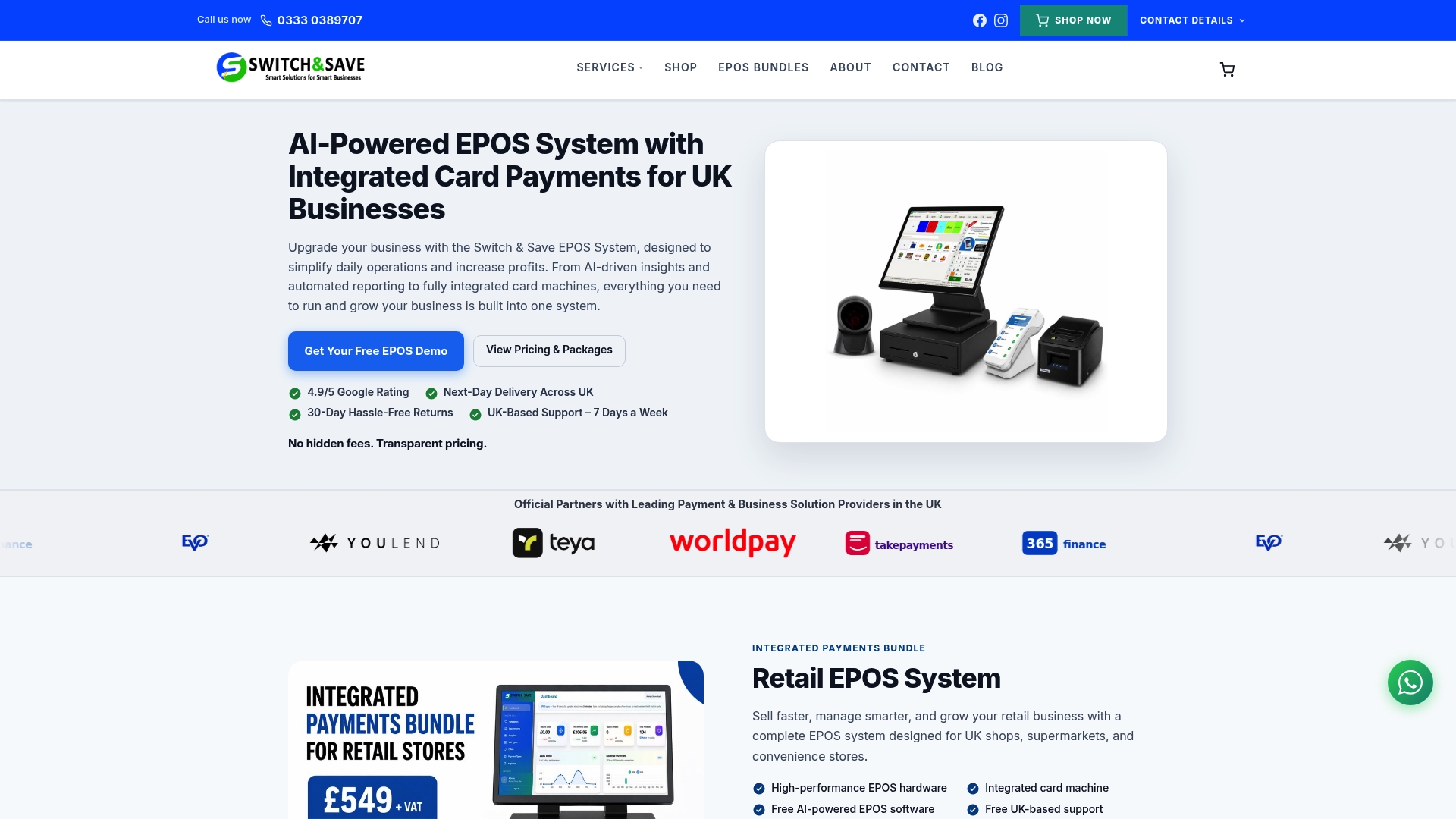
If you run a café, restaurant or takeaway, the Hospitality EPOS Bundle pairs the hardware with the AI-powered cloud software at £20 per month for ongoing access to role and permission controls. Retailers weighing up a full system change can look at the Standard and Premium EPOS bundles, while anyone wanting card payments folded into the same setup should check the Integrated Payments Bundle, with its EPOS software subscription at £30 per month. Book a free demo to see how role-based access looks on your own till layout before you commit to anything.
Sources
FAQ
What are the different types of POS permissions?
POS permissions typically cover checkout and sales, refunds and voids, discounts and price edits, inventory adjustments, customer-data access, reporting, connected apps, and store settings. Each category carries a different risk level, which is why role design should map permissions to actual job needs rather than granting broad access by default.
What is the difference between roles and permissions?
A permission is a single capability, such as processing a refund, while a role is a bundle of permissions assigned to a job type, such as cashier or manager. Building roles around documented, least-privilege profiles avoids the common trap of every staff account inheriting manager-level access.
How do I set up staff permissions on a POS system?
Start by listing sensitive actions and ranking them by risk, then build role profiles that only include what each job genuinely needs. Create unique accounts or PINs for every staff member, switch on approval gates for high-risk actions, and test each role at the terminal before rolling it out fully.
How do I add staff to a POS system safely?
Give each new staff member their own account or PIN rather than sharing a login, and assign them the lowest-permission role that lets them do their job. NCSC guidance recommends disabling accounts the moment they are no longer needed, so build removal into your leaver process from day one.
How often should staff permissions be reviewed?
A practical baseline is a weekly check of high-risk activity, such as refunds and stock adjustments, alongside a full annual review of every account’s permissions. Review access immediately whenever someone changes role or leaves, rather than waiting for the next scheduled check.