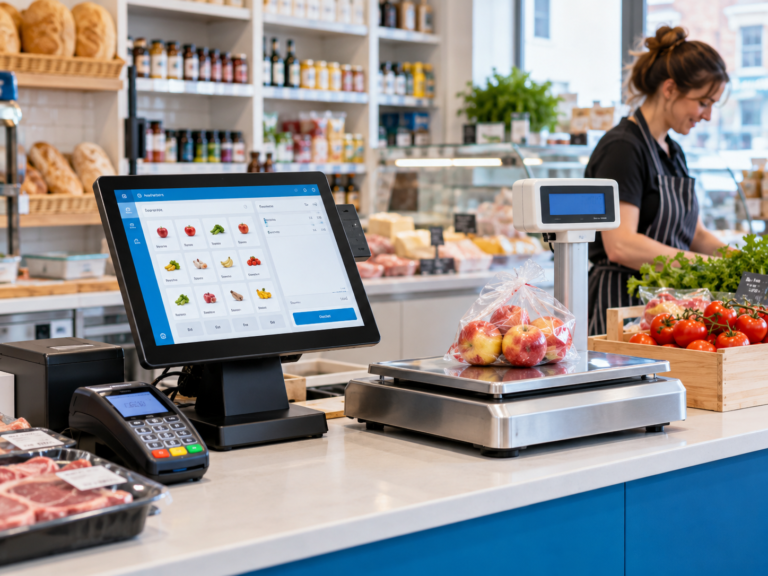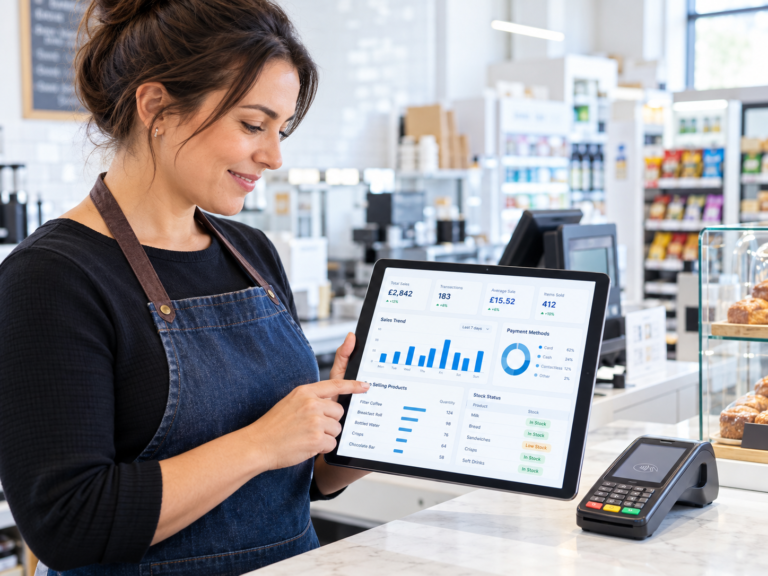
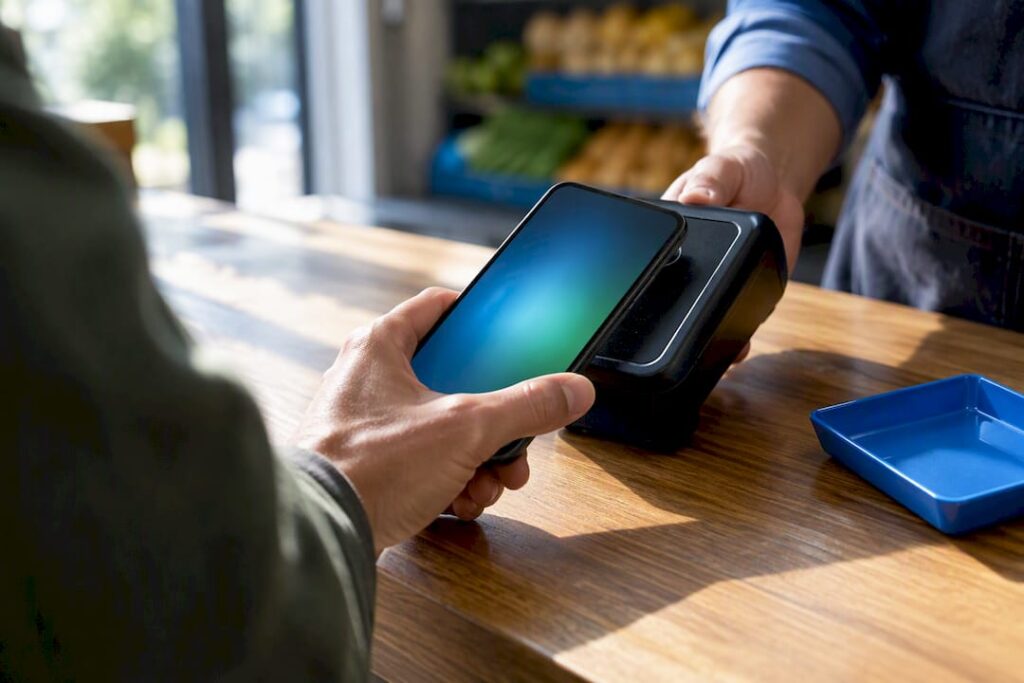
Yes, nearly every UK shop with an NFC-enabled terminal can accept Google Pay right away. There’s no new hardware to buy in most cases. What you need to check is whether your payment provider has the wallet switched on and whether your till software matches up the sales correctly. Start by checking your terminal model, then log into your PSP admin panel.
TL;DR:
- Most UK terminals issued since 2020 already support NFC and ISO 14443, so hardware upgrades are usually unnecessary for accepting Google Pay.
- Enabling Google Pay generally requires confirming terminal firmware, PSP support, and correct EPOS integration, with testing recommended before full deployment.
- Contactless transaction limits remain around £100 for cards, but issuer policies and device authentication can cause confusion or declined payments.
- Firmware updates, issuer rules, or synchronization issues are common causes of payment declines, not Google Pay itself, and quick troubleshooting involves firmware checks and support contact.
- Using integrated EPOS and payment bundles simplifies account configuration, reduces reconciliation errors, and includes support, making the setup process more reliable.
Table of Contents
- What you need first: terminals, merchant accounts and compliance checks
- Step-by-step: enable Google Pay with your PSP and EPOS
- In-store setup: terminal placement, signage and staff training
- Why a tap might decline and how contactless limits work
- Switch&Save perspective: what an integrated bundle changes
- What the setup advice usually gets wrong
- How Switch&Save helps you finish the job
- Sources
- FAQ
What you need first: terminals, merchant accounts and compliance checks
Before you touch any settings, confirm three things. Most of this takes ten minutes with your existing paperwork or a quick call to your provider.
Since January 2020, virtually all bank-issued payment terminals in the UK have been capable of accepting contactless payments, including NFC. That means most shops already have the hardware they need, according to UK Finance’s Payment Markets Report. Google’s own developer documentation confirms that merchant terminals need NFC and ISO 14443 support, which is standard on any terminal issued in the last few years.
Here’s what to verify before you go further:
- Your terminal supports NFC and ISO 14443, or you’re using a SoftPOS or Tap on Phone setup instead.
- Your merchant acquiring provider or PSP explicitly supports digital wallets, and you know whether a merchant ID is required.
- You understand your PCI DSS obligations and whether your PSP needs production credentials before wallets go live.
- You’ve decided on a deployment model, standalone terminal, EPOS-integrated terminal, or Tap on Phone on a compatible Android device.
If your terminal is more than five years old or you’re unsure of the model, our payment terminal guide for UK retail and hospitality walks through how to check.
Step-by-step: enable Google Pay with your PSP and EPOS
Once you’ve confirmed the basics, enabling Google Pay is mostly admin work rather than engineering. Here’s the order to follow.
- Check the device. Confirm your terminal’s model number and firmware version, and verify NFC and ISO 14443 support directly with your provider or through the terminal’s settings menu.
- Open your PSP admin panel. Some providers, such as Stripe, enable Google Pay by default. Others, such as Worldpay, need you to generate and add a Google Pay merchant ID manually, as GOV.UK’s digital wallets guidance explains.
- Check the EPOS integration. Make sure tokenised payment payloads flow correctly between your EPOS system, the payment gateway and the acquirer, so sales and settlement match up without manual fixes.
- Test before going live. Use your PSP’s sandbox or test mode with Google Pay test cards first, then run a handful of low-value live transactions and check they reconcile properly in your EPOS reports.
- Assign ownership. Decide who updates firmware, who runs the tests, and who calls the PSP if something doesn’t settle correctly. Write it down so it isn’t lost when someone’s on holiday.
Our step by step payment setup guide covers the testing phase in more detail if you want a second checklist to work from.
Pro Tip: Keep a note of transaction IDs and timestamps during testing. If a payment doesn’t behave as expected, your PSP’s support team can resolve it far faster with that information to hand.
In-store setup: terminal placement, signage and staff training
Getting Google Pay technically live is only half the job. The other half is making sure customers and staff actually use it smoothly.
- Position terminals where a phone can tap without the customer stretching over a card reader shield or a queue barrier, following examples of POS design and terminal placement best practice.
- Display clear “contactless and Google Pay accepted” signage near the till and at the entrance, since UK Finance research found many customers are unsure whether mobile wallets carry the same limits as cards, according to its contactless payments research survey.
- Brief staff on what a decline looks like on screen, how to offer a card as a fallback, and how to reissue a receipt if the customer asks.
- Check your EPOS sales reports after a few days to confirm Google Pay transactions are categorised correctly alongside card and cash sales, not lumped into a generic “other” line.
Small adjustments like these cut down on awkward moments at the till and keep your reconciliation clean at the end of the day.
Why a tap might decline and how contactless limits work
The UK’s contactless card limit is generally recognized as £100, but mobile wallets may apply different rules depending on issuer policies. Because Google Pay transactions are authenticated on the device itself, some issuers treat them differently to a physical card tap, particularly around online PIN requirements.
UK Finance research found substantial consumer confusion about contactless limits, according to its contactless research survey, with many customers unsure whether their phone taps have a ceiling at all. That uncertainty often shows up at your till as a puzzled customer rather than a technical fault.
Common causes of a declined tap include:
- Outdated terminal firmware that hasn’t been patched to handle wallet payloads correctly.
- Issuer-side rules or fraud settings that flag a transaction for extra checks.
- Offline terminal settings that haven’t synced with the acquirer recently.
- Routing issues between your EPOS, gateway and acquirer that only show up under load.
If a decline persists, update firmware first, then check whether online PIN or tap-and-PIN is available as a fallback. When neither fixes it, contact your PSP with the exact transaction ID and timestamp so they can trace it on their end. For more background on how contactless mechanics work day to day, see our piece on what a contactless payment actually is.
Switch&Save perspective: what an integrated bundle changes
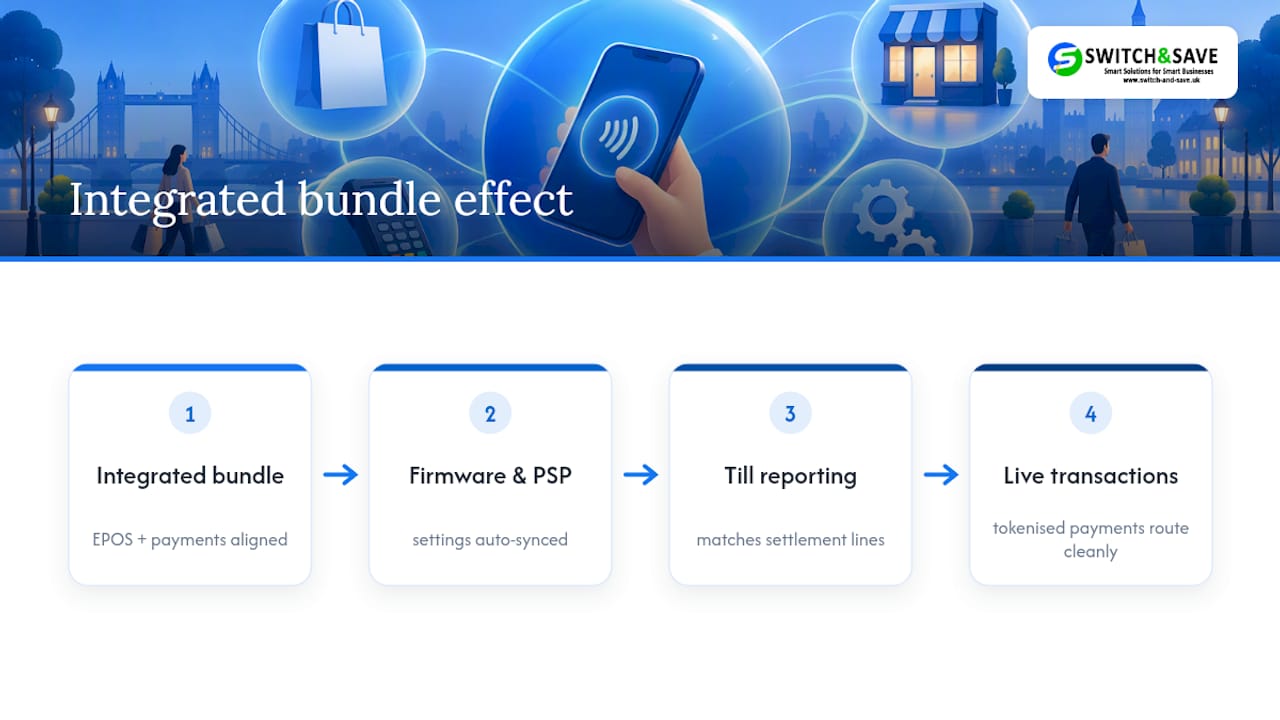
From what we see across retail and hospitality clients, most Google Pay problems aren’t about the wallet itself, they’re about mismatched settlement lines between the terminal, the PSP and the till. An integrated EPOS and payments bundle keeps firmware and PSP settings aligned automatically, so tokenised wallet payments route through cleanly instead of needing manual reconciliation.
Some providers offer UK-based support, free demos, and separate bundles for hospitality and retail businesses, so the setup can match how your business actually runs. During onboarding, that typically means test transactions before go-live, staff training on the new terminal, and migration help if you’re moving away from another provider. It’s the kind of groundwork that turns “technically live” into “actually working” on day one.
What the setup advice usually gets wrong
Most guidance on this topic treats Google Pay as a switch you flip once and forget. In reality, the harder part isn’t turning the wallet on, it’s keeping the terminal, the PSP settings and the EPOS reporting in step with each other over time. Firmware updates happen, PSPs change their toggles, and nobody notices until a Friday night till doesn’t reconcile.
The conventional advice also overstates the risk of new hardware. Since most UK terminals from 2020 onwards already handle contactless and NFC, the real bottleneck is almost always account configuration, not equipment. If you’re auditing your setup, spend your time on the PSP dashboard and your EPOS reports before you consider replacing a terminal.
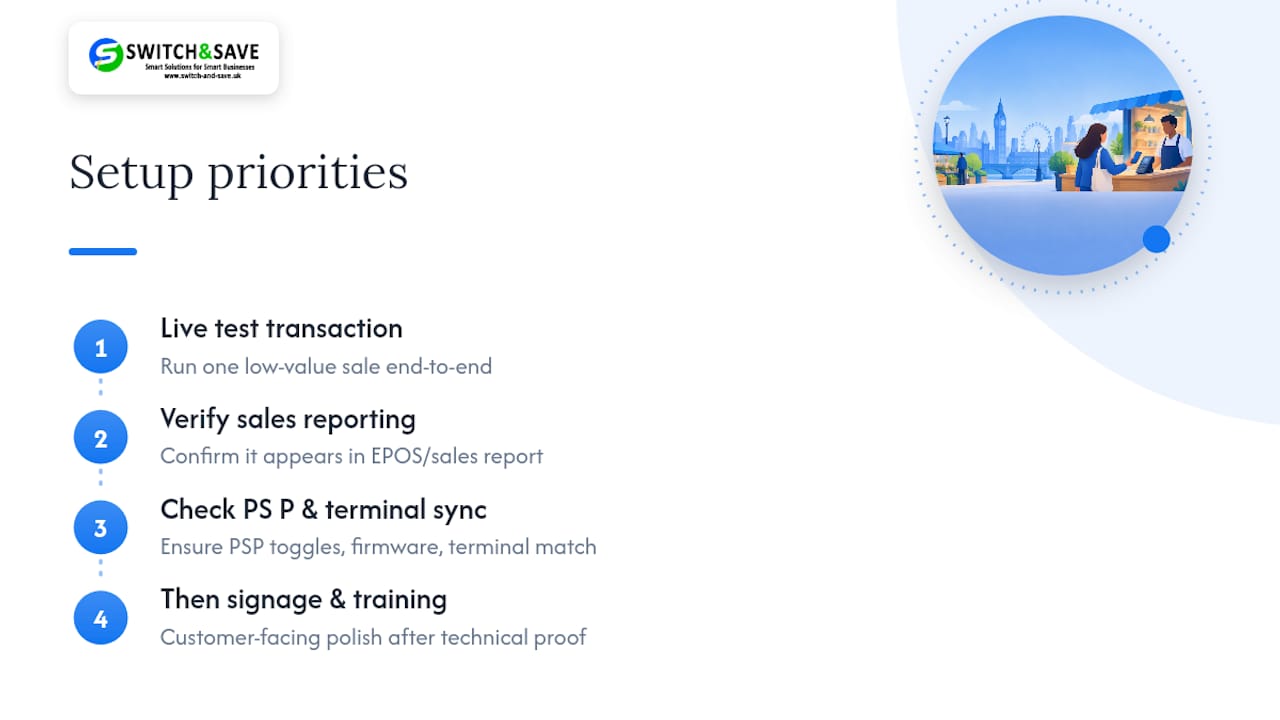
What I’d prioritise first: get one low-value live transaction through end to end, check it lands correctly in your sales report, then worry about signage and staff training. Technical proof before customer-facing polish.
— Amir
How Switch&Save helps you finish the job
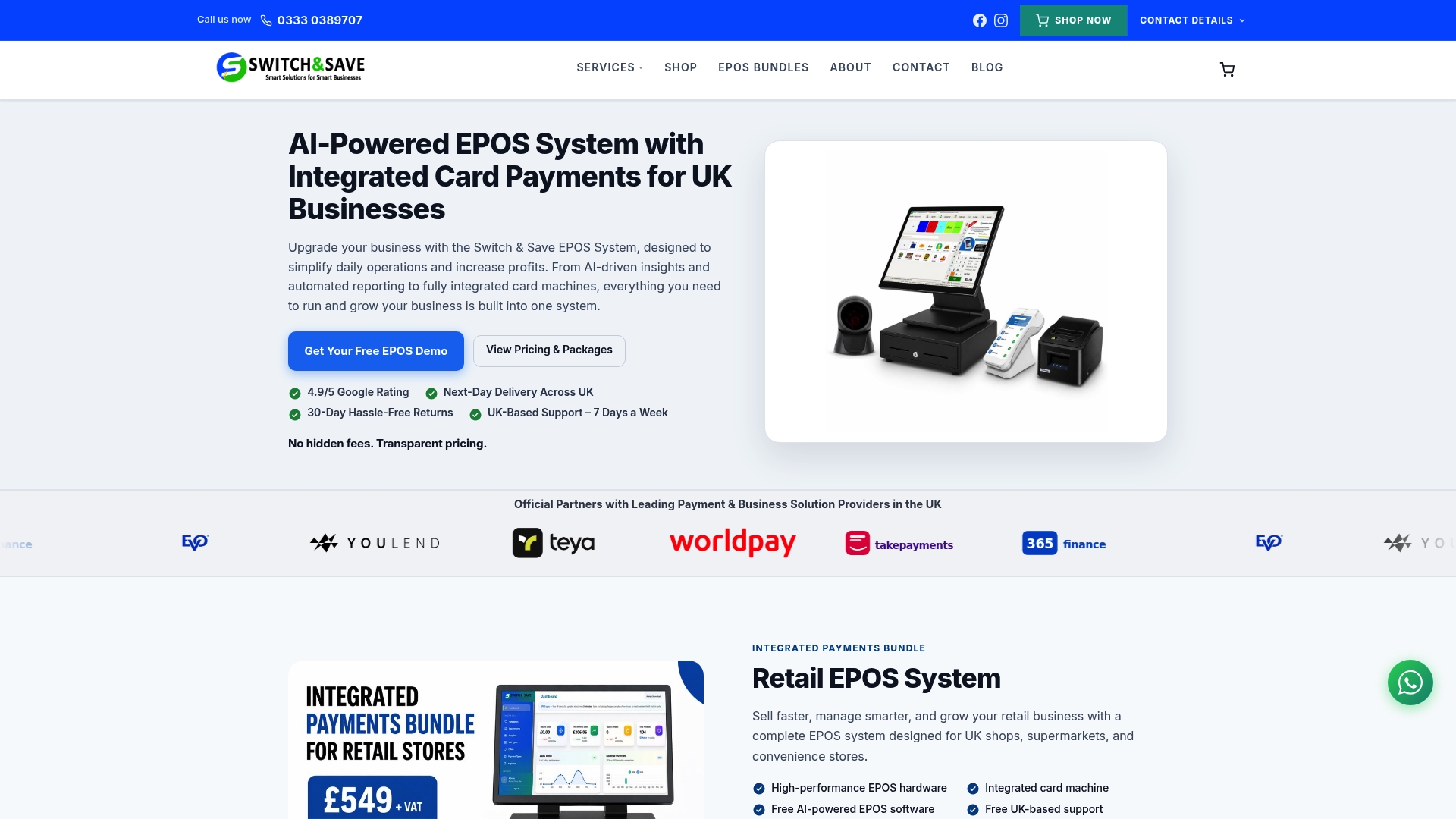
If you’d rather not chase PSP settings and terminal firmware yourself, that’s exactly what an integrated bundle is for. The Hospitality EPOS Bundle pairs EPOS software with integrated payments for cafés, restaurants and pubs, while the Integrated Payments Bundle gives retail shops an all-in-one EPOS and card terminal with the payment settings handled as part of the package.
Both come with:
- UK-based support if a setting or firmware update needs sorting out.
- A free demo before you commit to anything.
- Migration help if you’re switching from another EPOS or payments provider.
For shops after a lighter touch, our range of EPOS bundles covers standard and premium retail options, and our card machines page has terminal options if you just need new hardware alongside your existing till. Book a free demo and we’ll check your setup is ready for Google Pay before you go live.
Sources
For the technical detail behind this guide, see GOV.UK’s digital wallets guidance, the payments service acceptance guidance, and Google’s supported devices documentation.
- UK Finance — Payment Markets Report 2026 summary
- GOV.UK — Digital wallets (how to turn on Google Pay and Apple Pay)
FAQ
Do I need new hardware to accept Google Pay in my shop?
Most UK shops don’t. Terminals issued since January 2020 support NFC contactless payments, which covers Google Pay, according to UK Finance’s Payment Markets Report. You may still need to check your PSP has the wallet switched on in its settings.
How do I turn on Google Pay with my payment provider?
It depends on your provider. Some, like Stripe, enable it by default, while others, like Worldpay, need you to generate a Google Pay merchant ID manually, as explained in GOV.UK’s guidance. Check your PSP’s admin dashboard first before assuming anything is missing.
Does Google Pay have a different spending limit to contactless cards?
The standard UK contactless limit is £100, but mobile wallets can behave differently because of how issuers apply online PIN checks on the device. This is a common source of customer confusion, which UK Finance’s contactless research survey found affects many shoppers’ understanding at the till.
Why would a customer’s Google Pay tap get declined?
Declines are usually down to outdated terminal firmware, issuer-side fraud rules, or a sync issue between your EPOS and acquirer, rather than a problem with Google Pay itself. Updating firmware and contacting your PSP with the transaction ID usually resolves it quickly.
Can Switch&Save help me get Google Pay working in my shop?
Yes. Switch&Save’s Hospitality EPOS Bundle and Integrated Payments Bundle both include integrated payments with UK-based support during setup and testing. A free demo will confirm whether your current terminal is already Google Pay ready.