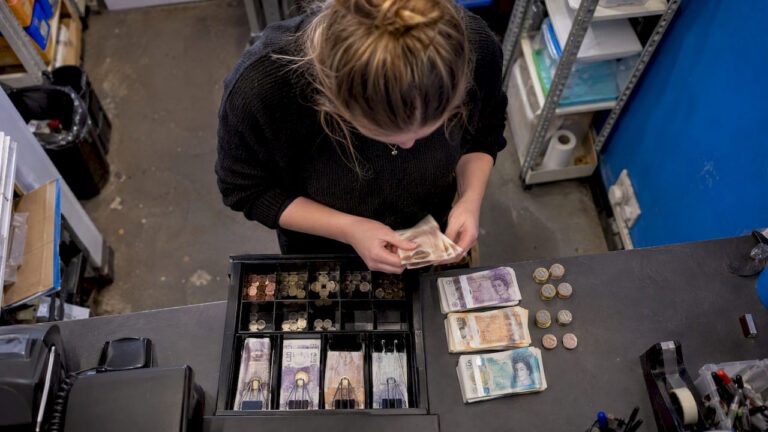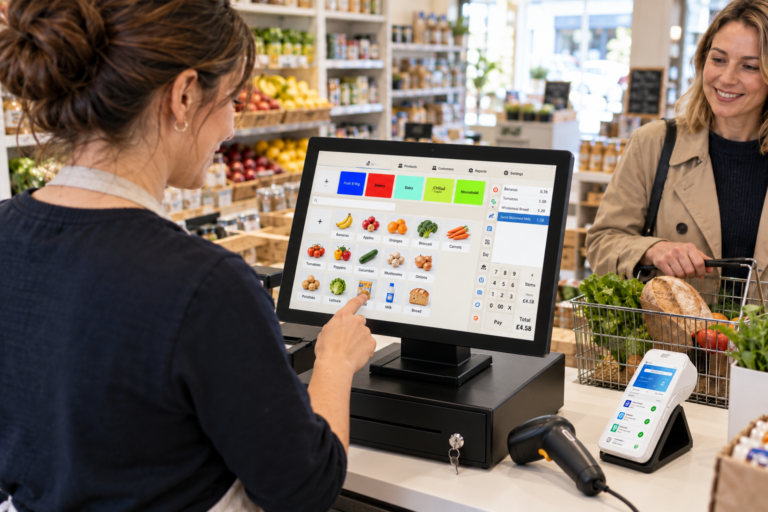
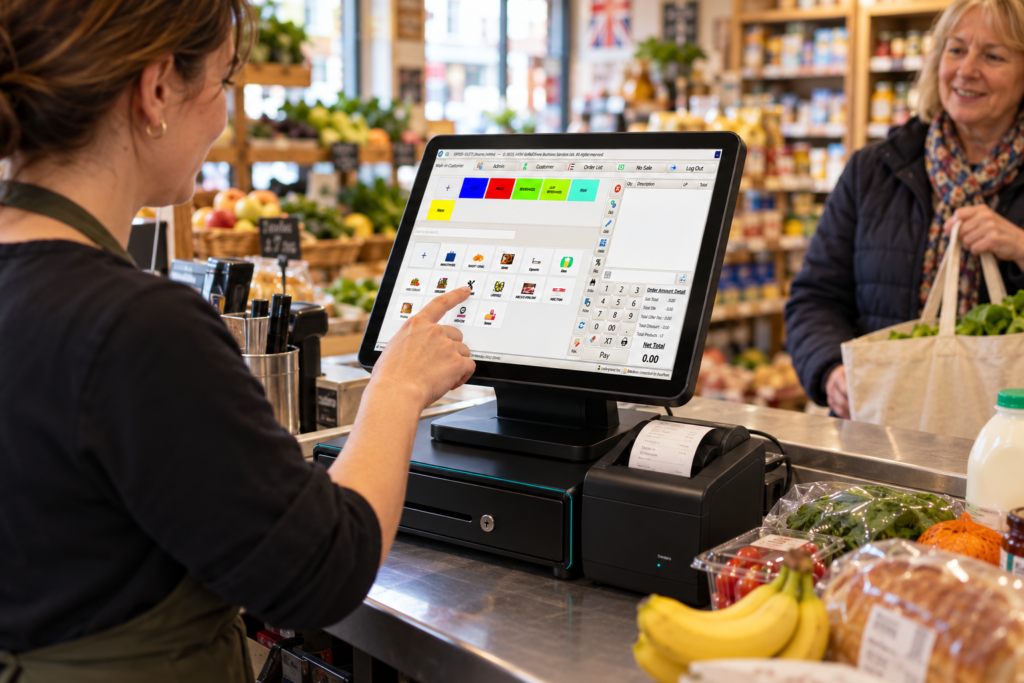
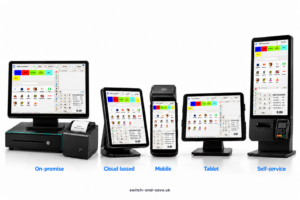
Five common types of POS systems are traditional on-premise POS, cloud-based POS, mobile POS, tablet POS and self-service kiosk POS. Each suits a different way of serving customers, from scanning groceries at a fixed checkout to taking orders at a restaurant table.
These categories overlap. A tablet POS can also be cloud-based, while a mobile device might connect to the same system as your main till. Think of them as useful descriptions of how a system works, rather than five completely separate products.
For your business, the right choice depends on what you sell, where you serve customers and which tasks you need to manage alongside payments.
What is a POS system?
A point of sale system, usually shortened to POS, records a sale and helps you complete the transaction. Depending on the software, it can also manage products, stock, orders, customer records and business reports.
EPOS means electronic point of sale. In everyday UK business use, POS and EPOS often describe the same kind of digital till system.
The hardware is the equipment you use, such as a touchscreen, tablet, barcode scanner or receipt printer. The software handles the sale and the records behind it.
For example, a grocery shop might scan a loaf of bread, add milk and accept a card payment. A connected POS can record those items, update stock quantities and include the transaction in the day’s sales report.
Five types of POS systems explained
1. Traditional on-premise POS systems
An on-premise POS runs its core software and stores its main data on equipment at your business, such as a local computer or server. You’ll often see it used with a dedicated countertop touchscreen.
However, a fixed touchscreen doesn’t automatically mean a system is on-premise. Similar-looking terminals can run cloud-based or hybrid software.
Best suited to: businesses that want a permanent checkout and local control of their core sales system.
Picture a busy convenience shop. Staff need a reliable checkout position with a barcode scanner, cash drawer and receipt printer within reach. A dedicated terminal can suit that routine well.
Some local systems can continue recording sales when the internet drops. That doesn’t necessarily mean card payments, remote reports or other connected services will keep working.
Before choosing one, ask who manages backups, software updates and recovery if the main computer fails. Local storage still needs a clear maintenance plan.
2. Cloud-based POS systems
A cloud-based POS uses online services to store and manage business data. Depending on the product, staff access it through an installed app, a browser or dedicated till software.
Best suited to: owners who need remote reporting, shared information across locations or access away from the counter.
For example, you might run a café in Birmingham and check its lunchtime sales while visiting a supplier. With suitable permissions and an internet connection, a cloud dashboard can make that possible.
Cloud-based POS systems can also help keep product or menu information consistent across connected devices. Exactly what synchronises, and how quickly, depends on the software.
The main question is what happens during an outage. Some systems offer limited offline selling; others depend more heavily on connectivity.
Ask for a demonstration of an internet failure and reconnection. Check which transactions are saved, what becomes unavailable and how the records synchronise afterwards.
3. Mobile POS systems
A mobile POS, or mPOS, lets staff handle sales using a portable device. That could be a smartphone, a handheld terminal or another compact device running POS software.
Best suited to: market traders, pop-up businesses, outdoor service and staff who need to move around.
Imagine selling at a weekend market. Instead of setting up a full counter, you could select products on a supported device and take payment through a compatible reader or payment app.
In a restaurant, a handheld POS might let staff enter orders beside the table. Where kitchen integration is supported, those orders can go straight to the preparation area.
A portable card machine isn’t automatically a complete mobile POS. It may accept payments without managing itemised sales, stock or orders.
Check battery life, mobile signal, receipt options and the features available on the handheld device. Don’t assume it includes everything your main till does.
4. Tablet POS systems
A tablet POS uses a compatible tablet as its main sales interface. It can sit in a secure counter stand or move with staff, depending on the setup.
Best suited to: businesses that want a compact touchscreen checkout, including cafés, smaller shops, salons and mobile phone shops.
A phone shop, for example, could use a tablet to sell accessories, find products and record customer purchases. A café might use one for drinks, food modifiers and takeaway orders.
The difference between tablet POS and mobile POS is mainly emphasis. “Tablet” describes the hardware; “mobile” describes how it’s used. A tablet fixed to a counter may never move.
Compatibility matters. Check the exact tablet model, operating system, printer connections and payment integration before buying equipment.
Our EPOS hardware guide explains the equipment to consider when planning a practical checkout.
5. Self-service kiosk POS systems
A self-service kiosk lets customers enter their own order or scan purchases through a customer-facing interface. Payment may happen at the kiosk or at a separate collection point.
Best suited to: businesses with a clear ordering process and enough space to support customer self-service.
For example, a takeaway customer could select a meal, choose extras and send the order through to the kitchen. Staff can then focus on preparation and helping customers who need assistance.
The interface needs careful planning. Clear categories, readable text, accurate prices and simple navigation all affect whether customers can complete their orders comfortably.
A kiosk also needs a process for unavailable items, failed payments, changes and refunds. Customers should have an obvious way to ask for help.
Self-service can provide another ordering route, but its usefulness depends on your menu, customer needs and kitchen capacity. Test the full journey before committing.
POS descriptions commonly mix hardware, deployment and service models, which is why these categories can overlap. Yoco
Key takeaways: POS types compared
| POS type | What it describes | Typical UK use | Main point to check |
|---|---|---|---|
| Traditional on-premise | Core software and data held locally | Permanent shop checkout | Backups, maintenance and recovery |
| Cloud-based | Online services managing business data | Remote oversight or multiple locations | Connectivity and offline behaviour |
| Mobile | Portable selling and order taking | Markets, pop-ups and table service | Battery, signal and available functions |
| Tablet | A tablet used as the sales interface | Compact shop or café counter | Device and accessory compatibility |
| Self-service kiosk | Customers entering orders or purchases | Takeaways and suitable retail settings | Accessibility, assistance and order flow |
Your final setup might combine several types. A restaurant could use a fixed counter terminal, portable ordering devices and a cloud dashboard together.
How to choose the right POS system
Start with your everyday transactions
Choose around your busiest routine, rather than the longest feature list.
A grocery shop may need fast barcode scanning, weighed products and stock control. A bar may prioritise tabs and quick product selection. A restaurant may need tables, modifiers, kitchen printing and split payments.
Write down three transactions your team handles regularly. Ask the supplier to demonstrate each one, including a mistake, cancellation or refund.
You can also compare the equipment and workflows discussed in our guide to EPOS bundles for small retail shops.
Compare the full cost
Look beyond the price of the screen. Compare hardware, software subscriptions, installation, training, support, payment processing and optional extras.
Check whether extra tills, locations or integrations cost more. Ask about contract length, cancellation terms and how you can export your data.
A useful quote should make these costs clear enough to compare like for like.
Check support and room to grow
A system that suits one counter may need additional hardware or software when you expand.
Ask what happens if you add another till, introduce online ordering or open a second location. Confirm support hours and what assistance is included.
For hospitality, explore a hospitality EPOS bundle alongside a demonstration of your actual service routine.
Where integrated card payments fit
Integrated card payments connect the POS transaction to a supported payment terminal.
Here’s how it works: if the sale totals £18.40, the POS sends £18.40 to the terminal. The payment result then returns to the POS, reducing the need to enter the amount separately.
With a standalone terminal, staff normally type the amount themselves and record the payment against the sale.
Integration can reduce repeated entry, but you still need to understand failed payments, refunds and settlement reports. Confirm compatibility between the POS software, terminal and payment provider.
Our guide to what’s included in an EPOS bundle explains how the main components fit together.
Find a suitable setup with Switch & Save
The best POS system is one your staff can use confidently and your business can rely on during a normal working day.
Switch & Save helps UK businesses reduce costs with AI-powered EPOS systems, card payment solutions and business finance. Compare available EPOS bundles and ask for a demonstration based on your products, menu and checkout needs.
Visit Switch & Save or call 0333 0389707 to discuss your setup.
Frequently asked questions
What are the five types of POS systems?
Five common types are traditional on-premise POS, cloud-based POS, mobile POS, tablet POS and self-service kiosk POS. These descriptions overlap because they cover different aspects of a system.
Which POS system is best for a small business?
It depends on your sales process. A market trader may need portability, while a grocery shop may need a fixed checkout with scanning and stock control. Test your everyday transactions before choosing.
What’s the difference between POS and EPOS?
POS means point of sale. EPOS means electronic point of sale. In everyday UK usage, both terms often refer to digital systems that record sales and support business operations.
Can POS systems work without the internet?
Some can continue selected functions offline. Card payments and cloud services may have separate requirements, so ask your supplier to demonstrate what works during an outage.
Is a card machine a POS system?
A standalone card machine primarily takes payments. A full POS usually manages the itemised sale and may also handle products, stock, orders and reports. Some smart terminals combine both functions.
Can one business use different POS types together?
Yes. For example, a café might use a tablet at the counter, handheld devices for table orders and a cloud dashboard for management. Compatibility determines how well they work together.