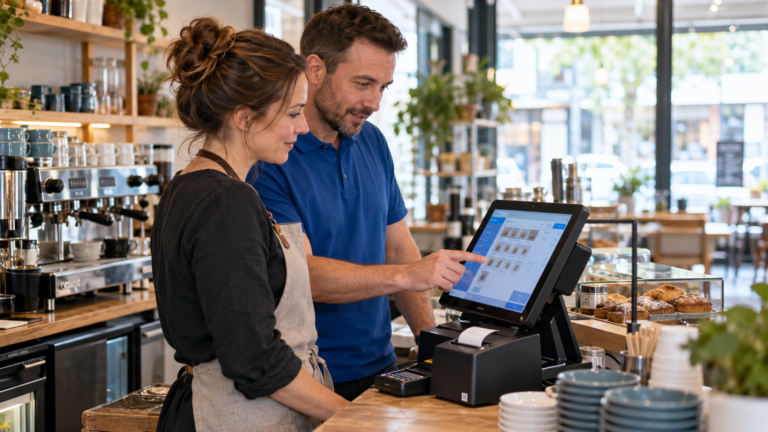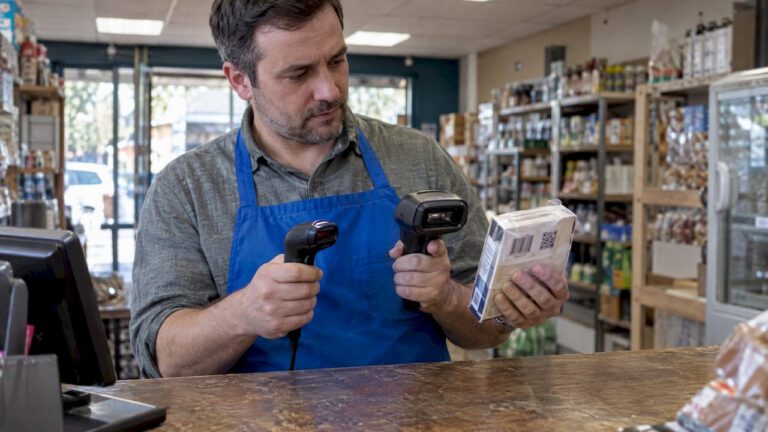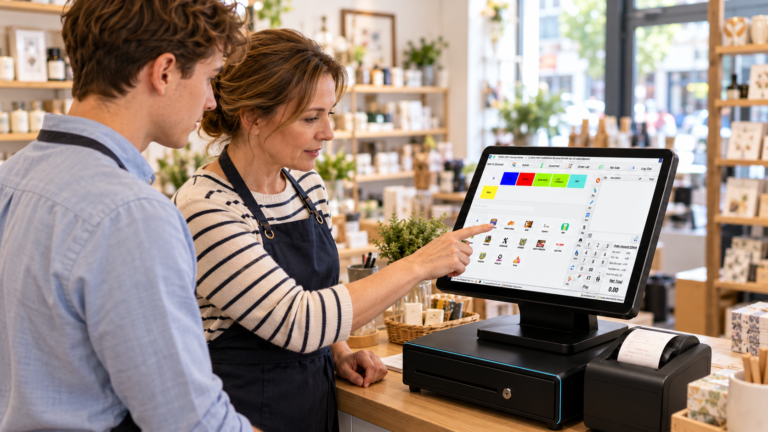
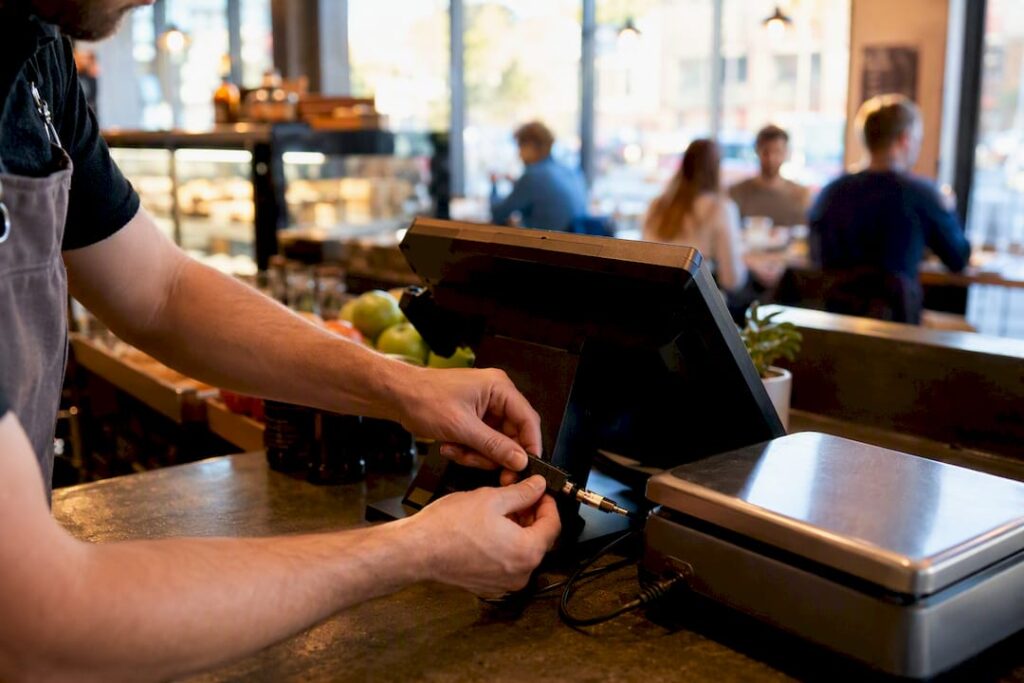
POS scale integration means your weighing scale sends its reading straight into the point-of-sale transaction, so the till calculates a price automatically instead of a cashier typing one in. Getting it right comes down to picking the right connection pattern for your counter. There are three approaches to choose from:
- Direct integrated scale — connected live to the POS, best for delis, butchers and busy service counters.
- Label or barcode scale — prints a weight-encoded label the till scans, good for pre-pack and POS systems without native scale drivers.
- Non-integrated or manual entry — the cashier reads the display and keys in the price, fine for very low volume only.
Before buying anything, check that your POS software has OPOS, JavaPOS or POS for .NET driver support for the exact scale model. That single check saves more installation headaches than any other step, and it’s where most projects go wrong.
Table of Contents
- What does POS scale integration actually give your business?
- What are the three integration approaches and when should you pick each?
- What should you check before buying a scale for your POS?
- How do you set up and test a scale integration step by step?
- Why is my scale not working with the POS, and how do you fix it?
- How does Switch&Save handle scale deployment and support?
- What is the core lesson on integrating a scale with your POS?
- What most integration guides get wrong
- Get a scale integration that’s tested before it reaches your counter
- Sources
- FAQ
What does POS scale integration actually give your business?
The honest answer is speed, accuracy and better data, but the size of the payoff depends on what you sell.
A deli or butcher counter processing dozens of weighed items an hour feels the throughput gain almost immediately: no more manual price lookups, no more digits mistyped under pressure at 1pm on a Saturday. Bakeries and mixed grocery retailers see the accuracy benefit more than the speed one, because even a small consistent rounding error on price-per-kilogram items compounds across thousands of transactions a month. Cafés and takeaways selling loose items like coffee beans or deli salads get a smaller but real win: fewer refunds caused by pricing disputes.
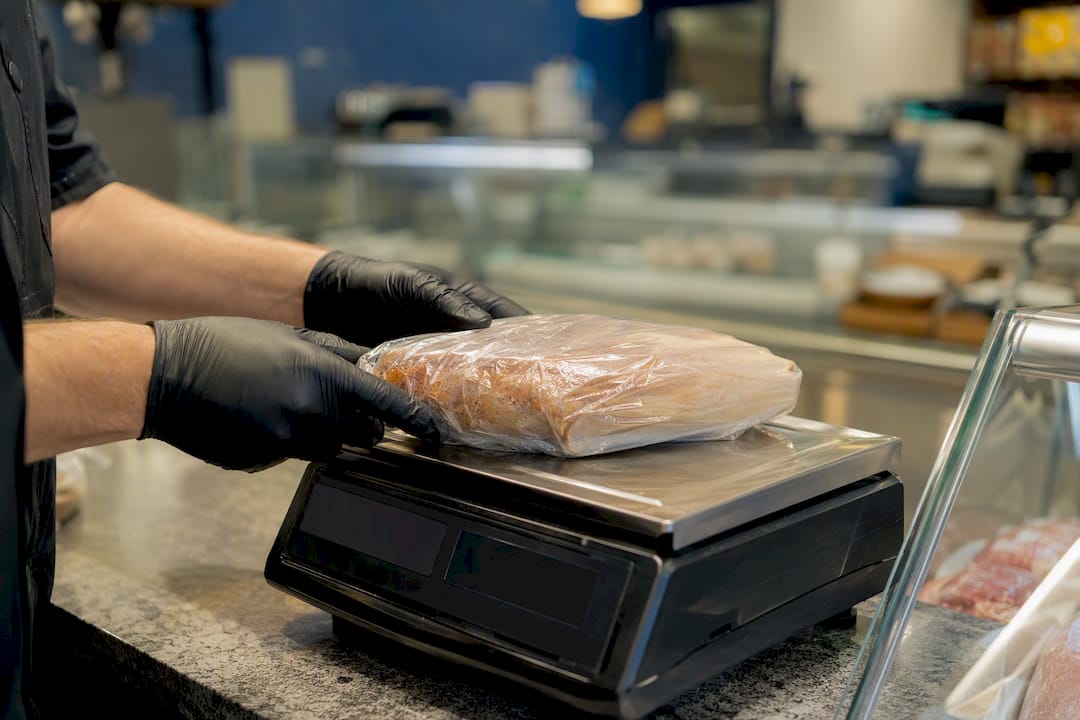
Integrated deployments are also reported to cut transaction time and improve pricing accuracy enough that the investment pays back within a reasonable window, though the exact timeline depends on your transaction volume.
The bigger structural benefit is data. Once weight flows into the POS automatically, you get real sales and inventory reporting broken down by weighed product, not just by SKU count. That’s the difference between “we sold 40 units of cheese” and “we sold 23.6 kilograms of cheese at an average margin of 34%.”
- Deli/butcher counters: direct integrated scale, high volume, live weight needed constantly.
- Bakeries and pre-pack retail: label/barcode scale, weight fixed before the till interaction.
- Cafés with occasional loose items: either approach works, but label scales are usually cheaper to run.
What are the three integration approaches and when should you pick each?
Matching the right pattern to your counter layout matters more than any single feature comparison, because the wrong choice creates friction every single day, not just at setup.
- Direct integrated scale. The scale connects to the POS terminal, usually over USB or RS-232 serial, and sends live weight into the sale screen the moment the item settles. This is the natural fit for deli and butcher counters and high-volume lanes where staff weigh dozens of different items per shift. It needs a proper OPOS, JavaPOS or POS for .NET driver, or a vendor-specific API, and that driver needs to match your POS software version.
- Label or barcode scale. The scale itself prints a barcode encoding the weight and price, and the checkout till just scans it like any other product. This is a common workaround when your POS software has no native scale drivers, and it’s often the pragmatic first step for smaller sites. You’ll need to map PLU codes or generate a PLU file so the scale and till agree on which product is which.
- Non-integrated or manual/QR workflow. Staff read the display and type the price in, or scan a printed QR code linked to a fixed weight tier. Acceptable for very low weighing volume, but error rates climb quickly once queues build.
Pro Tip: If you’re not sure which approach fits, count how many different weighed products a single till handles in an hour. Above roughly 15 to 20, direct integration nearly always earns back its setup cost faster than a label workflow.
What should you check before buying a scale for your POS?
Compatibility failures rarely come down to the cable. They come down to software layers that don’t match, and that’s the part most buying guides skip past.
Start with the application interface. Your POS needs to speak the same language as the scale, whether that’s OPOS, JavaPOS, POS for .NET, or a vendor-specific API. Protocol compatibility depends on the service-object and driver layer, not the physical connector, so a scale that plugs in via USB can still be completely unusable if there’s no matching service object installed for your POS version.
Here’s what to verify before you commit to a purchase:
- The scale has a published, current driver or service object for your exact POS software version and operating system.
- Serial parameters match if you’re using RS-232: baud rate, parity, stop bits, and framing all need to agree between scale and POS, as documented in scale protocol notes like the Gram Group MU_ZFOC RS232 specification.
- Ethernet-connected scales have the correct IP configuration and are on the same network segment as the till.
- The scale’s stable weight, tare and decimal/rounding behaviour match how your POS expects to receive data.
- The unit is legal-for-trade or trade-approved if you sell goods by weight. That approval status should be checked with the manufacturer or your local trading standards body before purchase, not assumed from a spec sheet.
Confirm the application interface, the service object, and the device profile all line up before you sign off on a scale purchase. Matching connectors without matching software is the single most common reason integration projects stall during commissioning.
Switch-and-save’s guide to POS hardware compatibility covers this checklist in more depth if you’re weighing up multiple peripheral purchases at once.
How do you set up and test a scale integration step by step?
Getting from a boxed scale to a working weigh-and-sell transaction follows a fairly fixed sequence, and skipping steps is where most delays come from.
- Unpack and position the scale. Mount it where cabling reaches the POS terminal without strain, and leave slack in USB or serial cables so routine cleaning doesn’t tug on connectors.
- Install the vendor driver or service object. StarMicronics’ MG-S OPOS driver manual is a good reference for what a typical install looks like: driver package, configuration utility, and a registration step before the device becomes usable.
- Register the device. Most OPOS-based scales need a utility like ScaleRegister to claim the device inside the OPOS framework. For serial scales, set the correct COM port and baud rate at this stage.
- Map PLUs or set price-per-kilogram. Configure decimal precision and rounding rules in the POS so a 0.347kg reading resolves to the price your business actually expects, not a rounded approximation.
- Run acceptance tests. Weigh a known-mass test item and confirm the price matches, test the tare function with a container, run a refund and a void on a weighed sale, and reboot the till to confirm the scale reconnects without manual reconfiguration.
Pro Tip: Don’t sign off an installation until someone has deliberately unplugged and replugged the scale mid-shift to see how it recovers. That single test catches more real-world faults than a week of normal trading.
Switch-and-save’s POS hardware setup guide walks through cabling and mounting notes in more detail for teams handling their own install.
Why is my scale not working with the POS, and how do you fix it?
Most commissioning faults fall into a handful of repeatable patterns, and diagnosing them quickly saves a lot of back-and-forth with support desks.
- Device detected but not claimable. This is almost always a service-object mismatch, meaning the driver is installed but doesn’t match the POS software’s expected version. Reinstall the correct driver version rather than assuming the hardware is faulty.
- Garbled or unexpected weight units. Usually a serial parameter mismatch: baud rate, parity or stop bits don’t agree between scale and POS. Check both settings against the scale’s protocol documentation.
- Prices calculated from an unsettled reading. Live weight fluctuates as an item is placed; sales should only trigger once the scale reports a stable, settled weight. If prices look wrong intermittently, check the stability threshold setting.
- Scale drops connection after reboot. Confirm cable strain hasn’t loosened a connector, and rule out interference from other USB peripherals sharing a hub.
- Escalating to a vendor. Contact the scale manufacturer for driver or firmware issues, and the POS vendor for anything relating to PLU mapping or price display. Have your acceptance test results and error logs ready before you call either.
How does Switch&Save handle scale deployment and support?
Switch-and-save supplies EPOS bundles with integrated retail weighing scales built for deli counters, butchers and mixed grocery retail, backed by UK-based support throughout setup.
Deployment isn’t left to chance. Our team handles:
- Driver installation and OPOS/JavaPOS registration on your specific POS configuration.
- PLU mapping and price-per-kilogram setup, tuned to your product range before go-live.
- Acceptance testing, including tare checks and reboot recovery, before the till goes live on the shop floor.
If you’re weighing up whether to integrate a scale yourself or have it done for you, requesting a demo is the easiest way to see the setup running on real hardware before committing.
What is the core lesson on integrating a scale with your POS?
A scale integration succeeds when the software layer, not the cable, is verified first: driver, service object and device profile must all match before installation begins.
| Point | Details |
|---|---|
| Match software before hardware | Confirm OPOS/JavaPOS/POS for .NET driver support for your exact POS version before buying a scale. |
| Choose by counter volume | Direct integration suits high-volume deli counters; label scales suit pre-pack or driverless POS setups. |
| Serial settings must agree | Baud rate, parity and stop bits need to match exactly between scale and POS for RS-232 connections. |
| Test before go-live | Run known-weight, tare, refund and reboot-recovery tests as part of acceptance, not as an afterthought. |
| Switch-and-save manages the process | Switch-and-save deploys integrated scales with driver installs, PLU mapping and UK support included. |
What most integration guides get wrong
Most explainers treat scale integration as a hardware decision: pick a scale, plug it in, done. That’s backwards, and it’s the reason so many installations stall halfway through commissioning.
The driver and service-object layer decides whether an integration works, not the connector type. A scale can be physically wired correctly over USB and still be unusable because the POS software has no matching OPOS profile for that model. Buying guides that lead with connector specs rather than driver compatibility are setting readers up to buy the wrong thing first and troubleshoot second.
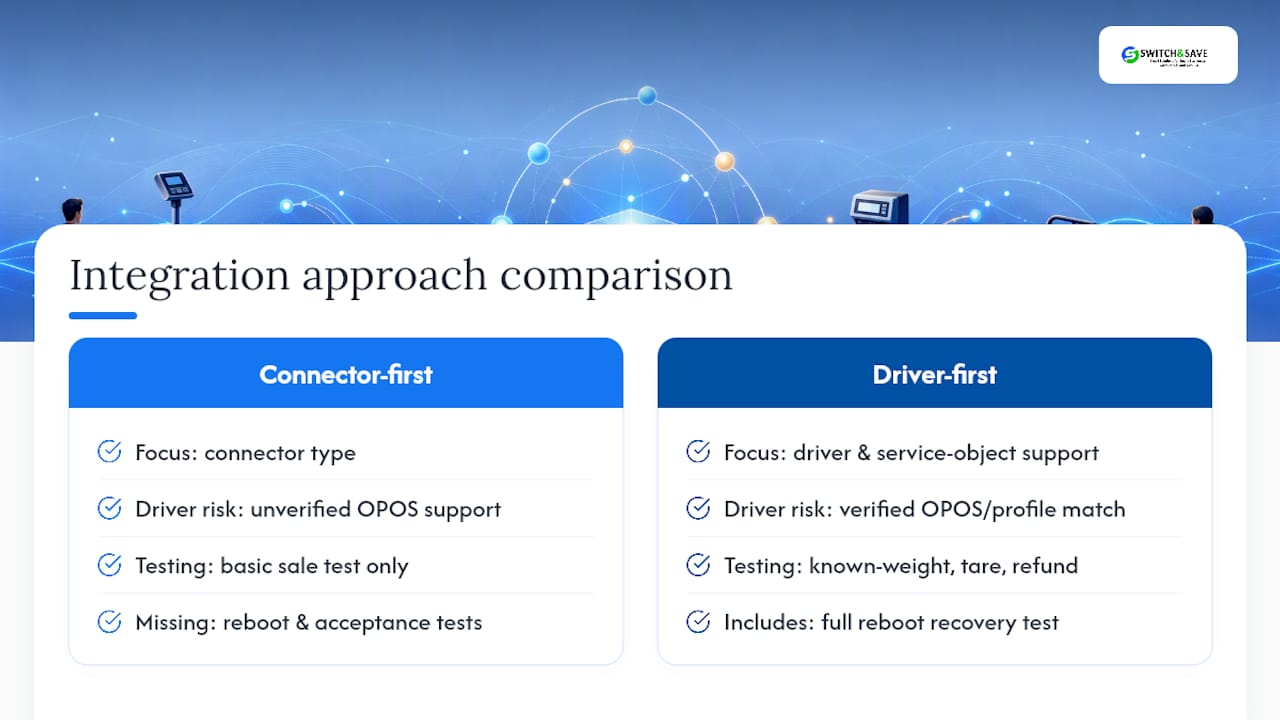
The other gap is acceptance testing. Plenty of advice stops at “install the driver and test a sale.” That’s not enough. A known-weight check, a tare test, a refund flow, and a full reboot recovery test are the difference between a scale that works in a demo and one that survives six months of daily trading with rotating staff. Skip the reboot test especially, and you’ll find out the hard way during a busy Saturday morning.
If you’re weighing up integration options, prioritise verifying driver and service-object support first, budget time for proper acceptance testing second, and treat the connector type as the last decision, not the first.
— Amir
Get a scale integration that’s tested before it reaches your counter
Switch-and-save builds EPOS bundles with weighing scales already matched to the till software, so you’re not left guessing whether a driver will claim the device once it arrives.
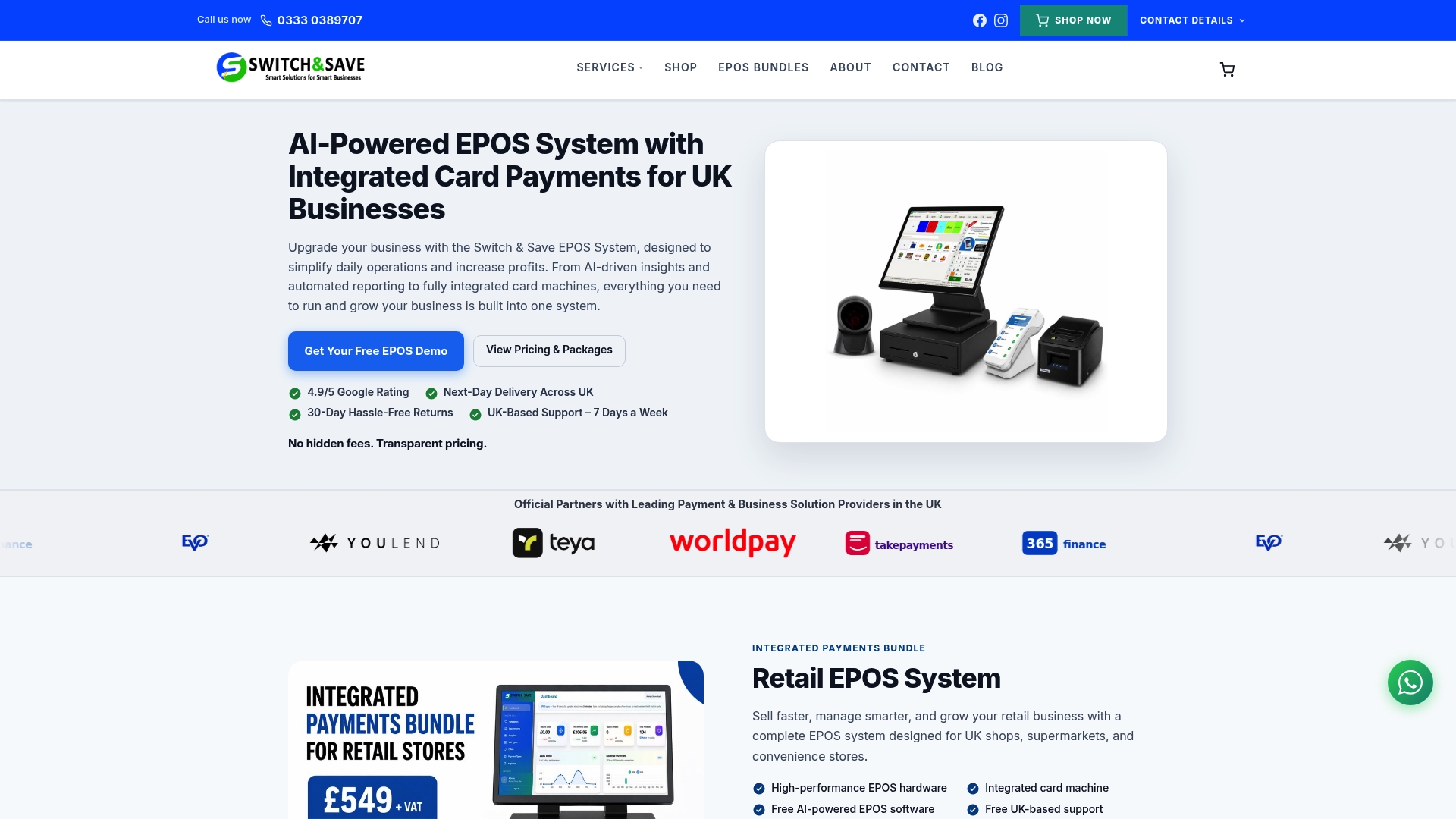
Rather than sourcing a scale separately and hoping the OPOS driver lines up, Switch-and-save deploys the hardware and SSPOS software together, with PLU mapping and acceptance testing handled as part of the install. That removes the exact risk this article has walked through: mismatched service objects, unverified serial settings, and untested reboot recovery. For businesses handling security or loss-prevention concerns around till and scale placement, this point-of-sale security guidance from our partner is worth a read alongside your setup.
If you’re ready to see a compatible scale and POS running together before you buy, browse the EPOS systems range or request a demo tailored to your counter layout.
FAQ
What is POS integration?
POS integration is the process of connecting a point-of-sale system to external hardware or software, such as a weighing scale, card reader or inventory platform, so data flows automatically between them without manual re-entry.
What is a POS system scale?
A POS system scale is a weighing device connected directly to a point-of-sale terminal, sending weight readings into the sale so the till calculates a price-per-kilogram item automatically rather than requiring a manually typed price.
What are the main types of scale integration for POS?
The three practical types are direct integrated scales, label or barcode scales, and non-integrated manual entry, each suited to a different combination of transaction volume and driver support.
What does POS stand for?
POS stands for point of sale, referring to the location and system where a customer completes a purchase, including the till hardware and the software running on it.
Do I need a legal-for-trade scale to sell products by weight?
Yes, if you’re selling goods priced by weight, the scale must be legal-for-trade or trade-approved, and you should verify that status with the manufacturer or your local trading standards body before purchase.
Recommended
- Retail Weighing Scale for Grocery Stores & Meat Shops with EPOS Integration – Switch&Save Retail Weighing Scale for UK Grocery Stores & Meat Shops | Switch & Save
- Upgrade Retail Weighing Scale for Grocery Stores & Meat Shops with EPOS Integration (Bundle) – Switch&Save Retail Weighing Scale for UK Grocery Stores & Meat Shops | Switch & Save
- EPOS integration examples for retail and hospitality | Switch & Save UK
- POS System Integration: What You Need to Know About Compatibility with Other Tools – Switch&Save