For low-volume kitchens with a simple menu, a thermal printer still does the job well. For high-volume, multi-station kitchens juggling delivery apps and dine-in orders, a kitchen display system (KDS) or a hybrid setup usually pays for itself. The right answer depends on ticket volume, menu complexity, and how many stations need to see the same order at once. If you’re not sure which camp you fall into, a short hybrid pilot will tell you more quickly than any spec sheet.
TL;DR:
- Printers remain cost-effective for small kitchens with low ticket volume and simple menus, requiring minimal setup and staff training.
- Kitchen display systems excel in high-volume, multi-station kitchens by providing real-time updates, eliminating miscommunication, and offering operational insights.
- Hybrid setups that combine screens and printers offer a balanced, low-risk transition for mid-sized kitchens, allowing testing before full adoption.
- Network reliability and staff training are critical; wired connections and proper onboarding significantly reduce operational downtimes.
- Environmental benefits favor KDS, as they eliminate ongoing paper waste, but initial hardware costs and proper integration are essential considerations.
Table of Contents
- Kitchen display vs printers: the at-a-glance comparison
- What is a kitchen printer and how is it used?
- What is a KDS and how does it change kitchen workflow?
- Advantages of kitchen printers
- Limitations of kitchen printers
- Advantages of KDS
- Limitations and risks of KDS
- How do you decide between printer, KDS or hybrid?
- Deployment patterns: pure print, KDS-only, or hybrid
- What does a KDS or printer setup actually cost?
- How does integrated EPOS, KDS and printer hardware work in practice?
- How do you run a one-week pilot before committing?
- Installation and maintenance: what to expect from each
- How well does each option integrate with your POS system?
- Does order accuracy and speed differ by restaurant type?
- What are the environmental and sustainability trade-offs?
- What training challenges come with each system?
- Why most operators overthink this decision
- Get help planning your EPOS, KDS and printer setup
- Sources
- FAQ
Kitchen display vs printers: the at-a-glance comparison
Before you weigh costs or read a single vendor brochure, it helps to see where the two approaches genuinely diverge. A kitchen printer produces a static paper ticket the moment an order fires. A KDS shows that same order on a screen and keeps updating it as items are prepped, bumped, or changed.
- Updates: Printers give you one fixed ticket; a KDS refreshes live as orders change or get cancelled.
- Routing: Printers route to one physical station per printer; a KDS can route the same order to multiple screens with modifiers highlighted clearly.
- Reliability: A printer jam affects one line; a KDS network or power failure can affect every station unless you’ve built in redundancy.
- Running costs: Printers need paper and ribbon continually; a KDS usually carries a monthly software fee instead.
- Best fit: Printers suit small, simple-menu kitchens; a KDS suits high-volume, multi-station, multi-channel operations.
What is a kitchen printer and how is it used?
A kitchen printer sits at a prep station and receives order data directly from your EPOS system, then prints a physical ticket the moment the order is placed. It’s the workflow most UK kitchens have run on for decades, and for good reason: it’s simple, cheap, and staff already understand it.
- Tickets print instantly with no screen to glance at or app to learn.
- Hardware costs are low, and installation is usually just a network or serial connection.
- Common problems include paper jams, ribbon runs out mid-service, and tickets going missing under a pile of others.
- Printers remain the right choice for takeaways, single-station kitchens, and low-ticket-volume venues where kitchen printer options still outperform the cost and complexity of a screen-based system.
What is a KDS and how does it change kitchen workflow?
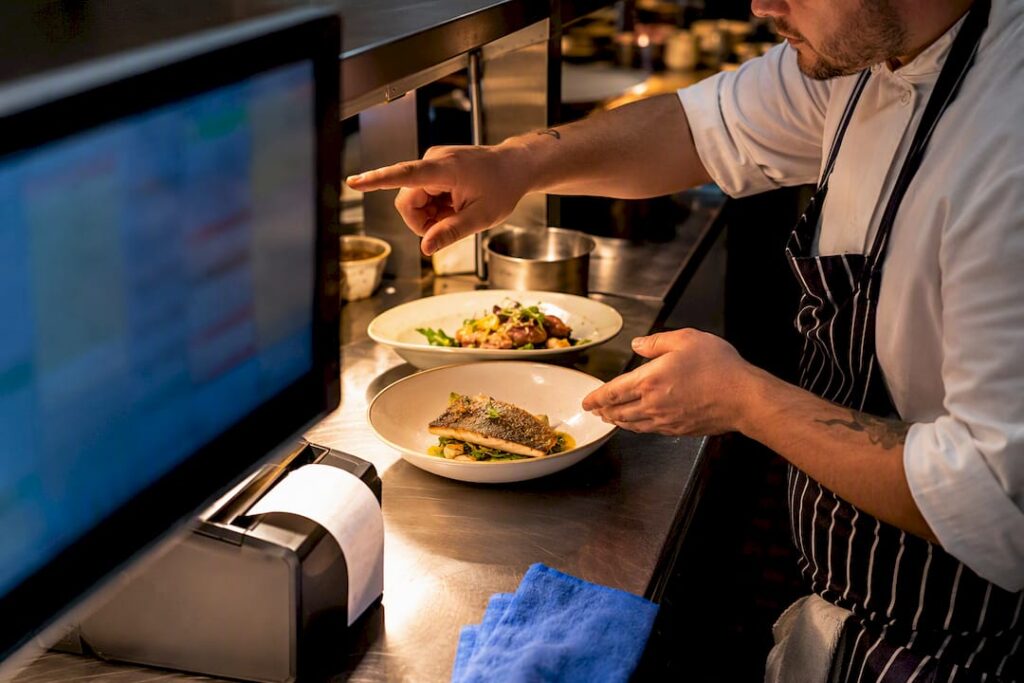
A kitchen display system replaces paper tickets with a screen (or several) that shows live orders, routes them automatically to the right station, and updates instantly if a customer changes or cancels an item. Modifiers get flagged clearly rather than buried in printed shorthand, which matters when a kitchen is running six tickets deep during a Friday rush.
Most kitchen display systems add timers that flag when an item is running late, plus a “bump” feature so a chef can clear a ticket with one tap once it’s plated. Some show station load at a glance, so a head chef can see where the bottleneck actually is rather than guessing.
There are two broad models: cloud-based (SaaS) systems that depend on an internet connection, and local controller setups that keep processing on-site even if the connection drops. The value shows up fastest in kitchens juggling web orders, delivery apps, and dine-in tickets simultaneously, where a printer alone can’t keep up with the coordination required.
Advantages of kitchen printers
Printers earn their keep in a specific type of operation, and it’s worth being honest about where they still win.
- Lower upfront cost than almost any KDS, since thermal printers typically require far less initial investment than a full display installation.
- Familiar workflow: no retraining required, staff already know how to read and clear a ticket.
- Works offline, so an internet outage doesn’t stop the kitchen from firing orders.
- Doubles as an immediate paper audit trail if a dispute over an order arises later.
Limitations of kitchen printers
The trade-offs become obvious once volume or complexity rises. There’s no real-time update if a customer changes an order after firing. Cancelling an item means someone physically crossing it off or shouting across the pass, which introduces errors during a rush. Tickets get lost, torn, or covered in sauce, and none of it feeds back into any useful data. Ongoing paper and ribbon costs add up, and printers simply weren’t built for kitchens juggling delivery apps, kiosk orders, and dine-in tickets all at once.
Advantages of KDS
A well-implemented KDS solves most of what makes printers frustrating at scale.
- Live updates mean a cancelled or modified item disappears or changes on screen instantly, with no shouting required.
- Multiple stations see the same order simultaneously, which cuts down on remakes caused by miscommunication.
- Built-in metrics track bump times and station load, giving managers real data instead of guesswork about where service slows down.
- Handles web, app, and kiosk orders far more gracefully than a printer ever could, routing each to the correct station automatically.
Limitations and risks of KDS
None of this comes free. A KDS carries a higher upfront cost and typically a recurring subscription fee, which needs to be weighed against your actual order volume. It depends on power and network connectivity, so you need a redundancy plan (a backup printer at the pass, at minimum) or a single router failure can stall the entire kitchen. Staff need proper training, and a rollout that’s rushed or half-explained tends to leave a screen ignored in the corner while everyone reverts to shouting across the pass, which defeats the entire point of installing one.
How do you decide between printer, KDS or hybrid?
Answering a handful of questions honestly will point you towards the right setup faster than reading ten more comparison articles.
- What’s your ticket volume during peak service? If your service volume is relatively low with a simple menu, a printer is often perfectly adequate.
- How complex is your menu? Lots of modifiers, allergens, or customisation options favour a screen that can display them clearly.
- How many stations need visibility on the same order? More than two or three stations makes coordination via paper genuinely difficult.
- Do you operate multiple sites? Multi-site operators benefit disproportionately from the centralised data a KDS provides.
As a rule of thumb, printers remain fine for single-station takeaways and low-complexity menus. Hybrid setups work well for most mid-sized, multi-station kitchens still deciding whether to commit fully. Full KDS tends to pay back fastest in high-volume, multi-channel kitchens with several stations running simultaneously, which is exactly why hybrid deployments are the pragmatic choice many mid-market operators land on while they gather real data.
Pro Tip: Run a hybrid pilot at your expo or pass station for two full services and track ticket time, remake rate, and how many staff actually glance at the screen versus wait for the printer. That data will tell you more than any brochure.
Deployment patterns: pure print, KDS-only, or hybrid
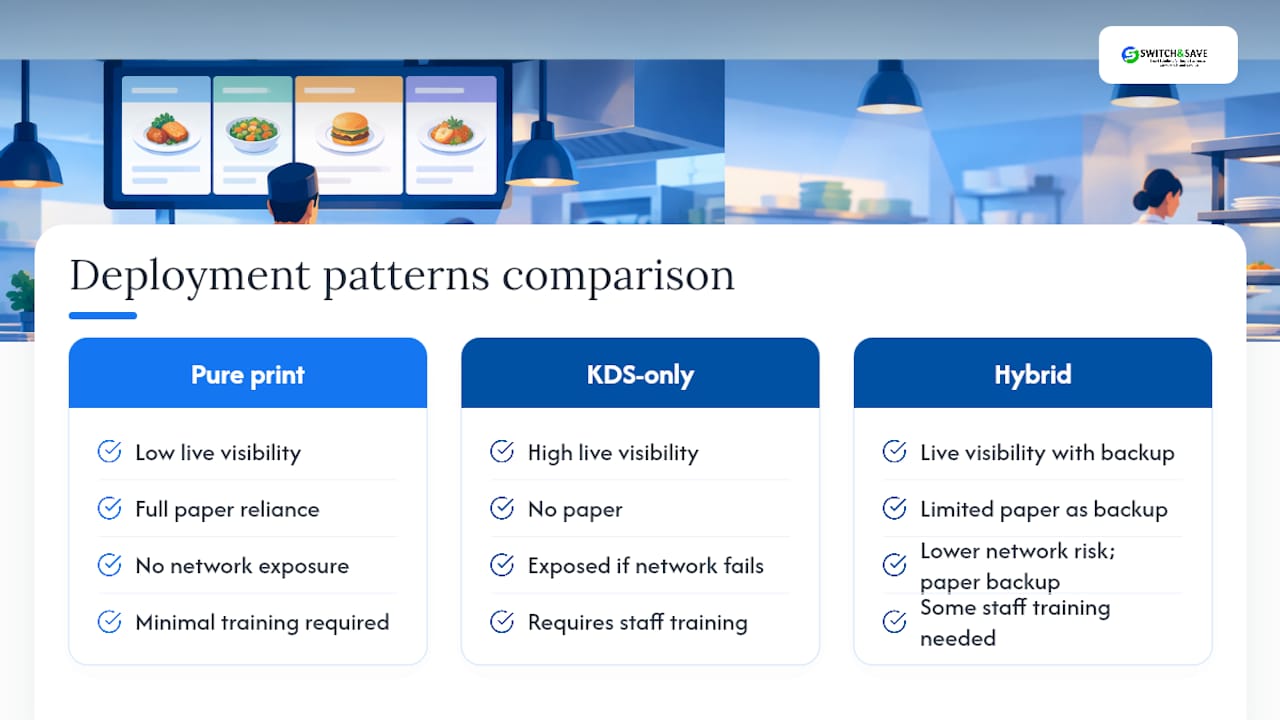
Pure print keeps every station on paper, which is simplest to maintain but weakest on visibility. KDS-only removes paper entirely, which works well once staff are trained but leaves you exposed if the network drops. Hybrid runs screens at each station with a printer at the pass as an authoritative backup, giving you both live visibility and a paper fallback if anything fails.
Wired connections in the back-of-house are worth the extra cabling cost, since Wi-Fi drops under kitchen conditions (steam, metal surfaces, distance from the router) far more often than most operators expect. A cloud-based KDS should ideally sit on its own circuit or even a small UPS, so a breaker trip doesn’t take down every screen mid-service. Standardising on one or two printer models across your sites, and keeping spares on hand, reduces downtime significantly compared with a mismatched fleet of ageing hardware. Treat your EPOS, KDS, and printers as one connected system rather than three separate purchases, because that’s how they actually behave once installed.
What does a KDS or printer setup actually cost?
Printers cost less upfront and have no software subscription, but ribbon, paper, and occasional hardware replacement add up over a few years. A KDS usually means a larger initial spend on screens and controllers, plus a monthly software fee, but it removes consumable costs almost entirely.
Hidden costs on both sides catch people out: rewiring an older kitchen for reliable network points, staff time lost to retraining, and the cost of a proper redundancy plan if you go KDS-only. A KDS tends to earn back its cost fastest in high-volume, multi-site operations where the operational data it generates actually gets used to cut labour waste. A single-site café doing 40 covers a day may never recoup a full KDS investment, whereas a three-site quick-service group juggling delivery apps almost certainly will.
How does integrated EPOS, KDS and printer hardware work in practice?
The strongest setups don’t treat EPOS, kitchen display, and printers as three separate decisions. They treat them as one workflow where an order placed at the till, on a kiosk, or through a delivery app lands on the right screen or printer automatically, with no manual re-entry anywhere in the chain.
When you’re evaluating a vendor, prioritise a real-time dashboard that shows sales and kitchen performance together, remote menu control so price or item changes push out instantly across every terminal, and support based in the UK so a fault at 7pm on a Friday doesn’t sit in an overseas queue. One café group that integrated its KDS with EPOS and handheld devices across three locations reported fewer remakes and clearer communication between front and back of house once the systems stopped operating in isolation. That’s the practical payoff of integration: fewer errors, and metrics that live in one place instead of three.
How do you run a one-week pilot before committing?
A short, well-scoped pilot beats months of deliberation.
- Scope it tightly. Pick one station, one shift pattern, and name a staff champion who’ll actually use the new setup and report back honestly.
- Train, then shadow. Run a proper training session, then shadow two full services with the printer kept live at the pass as a fallback.
- Measure what matters. Track ticket time, remake rate, and ask staff directly whether they trust the screen over the printer.
- Decide after two to four services. Extend the trial if the numbers and staff feedback are positive; revert without embarrassment if they aren’t.
Installation and maintenance: what to expect from each
Installing a kitchen printer is usually quick: a network or serial cable, a driver setup on the EPOS side, and you’re printing tickets within an hour or two in most cases. Maintenance is mechanical rather than technical. You’re replacing thermal paper rolls, occasionally swapping print heads, and clearing the odd jam. Most restaurant staff can handle this without calling anyone.
A KDS installation takes longer and involves more planning. You’re mounting screens (often above or beside each station, angled to survive steam and grease), running network cabling if you’re avoiding Wi-Fi, and configuring routing rules so each dish goes to the correct display. Cloud-based systems need a reliable, ideally wired, internet connection, and local controller setups need someone competent to manage the on-site hardware.
Ongoing maintenance for a KDS is less physical and more about software: applying updates, managing user permissions if staff turnover is high, and occasionally replacing a screen that’s taken a knock during a busy service. Screens in a kitchen environment need to be rated for heat and moisture, which is why cheap consumer monitors tend to fail faster than purpose-built kitchen displays.
Whichever route you choose, budget for spares. A single spare printer or screen sitting in a cupboard, already configured and ready to swap in, turns a mid-service failure from a crisis into a five-minute fix. This is the single most overlooked line item in most kitchen technology budgets, and it costs a fraction of what an hour of stalled service does.
How well does each option integrate with your POS system?
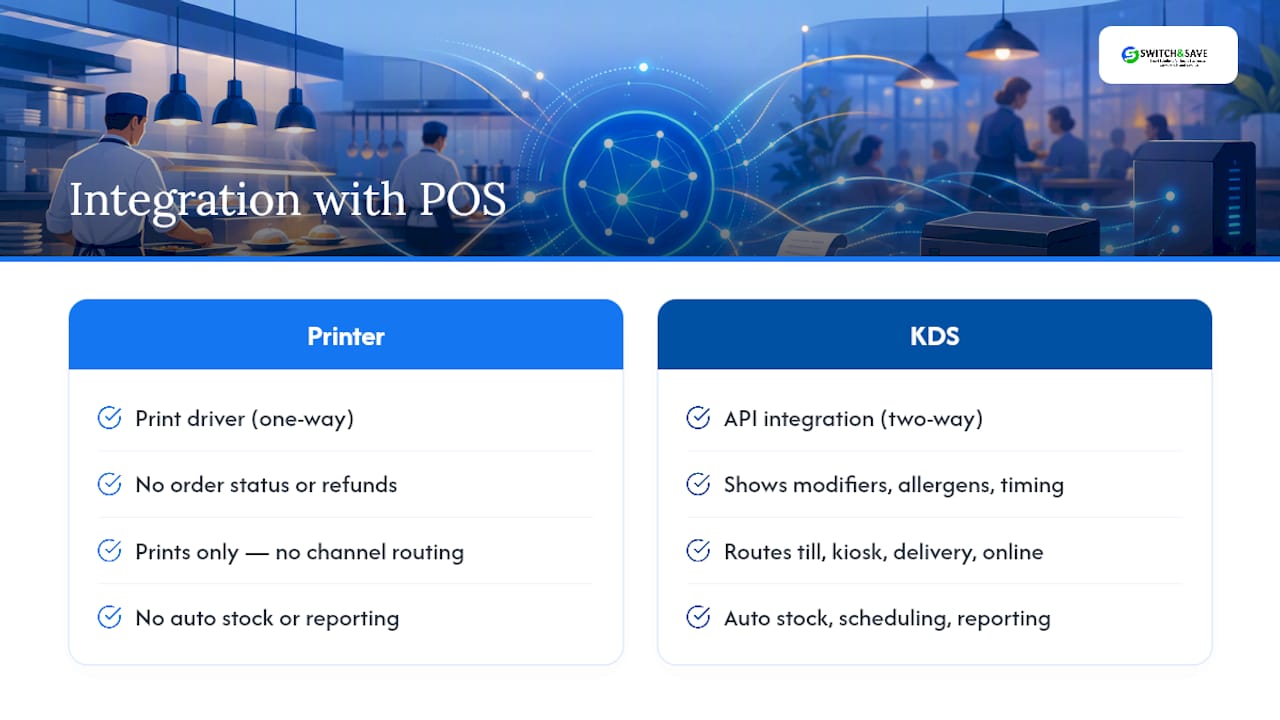
Integration quality varies enormously between providers, and it’s the single biggest factor in whether either system actually reduces errors or just adds a second point of failure. A kitchen printer typically connects to the EPOS through a simple print driver, which works reliably but offers no two-way communication. The printer doesn’t know if an item was refunded, and the EPOS doesn’t know if the ticket ever printed successfully.
A KDS, done properly, integrates far more deeply. Orders from the till, a kiosk, a delivery app, and online ordering can all route through the same system and appear correctly formatted on the same screens, with modifiers, allergens, and course timing all visible. This only works if your EPOS provider and KDS provider actually talk to each other through a proper API rather than a workaround, so it’s worth asking vendors directly how their systems exchange data, not just whether they’re “compatible.”
Beyond the kitchen, integration extends to inventory management, staff scheduling, and reporting. An order that fires correctly on a KDS should also decrement stock automatically and feed into your end-of-day sales reports without anyone re-entering data by hand. That’s where a genuinely integrated dual screen EPOS with a built-in printer setup earns its keep: one system handling front-of-house sales, kitchen routing, and reporting, rather than three separate tools you’re manually reconciling at the end of each shift.
Poor integration shows up fast: duplicate tickets, orders that print but never appear on a screen, or stock counts that drift because a channel wasn’t connected properly. Ask any vendor for a live demonstration of an order moving from a delivery app through to the kitchen display before you sign anything.
Does order accuracy and speed differ by restaurant type?
The impact of printers versus a KDS isn’t uniform. It depends heavily on what kind of kitchen you’re running. A single-station takeaway with a short, unchanging menu often sees little accuracy benefit from a screen, because there’s rarely any coordination problem to solve in the first place. A printer does the job with no added complexity.
A multi-station casual dining kitchen tells a different story. Orders with several modifiers, allergen flags, and course timing (starters out before mains, for instance) benefit substantially from a screen that displays all of that clearly and updates the moment something changes. Miscommunication between the grill, the salad station, and the pass is exactly the failure mode a KDS is designed to eliminate.
Quick-service and delivery-heavy operations see perhaps the largest accuracy gains, because they’re juggling multiple order channels simultaneously; till, app, kiosk, and third-party delivery, all needing to land in the kitchen in a consistent format. A printer handling four separate order sources tends to produce a chaotic pile of tickets in different formats, which is exactly where errors creep in. KDS integration with POS and handheld devices has been linked to fewer remakes and better transparency in operations handling this kind of order complexity.
Fine dining sits somewhere in between. Ticket volume is usually lower, but course timing and precision matter enormously, and a KDS’s ability to flag when a table’s mains should fire, based on when starters were cleared, is a genuine accuracy advantage that paper simply can’t replicate.
What are the environmental and sustainability trade-offs?
Kitchen printers consume thermal paper continuously, and a busy kitchen can go through several rolls a day. That paper is generally not recyclable in standard streams because of the thermal coating, so it typically ends up as general waste. Multiply that across every station in a multi-site operation and the annual paper consumption becomes a meaningful, and entirely avoidable, waste stream.
A KDS removes that consumable entirely. There’s no ongoing paper waste, no ribbon cartridges to dispose of, and no ink. The environmental cost shifts instead to the manufacturing and eventual disposal of the screens themselves, along with the electricity they draw during service hours, which is a real but different kind of footprint.
For operators genuinely weighing sustainability alongside cost, the calculation tends to favour a KDS the longer it stays in service and the higher your ticket volume. A screen replacing several printers across multiple stations in a high-volume kitchen removes a continuous waste stream in exchange for a one-off manufacturing footprint. A single low-volume printer, by contrast, may generate less total environmental impact over its working life than installing and eventually disposing of a full display system that was never fully utilised.
The honest middle ground, and one worth mentioning to any supplier, is asking whether their printer paper is BPA-free and whether their display hardware carries any repairability or extended-warranty commitment, since a display kitchen kit that lasts eight years generates far less waste per year of service than one replaced every three.
What training challenges come with each system?
Printer training is close to instant. Most staff have used a paper ticket system in a previous job, and clearing, reprinting, or troubleshooting a jam takes minutes to teach. This is a genuine advantage during high staff turnover, which is common across UK hospitality.
KDS adoption is a different exercise entirely, and it’s where most rollouts succeed or fail based on implementation rather than the hardware itself. Staff need to learn a new interface, new gestures for bumping or recalling tickets, and a new mental model where an order isn’t “done” until it’s cleared on screen rather than physically crossed off. Chefs who’ve worked with paper for twenty years can be genuinely resistant to this change, not out of stubbornness, but because paper has never let them down in the way a frozen screen or a lost network connection can.
The practical fix is proper, hands-on training before go-live, not a five-minute walkthrough during a busy shift. Running the KDS alongside the printer for the first week or two, rather than switching cold, gives staff a safety net and builds trust in the new system gradually. Nominating one experienced staff member per shift as the go-to person for questions also reduces the number of small frustrations that otherwise snowball into “the screen doesn’t work” complaints within the first fortnight. Skipping this step is the single most common reason a KDS ends up ignored in the corner while the kitchen reverts to shouting across the pass.
Why most operators overthink this decision
Most kitchens don’t need a philosophical debate about paper versus screens. They need an honest look at their own ticket volume and menu complexity, followed by a two-service test to confirm what the numbers actually say. Too many operators either cling to printers out of habit long after their menu complexity has outgrown them, or rip out a working paper system for a screen nobody asked for and half the kitchen resents within a month.
The mistake I see most often isn’t choosing the wrong technology. It’s skipping the pilot and the training, then blaming the hardware when adoption fails. A hybrid setup, screen at the station, printer at the pass, removes almost all the risk of that mistake, because nobody’s ever fully cut off from the workflow they already trust. Measure two services properly before you commit to anything permanent, rather than imagining how it’ll go.
— Amir
Get help planning your EPOS, KDS and printer setup
Choose a solution that provides one integrated system instead of three separate purchases to reconcile at the end of every shift, with transparent pricing and no hidden fees. The Hospitality EPOS Bundle is priced at £549 one-off, with AI-powered cloud software available from £20 per month, covering the real-time dashboard, remote menu control, and UK-based support that any hybrid or KDS rollout genuinely needs.
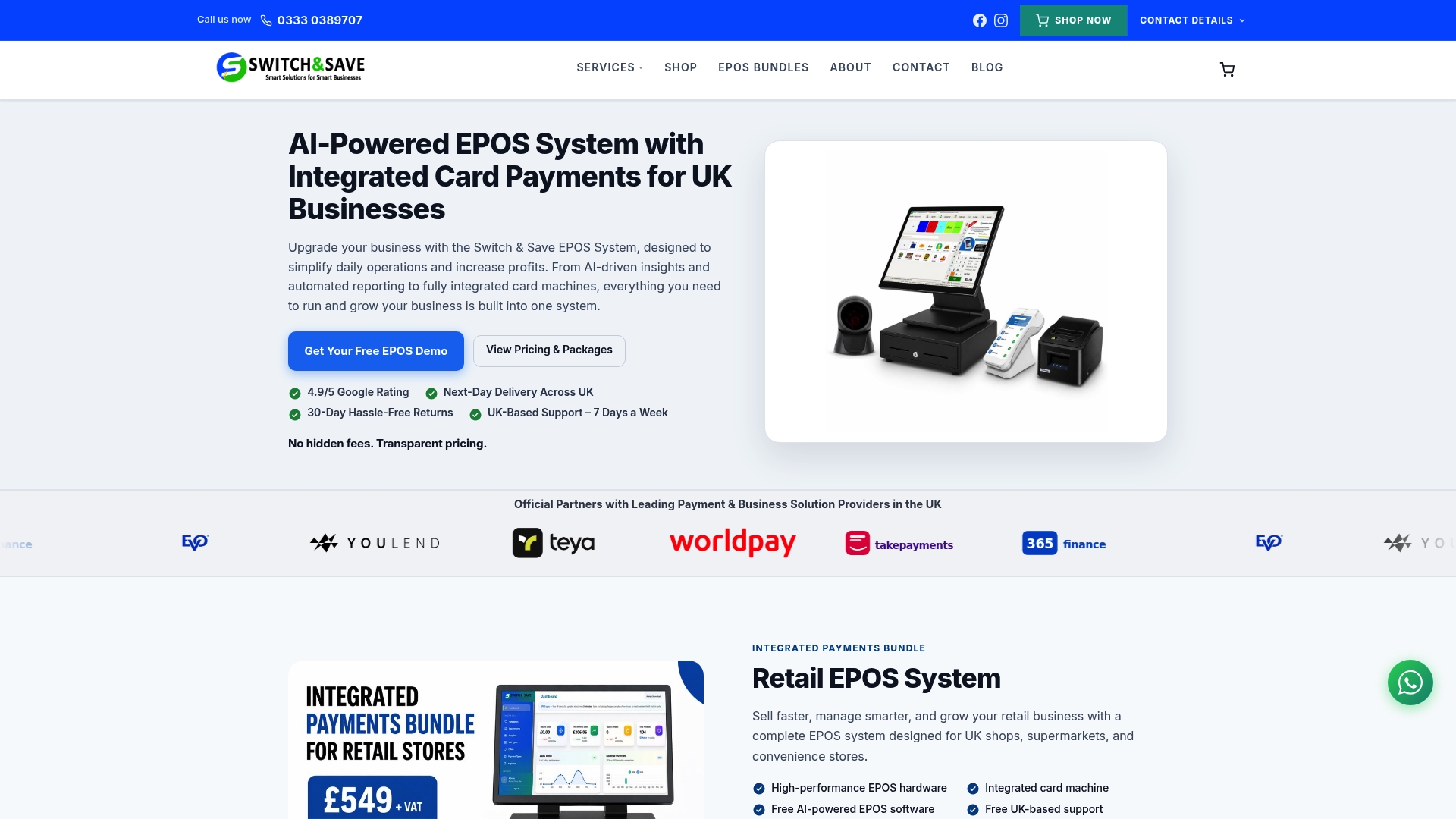
If you’re planning a pilot, migrating from an existing printer-only setup, or weighing whether hybrid makes sense for your kitchen, get in touch to talk through rewiring options and redundancy planning before you commit to hardware. Switch-and-save also offers free demos and UK-based support throughout, so you can see the dashboard and menu controls running before deciding anything. Book a demo through the hospitality EPOS system page to get a clear view of how it would run in your kitchen.
Sources
- KDS, EPOS & Printers: Integration Matters | CloudMatters
- How this cafe reduced queue times and optimised operations at three locations – UKHospitality
FAQ
What is the best kitchen display system?
There isn’t a single “best” system; the right choice depends on your ticket volume, number of stations, and whether you need multi-site visibility. Look for real-time updates, clear modifier handling, and solid integration with your EPOS, since integration quality is what actually determines whether a KDS improves accuracy rather than the brand of screen you buy.
What is the main difference between a monitor and a printer?
A kitchen printer produces a fixed paper ticket the moment an order fires, with no further updates. A kitchen display monitor shows the order on screen and keeps refreshing it live as items are prepped, cancelled, or bumped, giving every station the same real-time view.
How much does a kitchen display system cost?
KDS pricing varies by hardware and provider, typically involving an upfront cost for screens and controllers plus an ongoing software subscription. Switch-and-save’s AI-powered cloud software, which covers dashboard and remote menu control features relevant to KDS deployments, is priced from £20 per month.
How much does a kitchen printer typically cost?
Kitchen printers generally involve a lower upfront cost than a full KDS installation, since thermal printer hardware and setup are simpler and cheaper to deploy than screen-based systems. Ongoing costs come mainly from paper and ribbon rather than a monthly subscription.
Should I choose printers, a KDS, or hybrid for my kitchen?
Printers suit low-volume, single-station kitchens with simple menus. A KDS or hybrid setup tends to pay back faster in high-volume, multi-station, or multi-site operations, particularly those juggling delivery apps alongside dine-in orders. Running a short pilot with both systems side by side is the most reliable way to decide.