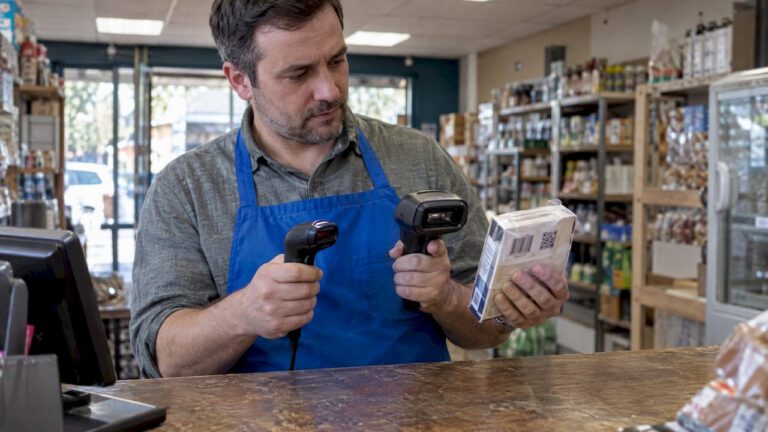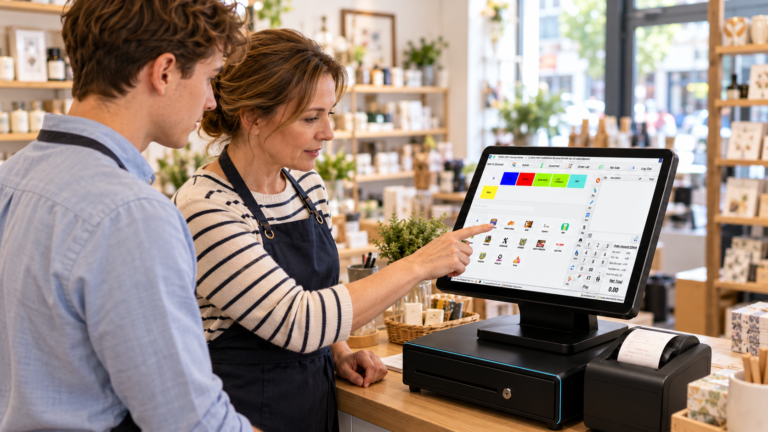
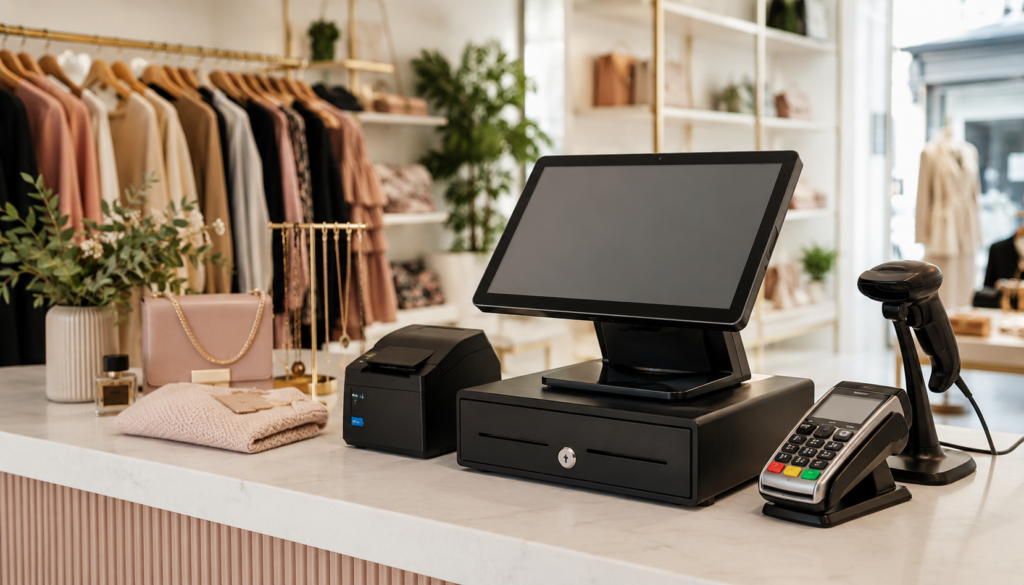
To install and set up an EPOS bundle for a boutique shop, you need to position and connect the hardware, install the EPOS software, add your products and inventory, configure payment processing, create staff accounts, test transactions, and train employees before going live.
Most modern EPOS bundles are designed to be operational within a few hours rather than days. A properly configured system can help boutique owners manage stock, track sales, process payments, monitor customer preferences, and improve overall store efficiency.
For UK boutique retailers, choosing a complete EPOS bundle often makes installation easier because the hardware and software are already designed to work together.
Key Takeaways
| Topic | Key Information |
|---|---|
| Installation Time | Usually a few hours |
| Internet Required | Recommended for cloud features |
| Product Setup | Add inventory before opening |
| Staff Accounts | Create separate permissions |
| Payment Setup | Connect integrated card machine |
| Testing | Run sample transactions before launch |
| Best Practice | Complete full setup before serving customers |
What Is an EPOS Bundle?
An Electronic Point of Sale (EPOS) bundle is a complete package containing the hardware and software needed to manage sales and business operations.
Typical bundles include:
- Touchscreen EPOS terminal
- EPOS software
- Receipt printer
- Barcode scanner
- Cash drawer
- Customer display
- Card payment integration
- Back-office reporting tools
You can explore available EPOS bundles through Switch & Save’s EPOS bundle collection:
For boutique shops, having all components supplied together reduces compatibility issues and speeds up installation.

Why Boutique Shops Need an EPOS System
Boutique stores often manage:
- Clothing
- Footwear
- Accessories
- Jewellery
- Gifts
- Seasonal products
Tracking these products manually can become difficult as inventory grows.
An EPOS system helps by:
Improving Stock Control
You can see exactly what products are selling and what needs replenishment.
Speeding Up Checkout
Transactions are processed quickly, reducing queues and improving customer experience.
Managing Product Variants
Boutiques often sell products with different:
- Sizes
- Colours
- Styles
EPOS software can track these variations automatically.
Monitoring Performance
Sales reports reveal:
- Best-selling products
- Slow-moving inventory
- Peak trading times
- Staff performance
Many of these advantages are explained in our guide, read here.
What Is Included in an EPOS Bundle?
Most boutique retailers require:
EPOS Terminal
The touchscreen computer where sales are processed.
Receipt Printer
Prints customer receipts and transaction records.
Barcode Scanner
Speeds up checkout and inventory management.
Cash Drawer
Stores cash securely and opens automatically during transactions.
Customer Display
Shows transaction totals and payment information.
Card Payment Integration
Allows customers to pay by debit or credit card.
Cloud Reporting Dashboard
Lets owners view sales and inventory remotely.
Preparing for Installation
Before installing your EPOS bundle, prepare the following:
Stable Internet Connection
Cloud reporting, updates, and synchronisation require internet access.
Product Information
Gather:
- Product names
- Prices
- Barcodes
- Categories
- Sizes
- Colours
- Current stock levels
Counter Space
Ensure sufficient room for:
- EPOS terminal
- Printer
- Card machine
- Cash drawer
Power Outlets
Verify adequate power sockets near the checkout area.
Proper preparation significantly reduces installation time.
Step-by-Step EPOS Installation Guide
Step 1: Position the Hardware
Place the equipment in logical locations.
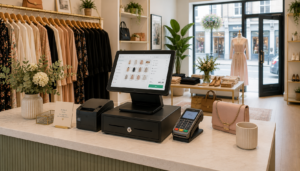
Typical layout:
- EPOS screen facing staff
- Customer display facing customers
- Card machine within reach
- Receipt printer nearby
- Cash drawer underneath counter
Keep cables organised to avoid safety hazards.
Step 2: Connect the Devices
Connect:
- EPOS terminal
- Receipt printer
- Barcode scanner
- Customer display
- Card machine
Most modern systems connect using:
- USB
- Ethernet
- Wi-Fi
- Bluetooth
Power on all devices and confirm they are recognised.
Step 3: Install EPOS Software
Many modern systems arrive pre-configured.
If installation is required:
- Sign in to the EPOS platform.
- Download updates.
- Configure store information.
- Enter VAT settings.
- Set receipt details.
Include:
- Business name
- Address
- Telephone number
- VAT registration details
Step 4: Configure Store Settings
Set up:
Tax Settings
Apply correct UK VAT rates.
Receipt Settings
Customise receipts with:
- Logo
- Contact details
- Return policy
Opening Hours
Useful for reporting and scheduling.
Setting Up Inventory and Products
Inventory setup is often the most important stage.
Create Product Categories
Examples:
- Women’s Clothing
- Men’s Clothing
- Jewellery
- Accessories
- Handbags
- Footwear
Add Products
Each item should include:
- Product name
- SKU
- Barcode
- Price
- Cost price
- Category
Add Variants
Boutiques commonly sell:
Clothing
- Small
- Medium
- Large
Colours
- Black
- White
- Blue
- Red
The EPOS system should track each variant separately.
Import Stock Levels
If you already have inventory data, many systems allow spreadsheet imports, saving hours of manual entry.
Configuring Payment Processing
Integrated payments create a smoother customer experience.
Modern systems allow customers to:
- Tap cards
- Insert chip cards
- Use Apple Pay
- Use Google Pay
Integrated payment solutions automatically:
- Record sales
- Match transactions
- Reduce errors
- Simplify reconciliation
This eliminates the need to manually enter transaction totals into separate card terminals.
Training Staff and Testing the System
Before opening for business:
Create Staff Accounts
Assign permissions based on roles.
Examples:
Sales Assistant
- Process sales
- Issue refunds
Store Manager
- Access reports
- Manage inventory
- Configure settings
Conduct Test Transactions
Run several sample sales:
- Cash payment
- Card payment
- Refund
- Discount
- Receipt printing
Verify everything works correctly.
Train Employees
Teach staff how to:
- Process sales
- Search products
- Scan barcodes
- Apply discounts
- Process returns
- Handle customer enquiries
Even a brief training session can significantly improve confidence and efficiency.
Common EPOS Installation Mistakes
Avoid these common issues:
Skipping Product Setup
Incomplete inventory leads to inaccurate reporting.
Not Testing Payments
Always verify payment processing before opening.
Ignoring Staff Permissions
Too much access can increase risk of mistakes.
Poor Hardware Placement
A cluttered checkout area slows transactions.
Failing to Back Up Data
Ensure cloud backups are enabled where available.
Boutique Shop Example
Imagine a boutique fashion retailer in Birmingham.
The owner installs:
- Touchscreen EPOS terminal
- Receipt printer
- Integrated card machine
- Barcode scanner
They upload:
- 1,200 products
- 8 clothing categories
- Multiple size and colour variations
Within the first month they identify:
- Their best-selling handbag collection
- Slow-moving winter stock
- Peak Saturday trading periods
Using sales reports, they adjust purchasing decisions and improve stock turnover.
This demonstrates why EPOS systems have become essential tools for modern boutique retailers.
Why Choose Switch & Save?
Switch & Save is a UK-based provider of EPOS systems, card payment solutions, business finance, and utility switching services, helping small businesses reduce costs and improve efficiency.
Our EPOS solutions are designed to support:
- Retail shops
- Boutiques
- Hospitality businesses
- Cafés
- Restaurants
- Takeaways
- Convenience stores
Businesses looking to expand online may also benefit from integrated ordering capabilities discussed in our guide: Read here
Whether you operate a single boutique or multiple retail locations, a properly configured EPOS bundle can streamline operations and provide valuable business insights.
Installing and setting up an EPOS bundle for a boutique shop is straightforward when approached step by step.
The process involves:
- Installing hardware
- Configuring software
- Adding products
- Connecting payment processing
- Creating staff accounts
- Testing transactions
A well-configured EPOS system helps boutique owners improve stock management, speed up checkout, gain better visibility into sales performance, and deliver a more professional customer experience.
Frequently Asked Questions
How long does it take to install an EPOS bundle?
Most boutique shops can complete installation within a few hours, although inventory setup may take longer depending on the number of products.
Do I need internet access for my EPOS system?
Most cloud-based systems perform best with internet access, although some features may continue operating offline temporarily.
Can I connect my card machine to the EPOS system?
Yes. Many modern EPOS bundles support integrated payment processing, reducing manual entry and improving accuracy.
Can an EPOS system manage clothing sizes and colours?
Yes. Most retail EPOS systems support product variants such as size, colour, style, and material.
Is EPOS suitable for small boutique shops?
Absolutely. Even small boutiques benefit from improved inventory control, faster checkout, better reporting, and customer management.
Switch & Save helps UK businesses reduce costs with AI-powered EPOS systems, card payment solutions and business finance. Check your savings today.