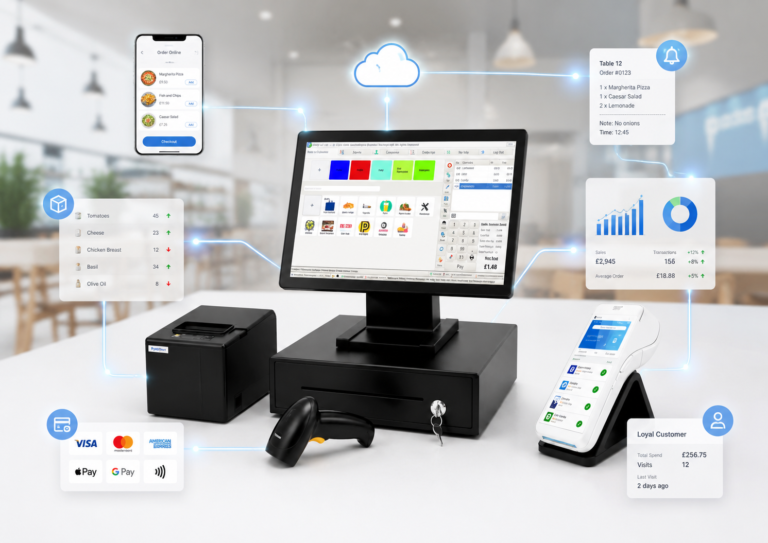

Switching POS systems workflow is the structured process of replacing one point-of-sale system with another while keeping your business running without costly interruptions. For retail and hospitality owners, a poorly managed POS system transition can mean lost sales, corrupted data, and frustrated staff. Done properly, it means better reporting, faster checkouts, and a system that actually fits how your business operates. This guide walks you through every stage of changing point-of-sale systems, from the initial data audit right through to post-launch troubleshooting, using 2026 best practices drawn from real migration experience.
What must you do before switching POS systems?
Preparation is the single biggest factor in whether your POS system transition succeeds or stalls. 60% of POS implementation delays are caused by inadequate data preparation, with 15% of those delays traced directly to duplicate or outdated records. That means most migration problems are preventable before you even touch the new system.
Start by completing a full data audit of your current setup. You need to know exactly what you have before you can move it.
- Export all critical data including your product catalogue, customer records, and transaction history as CSV files. Export this data before you cancel your existing subscription, not after.
- Clean your product list. Remove discontinued items, fix pricing errors, and standardise category names. Small errors add up fast when you are importing thousands of SKUs.
- Assess your hardware. Check whether your existing receipt printers, barcode scanners, and card readers are compatible with the new system. Some peripherals will need replacing.
- Coordinate with your payment provider. Confirm that your card processing setup, whether through a provider like Worldpay, Barclaycard, or a built-in payment integration, will work with the incoming system.
- Map your migration timeline around your quietest trading period. Avoid peak seasons, bank holidays, and promotional events.
Pro Tip: Back up your exported CSV files to at least two locations, such as a cloud drive and a local hard drive, before you begin any migration work.
If you are still weighing up whether your current system is worth replacing, the EPOS upgrade checklist from Switch-and-save is a practical starting point.
How do you import and configure a new POS system?
A successful POS system integration follows a clear sequence. Rushing any stage creates problems that are harder to fix once you are live.
- Import your product catalogue. Map your CSV column headers to the fields the new system expects. Common mismatches include “SKU” versus “Item Code” and “Category” versus “Department.” Fix these before importing, not after.
- Handle customer data carefully. Most systems accept name, email, phone, and loyalty points. Customer sales history typically cannot transfer directly, so treat your go-live date as a fresh start for transaction records.
- Create employee profiles. Set up individual logins with role-based permissions. A cashier should not have access to refund settings or end-of-day reports by default.
- Configure tax settings. In the UK, this means setting VAT rates correctly for each product category. A 20% rate applied to a zero-rated food item will cause accounting headaches immediately.
- Integrate payment processing. Test card payments, contactless, and any digital wallet options before going live. Do not assume the integration works because the setup wizard says it does.
- Install and test hardware. Connect printers, scanners, and cash drawers, then run a full end-to-end transaction test.
The table below shows the most common configuration tasks and their typical completion order:
| Stage | Task | Common Pitfall |
|---|---|---|
| 1 | Product catalogue import | Mismatched CSV field names |
| 2 | Customer data import | Expecting sales history to transfer |
| 3 | Employee account setup | Missing role-based permission settings |
| 4 | Tax and VAT configuration | Wrong rates applied to exempt items |
| 5 | Payment processing test | Assuming integration works without testing |
| 6 | Hardware connectivity check | Testing components in isolation, not together |
Hardware compatibility issues often cause invisible failures at go-live. Testing full transaction workflows, rather than individual components in isolation, is the only reliable way to catch these problems in advance.

Pro Tip: Archive your old sales data by importing it into accounting software like QuickBooks or Xero. This keeps your historical records intact for tax and audit purposes without cluttering your new POS.
How do phased rollouts reduce risk during POS transitions?
The biggest mistake retail and hospitality businesses make is treating a POS migration like flipping a switch. Retail and hospitality experts recommend phased rollouts over big bang cutovers precisely because the stakes are too high to discover problems mid-service.
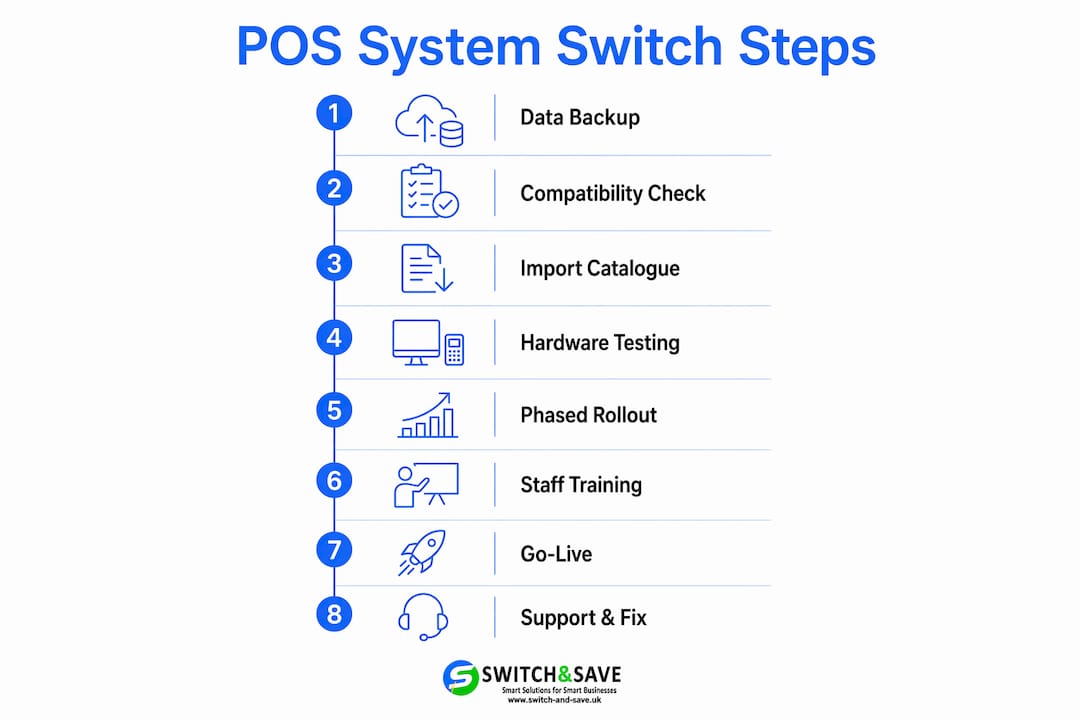
A phased approach means routing a small portion of real transactions through the new system first. This could be one till in a multi-terminal shop, or the bar area in a restaurant while the kitchen display stays on the old system. Pilot transaction routing identifies integration gaps without putting your entire cash flow at risk.
The core benefits of phasing your migration include:
- Early detection of integration errors before they affect your busiest terminals
- Reduced pressure on staff who are learning the new interface alongside real customers
- A clear rollback path if a critical issue appears, since your legacy system is still operational
- Confidence building across your team before full deployment
Running both systems in parallel for even a few days gives you a comparison point. If your end-of-day totals on the new system do not match what you expect, you can cross-reference against the old one before the discrepancy becomes a problem.
A phased rollout is not a sign of hesitation. It is the most professional way to protect your revenue while you validate that everything works exactly as it should.
A successful POS migration typically takes 7–10 days from purchase to go-live, with the actual cutover often completed within a single shift. Phasing does not extend this timeline significantly. It just makes the cutover far less stressful.
What are the best practices for staff training and go-live day?
Staff readiness is where many POS transitions quietly fall apart. A system can be configured perfectly and still cause chaos on day one if your team has not had proper preparation.
Role-based training sessions are the most effective approach. A cashier needs to know how to process a sale, apply a discount, and handle a return. A manager needs to know how to run reports and manage stock adjustments. Mixing these into one generic session wastes time and leaves people confused about what applies to them.
- Keep sessions short and focused. Thirty minutes of role-specific practice beats two hours of general demonstration.
- Provide quick-reference guides. A laminated one-page cheat sheet at each till is worth more than a full manual in a drawer.
- Use video walkthroughs for staff who miss live training or need a refresher during the first week.
- Choose your go-live date carefully. A Tuesday morning in a quiet trading week is far safer than a Friday before a bank holiday weekend.
- Have support on hand. Whether that is a supplier helpline, an on-site technician, or a senior team member stationed at the till, do not leave staff to troubleshoot alone on day one.
Pro Tip: Run a full mock trading session the evening before go-live. Process test transactions, print receipts, and open the cash drawer. This catches last-minute configuration issues when you still have time to fix them.
For guidance on choosing the right retail POS system before you reach the training stage, Switch-and-save has a detailed breakdown of what to look for.
What common issues arise after switching POS systems?
Post-migration problems are normal. The goal is to catch them quickly and resolve them before they affect your customers or your accounts.
- Data import errors. Product prices, VAT codes, or category assignments may have imported incorrectly. Run a spot-check of 20–30 items across different categories on day one. Compare the system display against your original product list.
- Payment processing failures. If card transactions are declining unexpectedly, check that your payment terminal is correctly paired with the new POS and that your merchant account credentials have been entered accurately.
- Hardware connectivity problems. Receipt printers and barcode scanners sometimes lose their connection after a system restart. Confirm that device drivers are installed and that USB or network settings have not reset to defaults.
- Reporting discrepancies. If your end-of-day sales figures look wrong, check whether all terminals have been included in the report and whether any test transactions from setup have been voided correctly.
- Staff workflow confusion. If your team is slowing down at the till, identify the specific step causing the bottleneck. Often it is a single unfamiliar screen or an extra confirmation step that was not covered in training.
Escalate to your supplier’s technical support team if a payment integration issue persists beyond one trading session. Do not attempt to work around a payment problem with manual workarounds for more than a day. The risk to your accounts and customer trust is too high.
Key takeaways
A structured switching POS systems workflow, built on clean data, phased migration, and role-based training, is the most reliable way to change point-of-sale systems without disrupting your business.
| Point | Details |
|---|---|
| Clean data before you migrate | Remove duplicates and fix errors in your product list before exporting CSV files. |
| Archive sales history externally | Import old transaction data into QuickBooks or Xero rather than the new POS. |
| Phase your rollout | Start with one terminal or area to catch integration issues before full deployment. |
| Train by role, not by group | Give cashiers, supervisors, and managers separate focused sessions. |
| Test full workflows, not components | Run end-to-end transactions to catch hardware and payment issues before go-live. |
What i have learned from managing POS transitions
After working with dozens of retail and hospitality businesses through POS migrations, the pattern I see most often is this: businesses that struggle are the ones that underestimate preparation and overestimate how quickly staff adapt.
The data preparation stage is where the real work happens. Most business owners want to skip straight to the exciting part, which is the new system. But a clean, well-structured product catalogue import saves you hours of manual correction after go-live. Every shortcut taken in the audit phase shows up as a problem on day one.
The other thing I would tell any business owner is to involve your team early. Not just in training, but in the decision. When your head cashier or floor manager has had input into the choice of system, they become your biggest advocate during the transition. When they feel it has been imposed on them, they become your biggest obstacle.
Realistic timelines matter too. A 7–10 day migration window is achievable, but only if your data is ready before the clock starts. Build in buffer time. The businesses that plan for things to go smoothly and leave no room for adjustment are the ones that end up trading on a broken system during their busiest week.
Change is worth it. A modern EPOS system gives you visibility, speed, and control that an outdated system simply cannot match. But the transition itself deserves the same respect you would give any major operational change.
— Amir
Ready to switch? Switch-and-save makes it straightforward
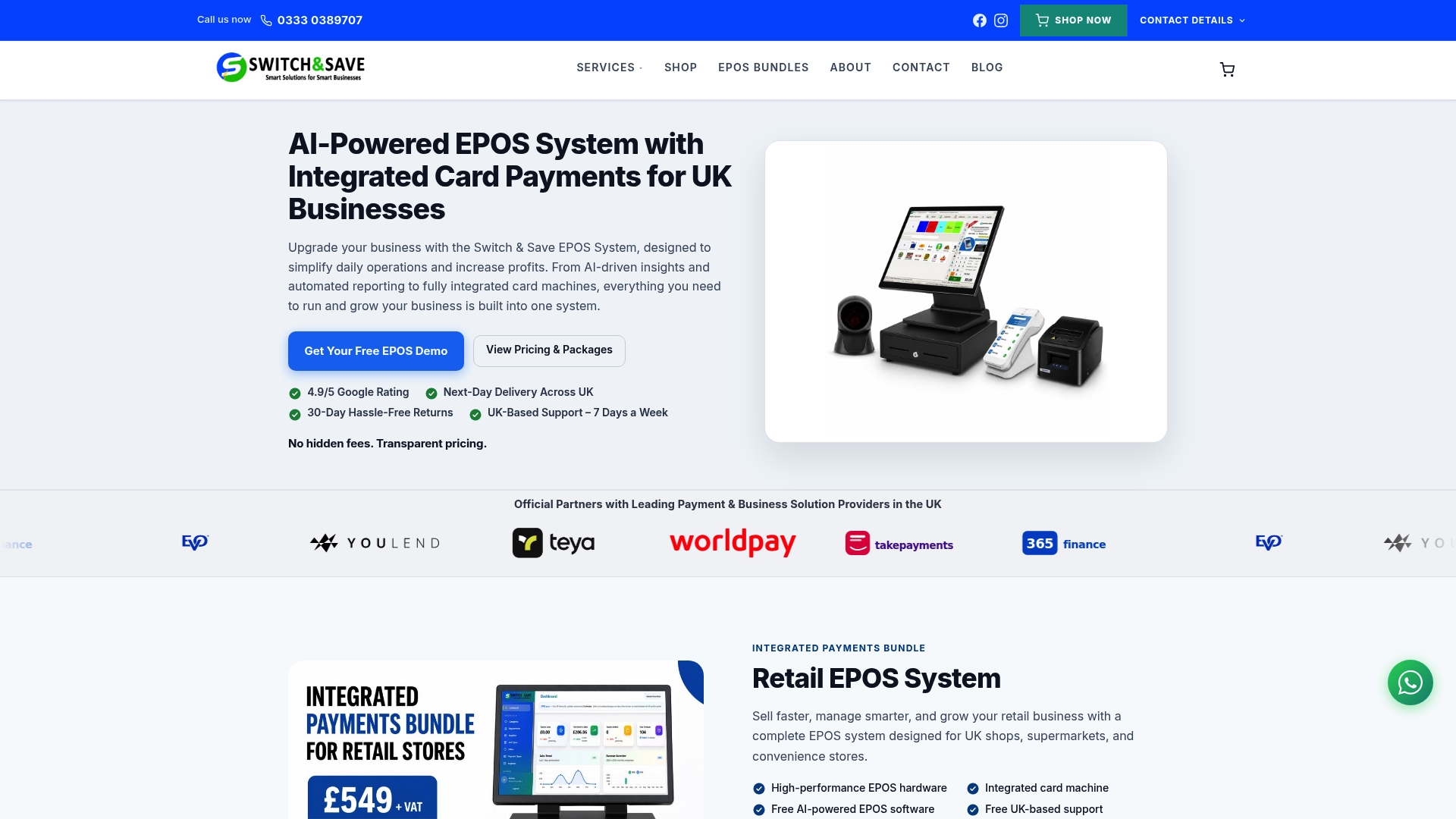
If you are planning a POS system transition for your retail or hospitality business, Switch-and-save has the hardware, software, and support to make it work. The EPOS systems range covers everything from single-till setups to multi-site operations, with AI-powered software, integrated payment processing, and a cloud dashboard for real-time oversight. Pre-configured EPOS bundles are available for both retail and hospitality, so you are not starting from scratch. UK-based support is included, and free demos are available so you can see the system in action before you commit. Explore the full range at Switch-and-save and take the first step towards a system that works as hard as you do.
FAQ
How long does switching POS systems typically take?
A POS system transition typically takes 7–10 days from purchase to go-live, with the actual cutover often completed within a single shift. Preparation time depends on the size and cleanliness of your existing data.
Can i transfer my sales history to a new POS system?
Sales history is best archived in accounting software like QuickBooks or Xero rather than migrated directly into a new POS. Treat your go-live date as a fresh start for transaction records.
What data should i export before cancelling my old POS?
Export your product catalogue, customer records, and transaction data as CSV files before cancellation. Back these up in at least two locations to protect against data loss.
What is the safest way to roll out a new POS system?
A phased rollout, starting with one terminal or section, is the safest approach. Pilot transaction routing identifies integration gaps before they affect your full operation.
How do i check my EPOS system is ready before i need to upgrade?
Use a structured checklist to assess whether your current system is meeting your needs. Switch-and-save offers a pre-switch EPOS checklist that covers the key evaluation points for UK retail and hospitality businesses.